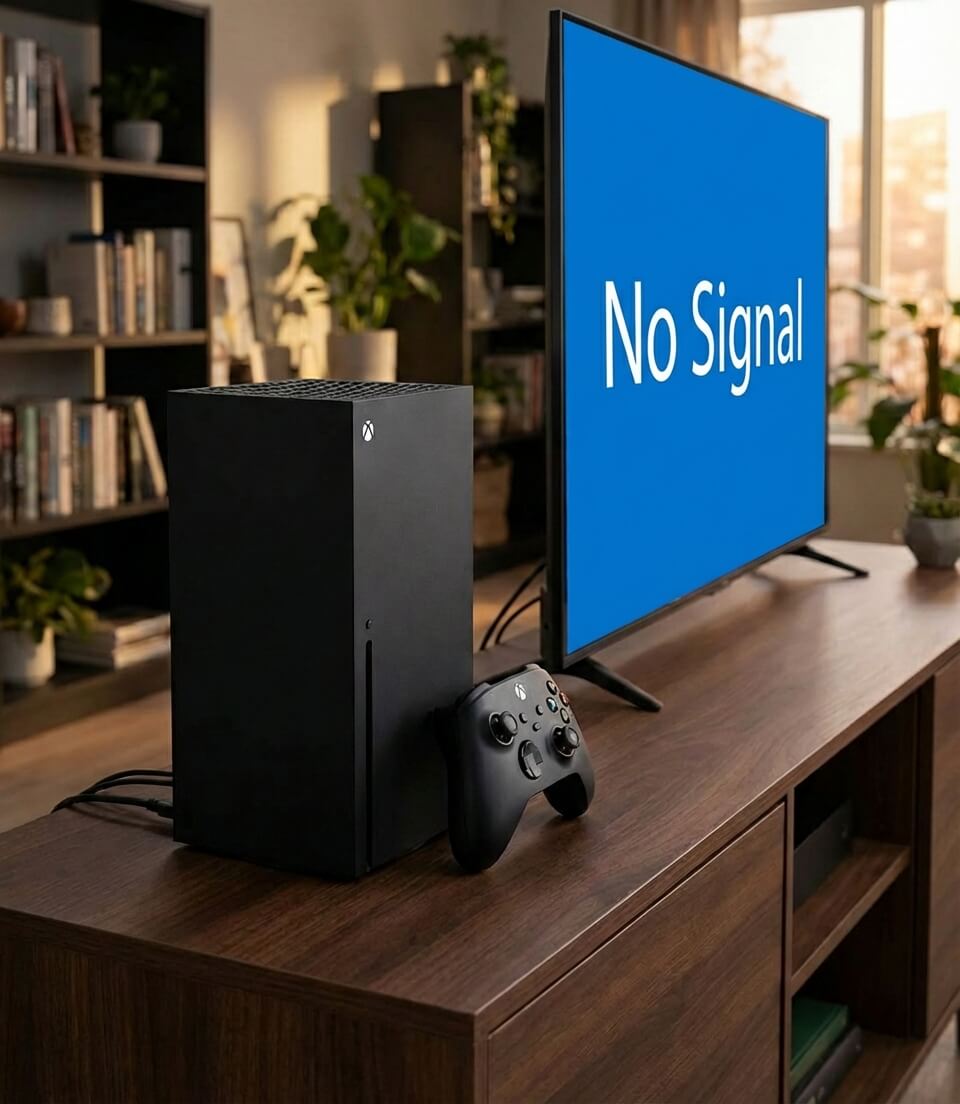
You’ve been looking forward to gaming all day. You fire up your Xbox Series X, grab the controller, and… nothing. Just a blank screen staring back at you. Maybe it says “No Signal.” Maybe it’s just black. Either way, your evening plans just hit a wall.
I’ve seen this exact scenario play out hundreds of times at our repair benches across Wesley Chapel, Holiday, and Hudson. The good news? Most Xbox Series X HDMI issues don’t require a soldering iron or a trip to Microsoft. Let’s walk through what’s actually going on and how to get you back in the game.
Why Your Xbox Series X HDMI Isn’t Working
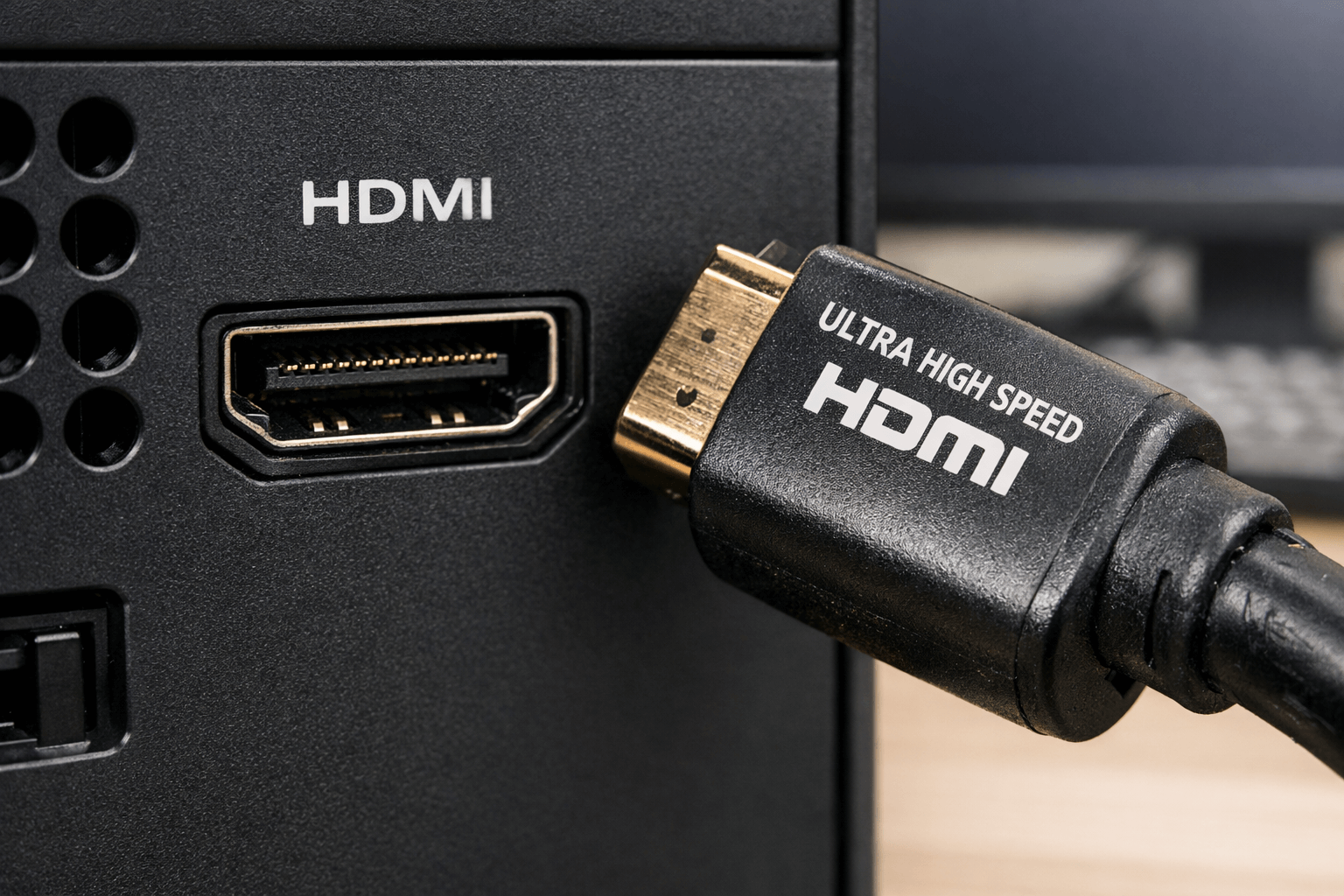
The Xbox Series X uses HDMI 2.1 technology, which is fantastic for 4K gaming at 120Hz but also means more can go wrong. Here’s what typically causes HDMI problems:
Cable Issues
- Damaged, kinked, or low-quality HDMI cables
- Using an older HDMI 2.0 cable that can’t handle your display settings
- Loose connections on either end
Port Problems
- Bent or broken pins inside the HDMI port
- Dust and debris blocking the connection
- Physical damage from bumping the console while plugged in
Settings Conflicts
- Resolution set higher than your TV supports
- Variable Refresh Rate (VRR) incompatibility
- 24Hz mode causing display issues with certain TVs
TV/Monitor Configuration
- Wrong HDMI input selected
- Enhanced HDMI mode not enabled on your TV
- Outdated TV firmware
Quick Fixes to Try First
Before diving into more involved troubleshooting, run through these basics:
1. Check Your Connections
Turn off your Xbox and TV. Unplug the HDMI cable from both ends. Look at each connector for bent pins or damage. Plug everything back in firmly—you should feel it click into place. Turn your TV on first, then your Xbox.
2. Try a Different HDMI Port on Your TV
Most TVs have multiple HDMI ports. Try each one. Some TVs only support HDMI 2.1 features on specific ports (often labeled “Game” or “4K/120Hz”). Switch your TV’s input to match the new port.
3. Test with a Different HDMI Cable
The cable that came with your Xbox Series X is an Ultra High Speed HDMI 2.1 cable rated for 48Gbps. If you’re using a different cable, especially one from an older console or device, it might not cut it. Borrow a known-good HDMI 2.1 cable or try the original one if you still have it.
4. Power Cycle Everything
Turn off your Xbox by holding the power button for 10 seconds. Unplug it from the wall. While you’re at it, unplug your TV too. Wait 2-3 minutes. Plug your TV back in and turn it on. Then reconnect and power on your Xbox.
Boot Your Xbox in Low Resolution Mode
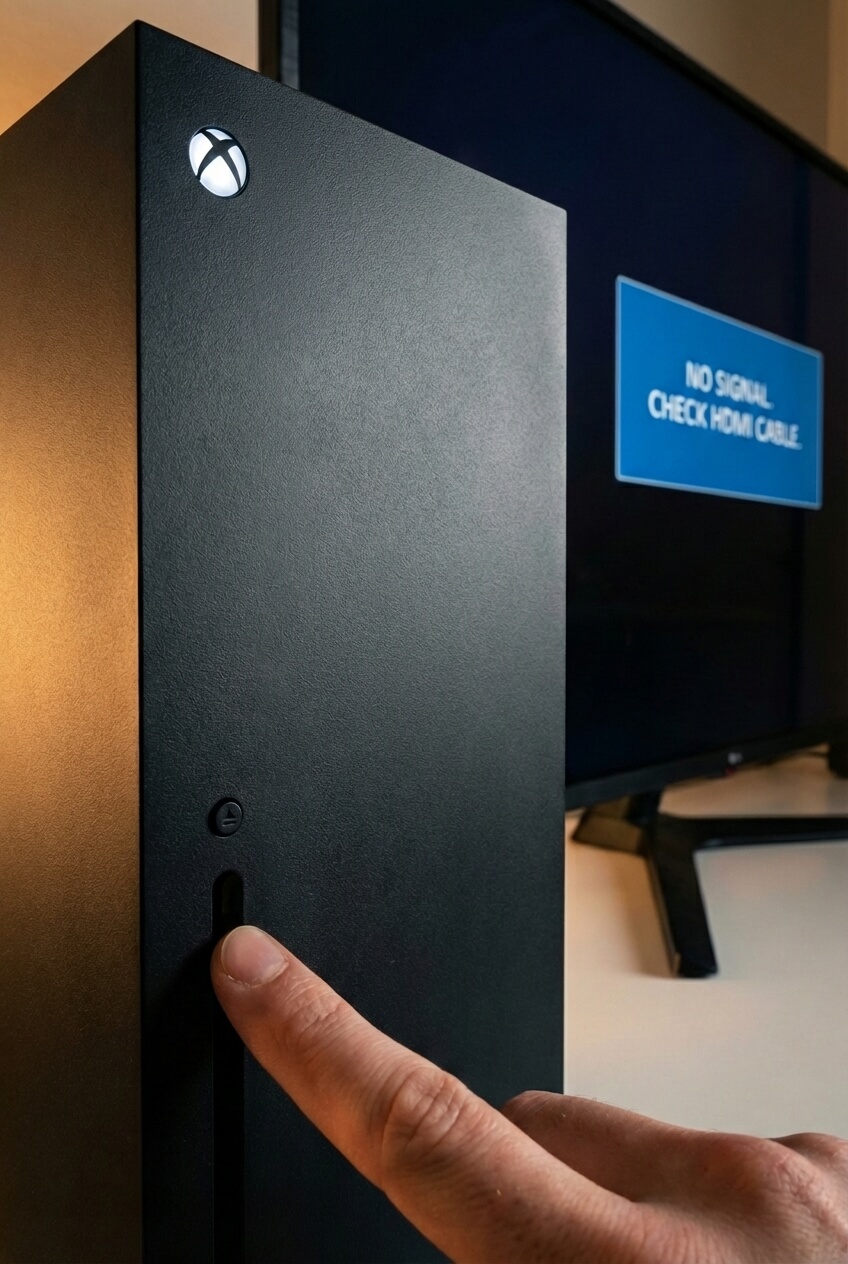
If your screen is completely blank, your Xbox might be outputting a resolution your TV can’t display. This happens when you switch to a new TV or accidentally change settings. Here’s how to force a 640×480 output that works with virtually any display:
For Xbox Series X:
- Make sure no disc is in the console
- Press and hold the power button for 10 seconds to fully shut down
- Press and hold BOTH the power button AND the eject button simultaneously
- Keep holding until you hear a second beep (about 10 seconds after the first)
- Release both buttons
For Xbox Series S (no eject button):
- Shut down the console completely
- Press and hold BOTH the power button AND the pair/bind button
- Hold until you hear the second beep
- Release
Your Xbox will now boot in low resolution mode. From here, go to Settings > General > TV & display options and set an appropriate resolution for your TV.
Adjust Display Settings That Cause Problems
Several Xbox display features can cause compatibility issues with certain TVs:
Disable 24Hz Mode
Some Blu-ray content triggers 24Hz mode, which certain TVs don’t handle well. Go to Settings > General > TV & display options > Video modes and uncheck “Allow 24Hz.”
Turn Off Variable Refresh Rate (VRR)
VRR is great when it works, but it causes black screens on some TV/console combinations. In the same Video modes menu, uncheck “Allow Variable Refresh Rate” and see if that fixes things.
Lower Your Resolution
Your Xbox might be trying to output 4K at 120Hz when your TV only supports 4K at 60Hz (or vice versa). Try setting the resolution manually to 1080p or 4K at 60Hz. If that works, you’ve identified a compatibility issue between your settings and your display’s capabilities.
TV-Specific Fixes to Try
Different TV brands have different quirks. Here are some manufacturer-specific solutions:
Samsung TVs
Enable Input Signal Plus to unlock full HDMI 2.1 bandwidth:
- Press the settings button on your remote
- Go to General > External Device Manager > Input Signal Plus
- Select the HDMI port your Xbox is connected to
- Restart both devices
LG TVs
Enable HDMI Ultra HD Deep Color:
- Go to Settings > All Settings > General > Devices > HDMI Settings
- Select the port your Xbox uses
- Turn on HDMI Ultra HD Deep Color
Vizio TVs
Enable Full UHD Color:
- Press the menu button and go to Picture Settings
- Select More Picture > Full UHD Color
- Toggle it on for the correct HDMI port
Sony TVs
Enable Enhanced Format:
- Go to Settings > Watching TV > External inputs > HDMI signal format
- Select Enhanced format for your Xbox’s HDMI port
Not Local to Florida? No Problem.
We offer fast, nationwide mail-in repair for Xbox Series X. Ship it to us, and we’ll have it fixed and back in the mail within 2-4 business days.
Update Everything
Outdated firmware causes more HDMI problems than most people realize.
Update Your TV
Check your TV manufacturer’s website or your TV’s settings menu for firmware updates. Samsung, LG, and Vizio TVs especially have released updates specifically to improve Xbox Series X compatibility.
Update Your Xbox
If you can get a picture (even in low resolution mode):
- Go to Settings > System > Updates
- Download and install any available updates
- Restart your console
If you can’t see anything, try connecting to a different TV temporarily just to perform the update.
When It’s Actually the HDMI Port
If none of the above fixes work, and you’ve confirmed the cable and TV are fine by testing other devices, the HDMI port on your Xbox might be damaged.
Signs of a Damaged HDMI Port
- Bent, broken, or missing pins inside the port
- The HDMI cable feels loose or doesn’t click in securely
- Visible cracks or physical damage around the port
- The issue persists across multiple TVs and cables
Why Xbox Series X HDMI Ports Fail
The Series X’s HDMI 2.1 port has 19 delicate pins. Common causes of damage include:
- Bumping the console while a cable is plugged in
- Forcing the cable in at an angle
- Repeatedly plugging and unplugging cables
- Moving the console without disconnecting the cable first
- Pets, kids, or accidents knocking into the setup
HDMI Port Repair Options
HDMI port replacement on the Xbox Series X requires micro-soldering equipment and experience. The port is surface-mounted to a multi-layer PCB with sensitive components nearby. This isn’t a DIY job for most people.
Professional repair typically costs between $120-170, which is significantly cheaper than replacing a $500 console. At Gizmo Pros, we handle Xbox HDMI repairs at our Wesley Chapel, Holiday, and Hudson locations. Our technicians have the micro-soldering equipment needed to properly remove and replace the port without damaging the motherboard.
If you can’t make it to one of our Florida locations, we also offer a mail-in repair service. Ship us your Xbox, we’ll fix it, and return it within 2-4 business days via free standard shipping (next-day delivery available for an additional fee).
Frequently Asked Questions
Can I use my old HDMI cable from an Xbox One?
Technically yes, but you won’t get 4K at 120Hz. Older HDMI 2.0 cables can handle 4K at 60Hz or 1080p at 120Hz. For the full Xbox Series X experience, use an Ultra High Speed HDMI 2.1 cable.
Why does my Xbox work on one TV but not another?
Different TVs have different HDMI implementations and supported features. The TV that doesn’t work might not support your Xbox’s current output settings, or it might need enhanced HDMI mode enabled.
Will resetting my Xbox delete my games and saves?
Booting into low resolution mode doesn’t delete anything—it just changes display settings. A factory reset can delete local data, but if you’re signed in to Xbox Live, your saves sync to the cloud automatically.
How do I know if my HDMI cable is bad?
Try it with another device. If it works with a streaming stick or Blu-ray player but not your Xbox, the cable might be fine but unable to handle the higher bandwidth the Xbox requires. If no device works with it, the cable is likely damaged.
Can a firmware update fix a physically damaged port?
No. If pins are bent or broken, the port needs physical repair or replacement. Software can only fix software problems.
How long does an HDMI port repair take?
At Gizmo Pros, most repairs are completed the same day or within 24 hours. Mail-in repairs typically ship back within 2-4 business days after we receive your console.
Wrapping Up
Most Xbox Series X HDMI problems come down to cable issues, wrong settings, or TV configuration—all fixable without any tools. Work through the troubleshooting steps above before assuming the worst.
If you’ve tried everything and still can’t get a signal, it’s probably time to have the port inspected. Damaged ports are repairable, and the fix costs a fraction of a new console.
Got questions or need hands-on help? Stop by any Gizmo Pros location in Wesley Chapel, Holiday, or Hudson. We’ll diagnose the problem, give you an honest assessment, and get you back to gaming. All our repairs come with a 90-day limited warranty, and we’ll match any local competitor’s published price and beat it by $10.