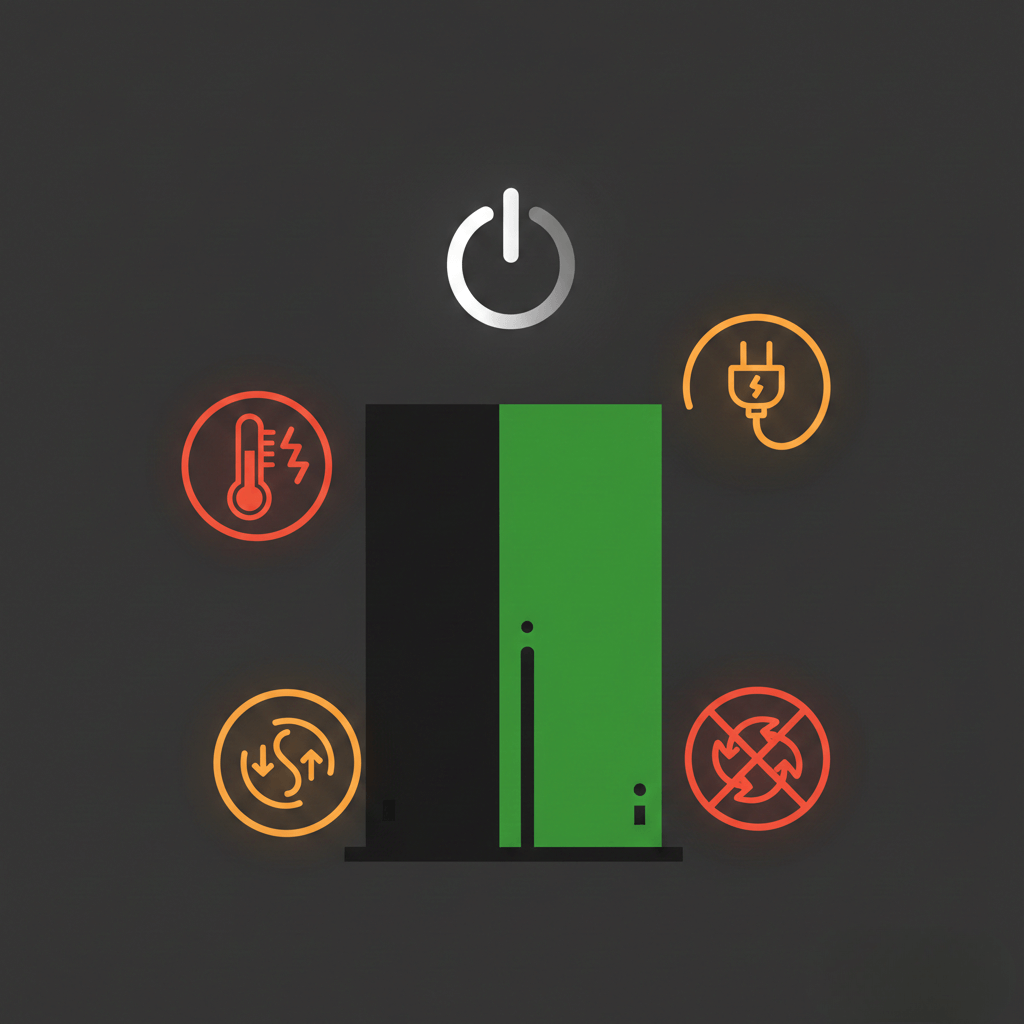
So your Xbox Series X just died mid-match. No warning, no error screen, just silence and the crushing realization that you probably won’t reconnect in time. I’ve watched countless frustrated gamers walk into our shops across Florida with this exact problem. The console that was supposed to be Microsoft’s most reliable hardware yet is shutting down on them without explanation.
Here’s what I can tell you after repairing Xbox consoles for years: random shutdowns almost always have a fixable cause. Let’s figure out what’s happening with yours.
Why Your Xbox Series X Keeps Turning Off
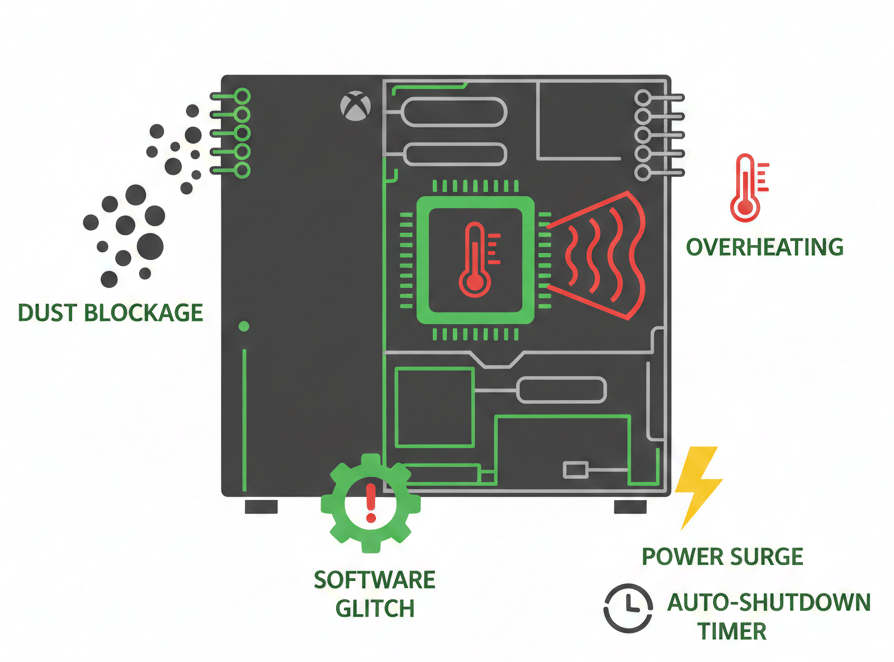
The Xbox Series X has built-in protection systems that force shutdown when something goes wrong. Understanding which protection triggered tells you exactly where to look.
1. Overheating
This is the number one cause by a wide margin. The Series X packs serious hardware into a relatively compact tower design. When the internal temperature gets too high, the console shuts down to protect the processor and other components from permanent damage.
Signs of overheating:
- Console feels hot to the touch, especially at the top exhaust vent
- Shutdowns happen during graphically demanding games
- The console runs fine for lighter tasks like streaming but crashes during gameplay
- You might see an overheat warning message on restart
2. Power Supply Problems
The Xbox Series X has an internal power supply unit (PSU)—no external brick like older Xbox models. When this component starts failing or gets hit by a power surge, you’ll experience sudden shutoffs. Sometimes the console won’t turn back on immediately; other times it will, only to shut down again minutes later.
3. Ventilation Issues
Even if the console itself is functioning perfectly, placing it somewhere with restricted airflow will cause problems. The Series X pulls cool air from the bottom and exhausts hot air through the large vent at the top. Block either one and temperatures climb fast.
4. Software Glitches
Corrupted system files, incomplete updates, or conflicts with game data can cause the console to crash and shut down. These issues usually appear after a failed update or power outage during installation.
5. Auto-Shutdown Settings
Sometimes the “problem” is just a setting doing exactly what it’s supposed to do. The Xbox has an automatic shutdown feature for periods of inactivity that some users forget they enabled.
6. Hardware Failure
In some cases, the shutdowns point to a failing component: degraded thermal paste, a faulty fan, or issues on the motherboard itself. These typically require professional diagnosis.
Step-by-Step Troubleshooting
Work through these fixes in order. Start with the simple stuff before assuming the worst.
1. Check Your Placement and Ventilation
This takes two minutes and solves more problems than people expect.
- Place the console on a hard, flat surface—not carpet, not a blanket, not on top of other electronics.
- Keep at least 4-6 inches of clearance on all sides, especially above the top vent.
- Move the console out of enclosed TV cabinets or entertainment centers where heat gets trapped.
- Make sure nothing is sitting on top of the console (controllers, game cases, cats).
The Series X can be positioned vertically or horizontally—both are fine as long as airflow isn’t blocked.
2. Clean the Vents
Dust accumulation is a slow killer. Over time, it clogs the intake and exhaust vents, reducing airflow and forcing the console to work harder to stay cool.
Grab a can of compressed air and gently blow out dust from all vent openings. Don’t use a vacuum cleaner directly on the vents—the static can damage components. A soft, dry brush works well for stubborn buildup on the exterior grilles.
3. Power Cycle the Console
This resets the internal power supply and clears temporary software issues. It’s not the same as just turning the console off and on.
Here’s how:
- Press and hold the power button on the console for 10 seconds until it shuts off completely.
- Unplug the power cable from the back of the Xbox.
- Wait at least 30 seconds (a full minute is better).
- Plug the power cable back in.
- Press the power button to turn the console on.
If your Xbox was experiencing a power supply glitch, this should clear it.
4. Check the Power Cable and Outlet
Try a different wall outlet—preferably one that doesn’t share a circuit with high-draw appliances like space heaters or air conditioners. The Series X is sensitive to voltage fluctuations.
If you’re using a power strip or surge protector, connect directly to the wall outlet temporarily to rule out the power strip as the issue.
Also, inspect the power cable itself. Look for fraying, kinks, or damage. If you have another device with the same style cable (figure-8 connector), try swapping it.
5. Disable Auto-Shutdown
Make sure your console isn’t just following orders.
- Press the Xbox button on your controller.
- Go to Profile & system > Settings.
- Select General > Power mode & startup.
- Under “Turn off after,” select “Don’t turn off automatically.”
While you’re here, also check whether you’re using “Instant-on” or “Energy-saving” mode. Some users report more stable behavior on Energy-saving mode, though you lose the instant boot feature.
6. Update Your Console
Outdated firmware can cause stability issues. Make sure your console is running the latest system software.
- Press the Xbox button on your controller.
- Go to Profile & system > Settings > System.
- Select Updates & downloads.
- If an update is available, install it.
If your console crashes before you can complete the update, try downloading the update when the console is cooler (after sitting off for an hour or so) or during a time when you’re not running any games.
7. Check for Overheating Damage
After a shutdown, carefully touch the top of your console where the exhaust vent is located. Warm is normal. Hot enough that you pull your hand away quickly is a problem.
If the console is overheating, let it cool completely before turning it back on—at least 30 minutes to an hour. Running it hot repeatedly can cause permanent damage to internal components.
8. Clear Persistent Storage
Clearing the cache can resolve software-related crashes.
- Go to Settings > Devices & connections > Blu-ray.
- Select Persistent storage.
- Select Clear persistent storage.
This doesn’t delete your games or saves—just temporary data the system uses for disc playback.
9. Test with a Different Game or Profile
Sometimes the issue is game-specific. If your console only crashes during certain titles, try these steps:
- Test several different games to see if the pattern holds.
- Uninstall and reinstall the problematic game.
- Check if the game has any pending updates.
- Try creating a new Xbox profile and playing from that account to rule out profile corruption.
10. Factory Reset (Keep Games and Apps)
If nothing else works, a reset might fix corrupted system files without making you redownload everything.
- Press the Xbox button.
- Go to Profile & system > Settings > System.
- Select Console info > Reset console.
- Choose “Reset and keep my games & apps.”
This reinstalls the operating system while preserving your installed content. Your settings will reset to defaults, and you’ll need to sign back into your accounts.
If problems continue after this, you may need to try “Reset and remove everything” as a last resort, but back up any local saves first.
When the Problem Is Hardware
If you’ve worked through every software fix and the shutdowns continue, you’re likely dealing with a hardware issue that needs hands-on attention.
Thermal Paste Degradation
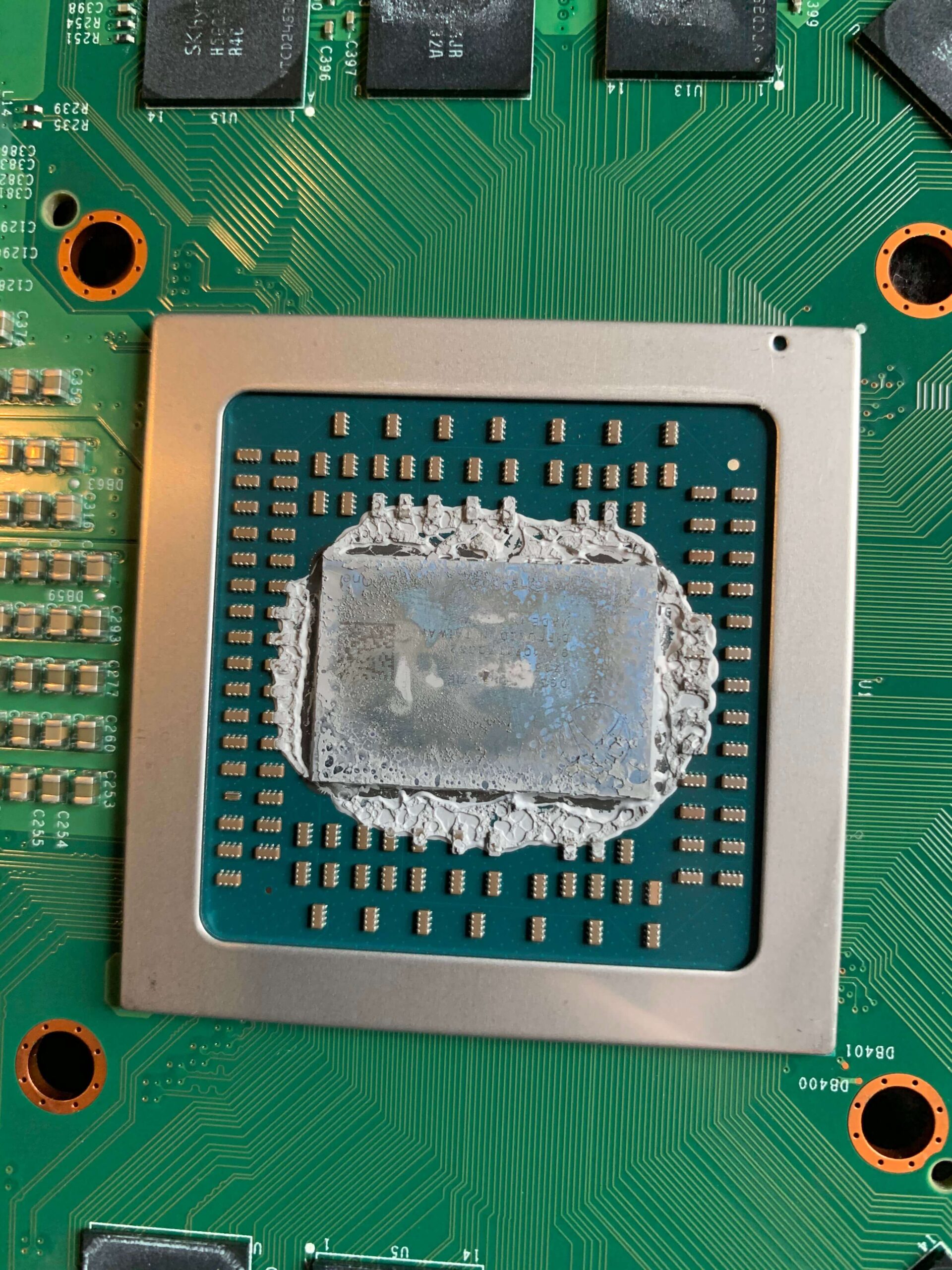
The thermal paste between the processor and heatsink dries out over time. When it does, heat transfer becomes inefficient, and temperatures climb even with good airflow. Replacing thermal paste requires disassembling the console—something I only recommend for people comfortable with electronics repair, since the Series X has a compact internal layout with ribbon cables that tear easily.
Fan Failure
The cooling fan can slow down or fail entirely due to dust buildup or bearing wear. If your console runs but the fan doesn’t spin (or spins inconsistently), temperatures will spike during any load. Listen carefully when the console is running—you should hear consistent fan noise during gameplay.
Power Supply Unit (PSU) Failure
An internal PSU failure typically means no power at all or intermittent shutdowns even when the console isn’t hot. These units can fail after power surges, so if your area has unreliable electrical service, using a quality surge protector is worth the investment.
For hardware-level problems, you have options. HDMI port damage aside, most internal repairs involve thermal work or component replacement that’s beyond typical DIY territory.
When to Seek Professional Repair
Bring your console to a technician if:
- The console shuts down even after trying all troubleshooting steps.
- You get an overheating message but the console feels cool.
- The shutdowns happen instantly on power-up before reaching the dashboard.
- You hear clicking, grinding, or no fan noise at all.
- The console won’t stay on long enough to complete a system update.
At Gizmo Pros, we diagnose these issues for free. Most repairs—including thermal paste replacement, PSU testing, and fan replacement—can be done same-day. We have locations in Wesley Chapel, Holiday, and Hudson, so you can get hands-on service locally.
Not in Florida? Our mail-in repair service lets you ship us your console. We’ll fix it and return it within 2-4 business days via free standard shipping. Next-day delivery is available if you need it back faster.
Frequently Asked Questions
Why does my Xbox Series X only shut off during certain games?
Some games push the hardware harder than others. Titles with ray tracing, high frame rates, or large open worlds generate more heat. If your cooling system is compromised—dusty vents, degraded thermal paste—these demanding games will trigger shutdowns while lighter games run fine.
Can a power surge damage my Xbox permanently?
Yes. A significant surge can damage the internal power supply, and in severe cases, the motherboard. Using a surge protector is cheap insurance against expensive repairs.
Is it safe to play immediately after a shutdown?
Let the console cool down first—at least 15-30 minutes. Running it while it’s still hot can cause cumulative damage to components.
Will Microsoft fix my Xbox if it keeps shutting off?
If your console is under warranty, contact Xbox Support for repair or replacement options. Opening the console yourself voids the warranty, so check your warranty status before attempting internal repairs.
Does putting my Xbox in a vertical or horizontal position matter?
Both orientations work as designed. What matters is airflow—make sure vents aren’t blocked regardless of how you position the console.
Why does my Xbox shut off and won’t turn back on immediately?
The power supply has thermal protection. After overheating, it needs time to cool before it will provide power again. Wait 15-30 minutes before trying to turn the console on.
Final Thoughts
A shutting-down Xbox is frustrating, but it’s almost always a solvable problem. Work through the ventilation and power fixes first since they cover the majority of cases. If those don’t help, software resets usually clear up anything corruption-related.
When hardware fails, repairs are typically straightforward for experienced technicians. Replacing thermal paste or a faulty fan is far cheaper than buying a new console.