Your Lenovo Yoga 7i touchpad just stopped responding. No warning, no error message—just nothing. You’re tapping it, swiping across it, maybe even giving it the occasional frustrated slap, but the cursor won’t budge.
This is one of the most common Yoga 7i issues we see come through our shop, and the frustrating part is that it can happen for a dozen different reasons.
Let’s walk through exactly what’s going on and how to get that touchpad responding again.
Why Your Lenovo Yoga 7i Touchpad Won’t Work
Before you start randomly pressing buttons, it helps to understand what’s actually happening inside your laptop. The Yoga 7i uses an I2C (Inter-Integrated Circuit) touchpad that communicates with Windows through specific HID (Human Interface Device) drivers. When something disrupts this communication—whether it’s a Windows update, a driver conflict, or a hardware hiccup—your touchpad goes silent.
Here are the most common culprits:
Software and Driver Issues
- A recent Windows 11 update overwrote or corrupted your touchpad driver
- The I2C HID device driver is showing an error (often “Code 10” in Device Manager)
- Conflicting Synaptics or ELAN drivers after an automatic update
- The touchpad was accidentally disabled via keyboard shortcut
Hardware Problems
- Loose or damaged ribbon cable connecting the touchpad to the motherboard
- Physical damage from drops or pressure on the palm rest
- Worn-out touchpad module (less common, but it happens)
BIOS/UEFI Settings
- The internal pointing device got disabled in firmware settings
Quick Fixes to Try First
Before we get into the deeper troubleshooting, run through these quick checks. You’d be surprised how often the fix is this simple.
Check If the Touchpad Is Actually Disabled
Lenovo includes a keyboard shortcut that toggles the touchpad on and off. On most Yoga 7i models, this is Fn + F6 or Fn + M (depending on your generation). Press the combination and see if the touchpad springs back to life.
You can also verify through Windows:
- Press Windows + I to open Settings
- Go to Bluetooth & devices > Touchpad
- Make sure the Touchpad toggle is switched On
If you don’t even see a Touchpad option in your settings, that points to a driver or hardware issue—keep reading.
Restart Your Laptop Properly
I know, I know—”Have you tried turning it off and on again?” But a proper restart (not sleep, not hibernate) can clear out driver glitches that are blocking the touchpad. Hold the power button for 10 seconds to force a shutdown, wait a few seconds, then power back on.
Fixing I2C HID Device Errors in Device Manager
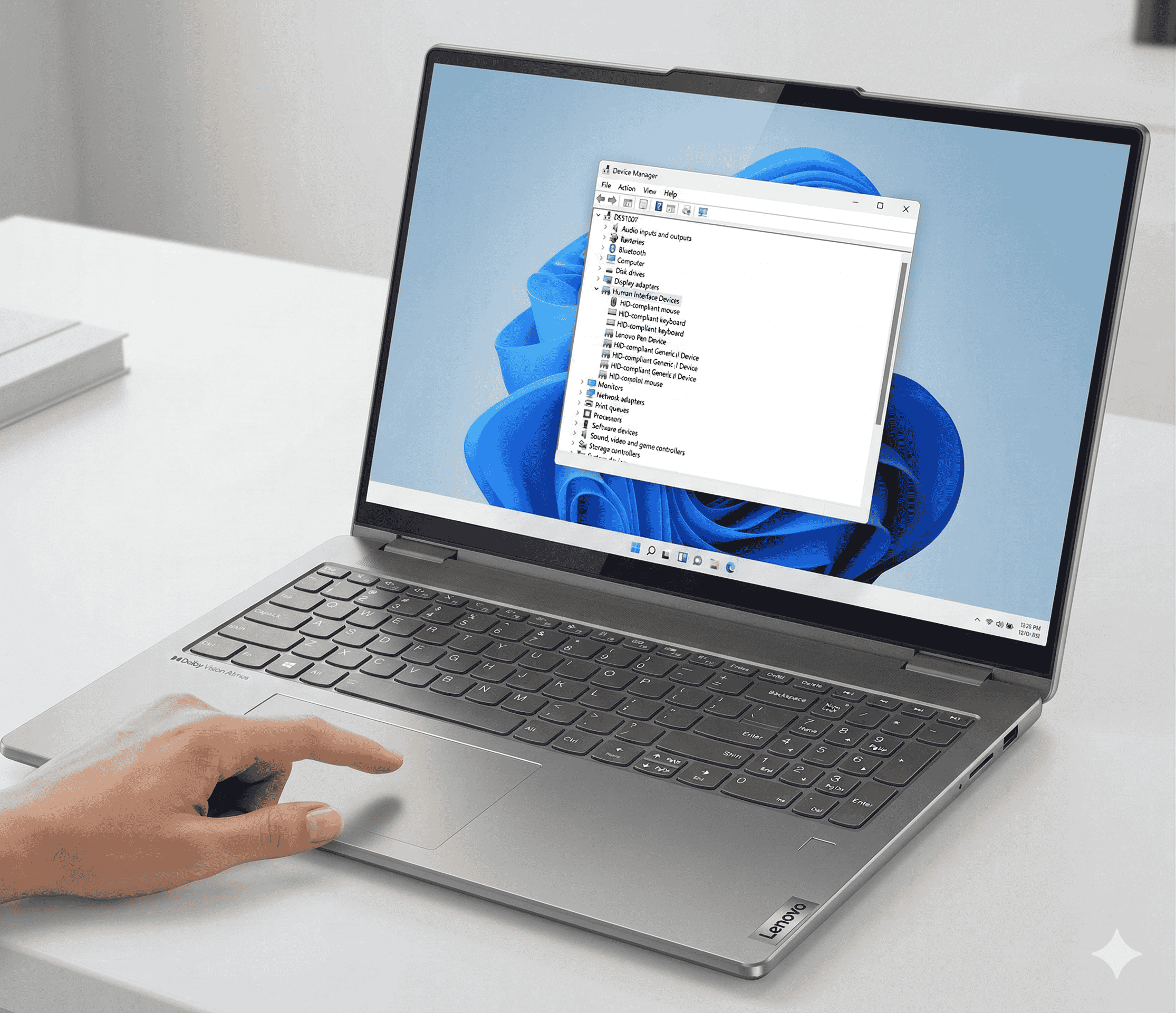
This is where most Yoga 7i touchpad issues live. The I2C HID Device driver handles communication between Windows and your touchpad hardware. When it breaks, your touchpad becomes invisible to the system.
Step 1: Open Device Manager
Press Windows + X and select Device Manager (you’ll need a USB mouse plugged in for this, obviously).
Step 2: Locate the Touchpad
Expand these sections and look for your touchpad:
- Human Interface Devices – Look for “I2C HID Device” or “HID-compliant touch pad”
- Mice and other pointing devices – Look for “Lenovo Touchpad,” “Synaptics,” or “ELAN”
If you see a yellow exclamation mark next to any of these entries, you’ve found your problem.
Step 3: Check the Error Code
Right-click the flagged device and select Properties. Under the General tab, check the Device status. The most common error you’ll see is:
“This device cannot start. (Code 10) – A request for the HID descriptor failed.”
This error almost always means the driver needs to be reinstalled.
Step 4: Uninstall and Reinstall the Driver
- Right-click the I2C HID Device (or whatever touchpad entry is showing the error)
- Select Uninstall device
- Check the box that says “Attempt to remove the driver for this device” if it appears
- Click Uninstall
- Go to Action > Scan for hardware changes in Device Manager
Windows should automatically reinstall the driver. If it doesn’t, restart your laptop and Windows will attempt to install it during boot.
📦 Can’t Visit Us In Person?
No problem! Our mail-in repair service lets you ship your device to us from anywhere. We’ll diagnose, fix, and return it within 2-4 business days with free standard shipping. Need it faster? Next-day delivery is available.
Installing the Correct Touchpad Driver from Lenovo
The generic drivers that Windows installs often don’t play nice with Lenovo hardware. For the best results, you’ll want to install Lenovo’s official driver package.
How to Download and Install
- Go to Lenovo’s support site
- Enter your Yoga 7i model number (you can find this on a sticker on the bottom of your laptop or by pressing Windows + S and typing “System Information”)
- Navigate to Drivers & Software > Manual Update
- Look under Mouse, Touchpad, Keyboard, and Pen
- Download the appropriate touchpad driver (could be labeled Synaptics, ELAN, or Intel HID)
- Run the installer and restart your laptop
Pro tip: While you’re on Lenovo’s support page, also download the latest Chipset and Intel Serial IO drivers. These support packages are often required for the touchpad driver to function correctly.
Updating Your BIOS/UEFI Firmware
Outdated BIOS firmware can cause all sorts of strange hardware behavior, including touchpad failures. Lenovo regularly releases BIOS updates that address input device compatibility.
- Go to Lenovo’s support site and navigate to your Yoga 7i model
- Download the latest BIOS Update package
- Important: Make sure your laptop is plugged into AC power—never update BIOS on battery
- Run the installer and follow the prompts
- Your laptop will restart and apply the update
If your touchpad works in BIOS (you can usually navigate the setup menu with it), that confirms the hardware is fine and the problem is software-related.
Checking BIOS Settings for Disabled Touchpad
Some users accidentally disable the touchpad at the firmware level, and no amount of driver reinstallation will fix that.
- Restart your laptop
- Press F2 or Fn + F2 repeatedly during startup to enter BIOS Setup
- Navigate to the Configuration tab
- Look for Internal Pointing Device or Touchpad
- Make sure it’s set to Enabled
- Press F10 to save and exit
When the Touchpad Itself Is the Problem
If you’ve tried everything above and the touchpad still doesn’t work—even in BIOS—you’re likely dealing with a hardware failure. The two most common hardware issues we see at Gizmo Pros are:
Loose Ribbon Cable
The touchpad connects to the motherboard via a thin ribbon cable. If your laptop has taken a fall or been opened for any reason, this cable might have come loose. Reseating it requires opening the laptop’s bottom panel, which isn’t for everyone.
Failed Touchpad Module
After years of use (or one unfortunate spill), the touchpad module itself can fail. Replacement is possible, but it involves disassembly and soldering in some cases.
If you’re not comfortable opening up your laptop, or if the touchpad issue appeared after physical damage, it’s time to bring it to a professional. Our team at Gizmo Pros has been repairing laptops for over 15 years, and we see Lenovo Yoga touchpad issues regularly. We offer computer repair services in Wesley Chapel, Holiday, and Hudson—or you can use our mail-in repair service if you’re not local. We’ll diagnose the issue, replace any failed components with quality parts, and have your laptop back to you in 2-4 business days (next-day delivery available).
Windows 11 Update Issues and Touchpad Failures
If your Yoga 7i touchpad stopped working right after a Windows 11 update (especially the 23H2 or 24H2 builds), you’re not imagining things. We’ve seen a spike in touchpad failures linked to these updates.
Rolling Back a Problematic Driver
- Open Device Manager
- Find your touchpad under Human Interface Devices
- Right-click and select Properties
- Go to the Driver tab
- Click Roll Back Driver (if available)
- Follow the prompts and restart
If the Roll Back option is grayed out, you can try System Restore to return your system to a point before the problematic update.
Blocking Bad Updates
Windows Update sometimes forces a broken driver back onto your system. To prevent this:
- Download Microsoft’s “Show or hide updates” troubleshooter
- Run it and select the problematic driver
- Choose to hide the update so it won’t install again
Touchpad Working but Not Clicking?
Some Yoga 7i owners report that the touchpad moves the cursor fine, but physical clicks don’t register. This is usually a separate issue from total touchpad failure.
Check Tap-to-Click Settings:
- Go to Settings > Bluetooth & devices > Touchpad
- Expand Taps
- Make sure Tap with a single finger to single-click is enabled
If tapping works but physical pressing doesn’t, the click mechanism under the touchpad may be worn out or disconnected. This is a hardware issue that requires opening the laptop.
Related Yoga 7i Input Issues
Touchpad problems sometimes overlap with other input issues on the Yoga 7i. If you’re also experiencing touch screen problems, the root cause might be a shared driver or firmware issue affecting all HID devices.
And if your touchpad issue has convinced you it’s time for a new laptop, you might be wondering whether you can sell a broken laptop. Short answer: yes, you can. But often a repair is more cost-effective than replacement—especially when screen repairs and touchpad fixes are usually affordable.
Visit Our Repair Centers
📍 Holiday & Tarpon Springs
📍 Wesley Chapel
📍 Hudson
Frequently Asked Questions
Why does my Lenovo Yoga 7i touchpad work in Safe Mode but not in normal Windows?
This indicates a software conflict. In Safe Mode, Windows only loads essential drivers. Something in your normal driver stack—likely a third-party utility or conflicting input driver—is blocking the touchpad. Boot into Safe Mode, uninstall any touchpad-related software, then restart normally.
Can I use an external mouse while troubleshooting?
Absolutely. Plug in any USB or Bluetooth mouse to navigate Windows while you work on fixing the touchpad. The external mouse won’t interfere with touchpad troubleshooting.
My touchpad works intermittently—what does that mean?
Intermittent operation usually points to a loose connection (ribbon cable) or a failing driver that works until Windows does something to disrupt it. Try the driver fixes first, but if the problem persists, it’s likely hardware.
Is this a known defect with the Yoga 7i?
There’s no official recall, but touchpad issues are common enough in the Yoga 7i community (especially after certain Windows updates) that Lenovo has released multiple driver and BIOS updates to address them. Always install the latest firmware.
How do I know if my touchpad needs to be replaced?
If the touchpad doesn’t respond in BIOS, doesn’t work in Safe Mode, and shows no entry at all in Device Manager (even after driver reinstallation), the hardware itself has likely failed. At that point, professional repair or replacement is the next step.
Get Expert Help
Touchpad issues can range from a 30-second keyboard shortcut fix to a full hardware replacement. If you’ve worked through this guide and your Yoga 7i touchpad still isn’t responding, don’t spend another weekend fighting with it.
Bring it to Gizmo Pros. With locations in Wesley Chapel, Holiday, and Hudson (Florida), we’re equipped to diagnose and repair Lenovo laptops quickly. Most repairs are done while you wait, and all our work comes with a 90-day warranty. If you’re not in the area, our mail-in repair service makes it easy—ship your laptop to us, and we’ll have it fixed and back in your hands within 2-4 business days.
We’ll even beat any local competitor’s published price by $10. That’s the Gizmo Pros guarantee.