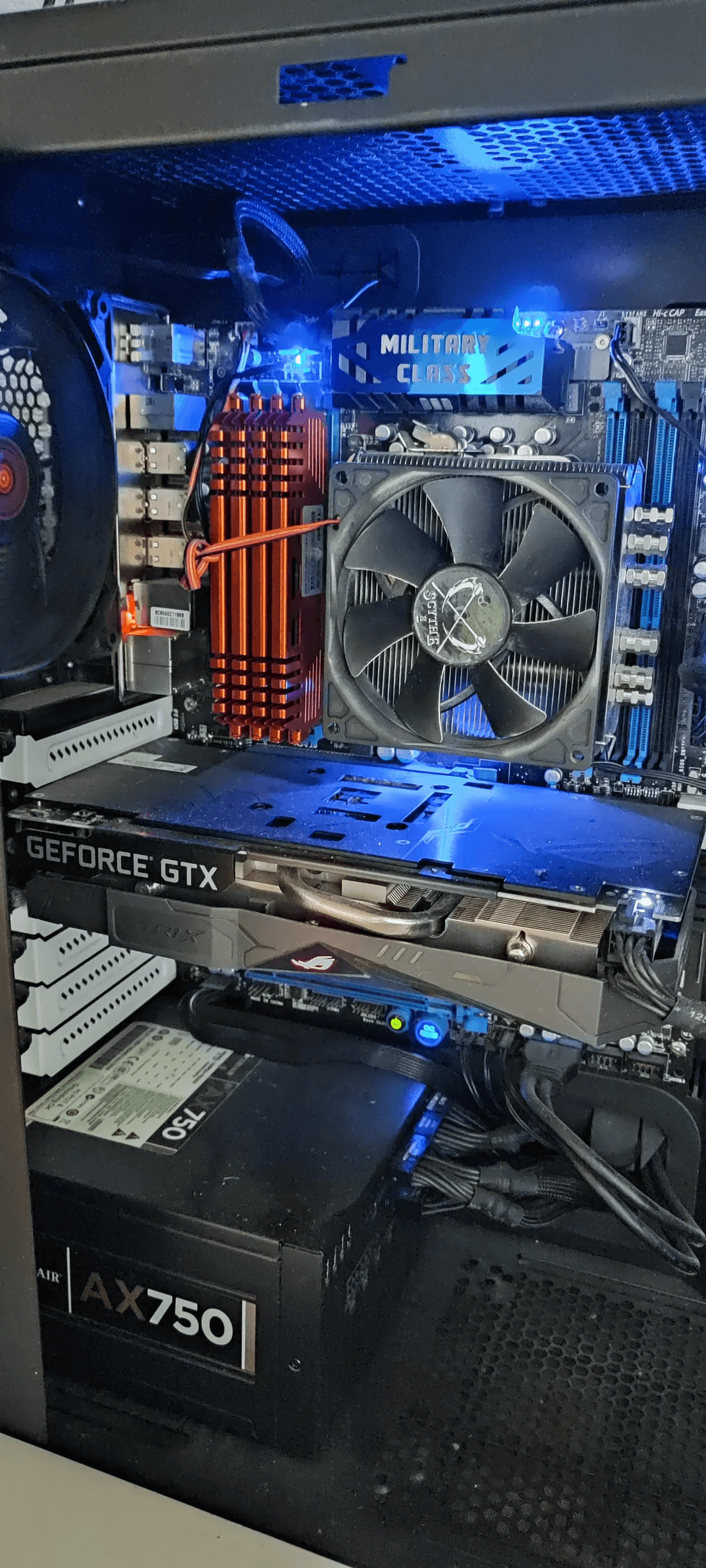
Few components are as crucial yet often overlooked as cooling fans when it comes to computer hardware. These unsung heroes work tirelessly to keep your system running at optimal temperatures. But what happens when they stop spinning? At Gizmo Pros, we’ve seen countless cases of malfunctioning fans and the havoc they can wreak on a computer system. This guide will walk you through understanding, diagnosing, and fixing fan issues to keep your computer running cool and smooth.
Understanding Computer Fans
Before diving into troubleshooting, it’s essential to understand the different types of fans in your computer:
- Case Fans: These circulate air through your computer’s case.
- CPU Fans: Mounted directly on the processor to cool it.
- GPU Fans: Found on dedicated graphics cards to cool the GPU.
Each of these fans plays a critical role in maintaining your system’s temperature. When they fail, your computer’s performance and lifespan can be significantly impacted.
Common Reasons Behind Computer Fans Not Spinning
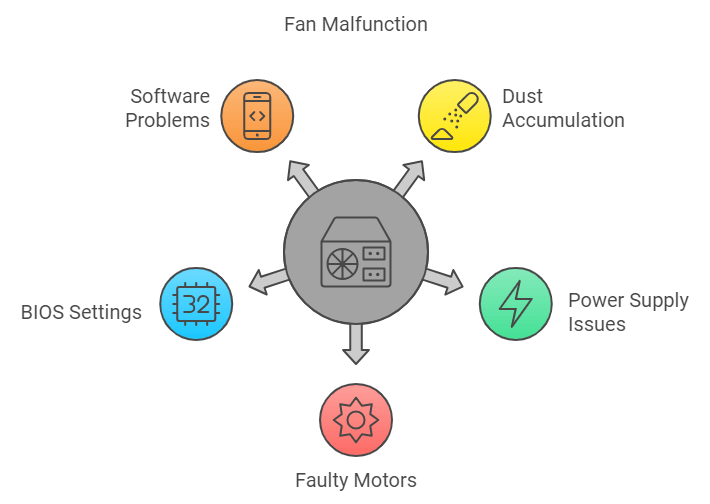
Several factors can cause your computer fans to stop spinning:
- Dust and debris accumulation: Over time, dust can clog fan blades and bearings.
- Power supply issues: Faulty power connections or insufficient power can prevent fans from spinning.
- Faulty fan motors: Like any mechanical component, fan motors can wear out.
- Incorrect BIOS settings: Sometimes, BIOS settings can accidentally disable or improperly control fans.
- Software-related problems: Fan control software or drivers can sometimes malfunction.
Diagnosing Fan Issues
To accurately diagnose fan problems, follow these steps:
- Visual inspection: Open your computer case and visually check if all fans are spinning when the system is on.
- Check BIOS: Restart your computer and enter the BIOS. Look for fan speed readings.
- Use software tools: Programs like SpeedFan or HWMonitor can provide real-time fan speed data.
At Gizmo Pros, we use advanced diagnostic tools to pinpoint exact fan issues, ensuring nothing is overlooked. You can mail in your computer or laptop and get it fixed and returned within 2-4 business days, wherever you are in the USA!
Troubleshooting Case Fans That Won’t Spin
If your case fans aren’t spinning:
- Check power connections: Ensure all fan power cables are securely connected to the motherboard or power supply.
- Address “Case fan not spinning but light works”: This often indicates a separate power connection for the fan’s LED. Check the fan power cable.
- Clean the fans: Use compressed air to remove dust and debris that might be obstructing the fan blades.
Related: How much would it cost to fix a cracked laptop screen?
Fixing CPU Fans That Are Not Spinning
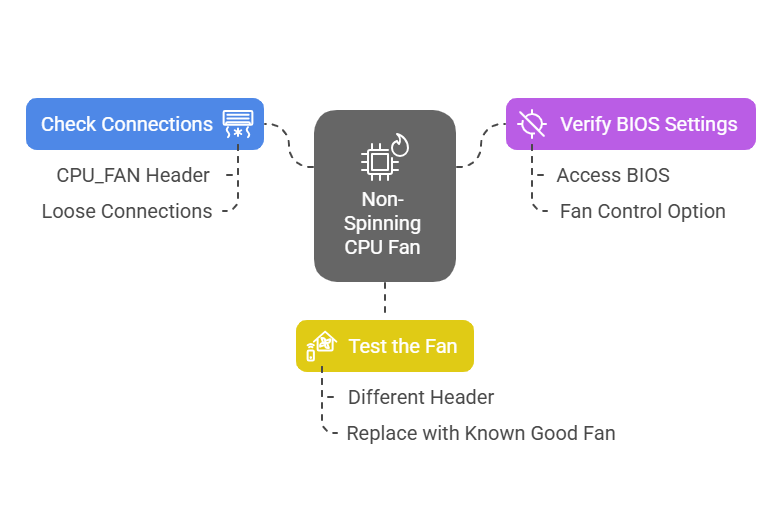
A non-spinning CPU fan is a critical issue. If you encounter a “CPU fan not spinning, no display” situation:
- Check CPU fan connections: Ensure the fan is properly connected to the CPU_FAN header on the motherboard.
- Verify BIOS settings: Make sure CPU fan control is enabled in BIOS.
- Test the fan: If possible, try connecting the fan to a different header to rule out a faulty motherboard connection.
Remember, a malfunctioning CPU fan can lead to rapid overheating and potential system damage. If you’re unsure about any steps, it’s best to consult professionals like us at Gizmo Pros to avoid risking your hardware. Check our latest article about the average costs of laptop fan repairs.
Resolving RGB Fan Issues
RGB fans add a visual flair to your system, but they can also introduce unique problems:
- Check separate power and RGB connections: Many RGB fans have separate cables for power and lighting.
- Verify RGB software settings: Ensure your RGB control software is correctly configured.
- Update RGB software and drivers: Outdated software can cause conflicts and malfunctions.
If you’re experiencing “RGB fans not spinning” but the lights are working, it’s likely a power issue rather than an RGB problem.
General Fan Repair and Replacement
Sometimes, fans need more than just troubleshooting:
- Cleaning: Use compressed air and isopropyl alcohol to clean fan blades and bearings carefully.
- Replacement: If a fan is beyond repair, replace it with a compatible model. Pay attention to size, airflow, and noise ratings.
When replacing fans, ensure you’re using the correct type for each location in your system. At Gizmo Pros, we stock a wide range of high-quality replacement fans to suit any system.
Recommended: How to remove an insect that is stuck in your computer screen
Preventing Future Fan Issues
Prevention is always better than cure:
- Regular cleaning: Clean your computer’s interior, including fans, every 3-6 months.
- Proper cable management: Keep cables tidy to ensure unobstructed airflow.
- Monitor temperatures: Use software to keep an eye on system temperatures regularly.
When to Seek Professional Help
While many fan issues can be resolved at home, some situations call for professional assistance:
- Multiple fan failures: This could indicate a more serious system-wide problem.
- Persistent overheating: If your system continues to run hot after fan repairs, there might be other issues at play.
- Electrical problems: If you suspect power supply or motherboard issues, it’s best to let experts handle it.
At Gizmo Pros, our certified technicians are equipped to handle all types of computer cooling issues. We provide thorough diagnostics, quality repairs, and can even optimize your system’s cooling for peak performance.
Can’t bring your desktop or laptop to our Wesley Chapel, Holiday, or Hudson locations? Our mail-in repair service makes professional computer cooling repairs accessible from anywhere—simply ship your system to us for fan replacement, cleaning, or thermal paste application, and we’ll return it running cool and quiet within 2-4 business days with free regular shipping.
FAQs
The case fan is not spinning, but the light works. What should I do?
To fix a PC case fan that is not spinning but has lights working, you must troubleshoot the fan motor separately from the LEDs, as they often use distinct power cables (PWM for the fan and ARGB for the lights). First, with the PC off, give the fan blades a gentle nudge to check for seized bearings or obstruction; if it spins freely, check your motherboard connections to ensure the 3-pin or 4-pin fan header is securely seated, not just the RGB cable. Next, enter your BIOS/UEFI settings and inspect the “Fan Control” or “Q-Fan” menu to ensure the fan mode matches your hardware (DC for 3-pin, PWM for 4-pin) and that the fan curve isn’t set too low to start the motor. If reseating the cable and adjusting the voltage in BIOS fails to spin the fan, the motor is likely dead and the unit requires replacement.
How often should I clean my computer fans?
We recommend cleaning your computer fans every 3-6 months, or more frequently if you have pets or live in a dusty environment.
Can I replace a fan with any model as long as it fits?
While size is important, you should also match airflow (CFM) and static pressure ratings to ensure proper cooling.
My fans are spinning, but my computer is still overheating. What could be wrong?
This could be due to insufficient thermal paste on the CPU, blocked air vents, or other cooling system issues. It’s best to have a professional, like our team at Gizmo Pros, perform a thorough diagnosis.
Motherboard fan not spinning, what should I do?
A motherboard fan often stops spinning due to a “Zero RPM” or “Smart Fan” feature in the BIOS, which intentionally cuts power to the fan when system temperatures are low to maintain silence. To troubleshoot, reboot into your BIOS/UEFI and adjust the fan curve or disable “Silent Mode” to see if the fan spins up at idle. If the software settings are correct, verify that the 3-pin or 4-pin connector is securely attached to the correct header (such as SYS_FAN or CPU_OPT) and that the header is configured to the right signaling mode—using PWM mode for a 3-pin fan can result in it not receiving enough voltage to start. If the fan fails to spin even when set to “Full Speed” in the BIOS, the fan motor or header itself may be defective.