Your Lenovo Yoga camera showing a black screen or refusing to turn on is usually a software issue—not a hardware failure. This guide covers every fix, starting with the quick ones most people overlook.
Lenovo Yoga Camera Not Working? Here’s What to Do
Check the Physical Privacy Shutter First
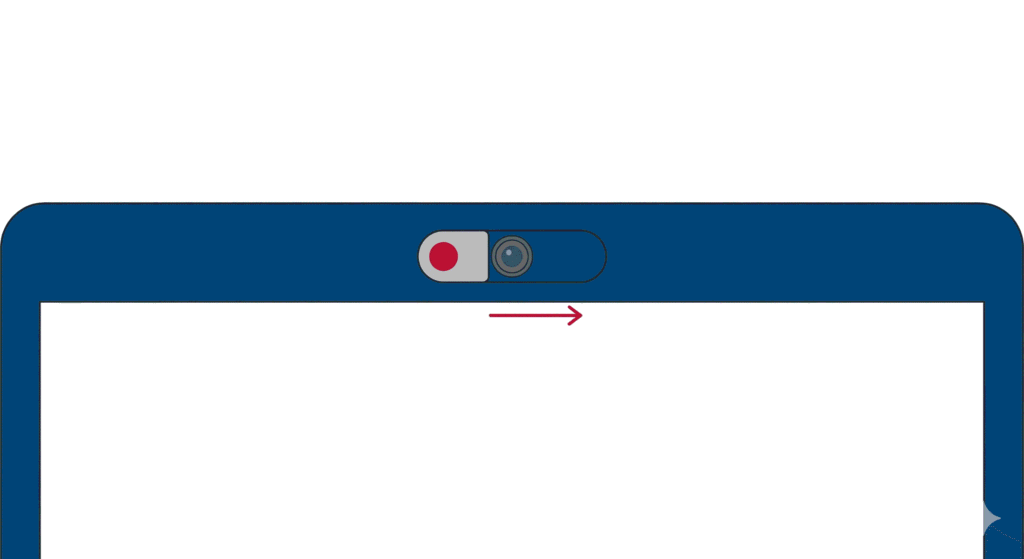
Before you start troubleshooting drivers and settings, take a close look at your camera. Many Lenovo Yoga models include a physical privacy shutter—a small slider directly above or near the webcam lens. When closed, you’ll typically see a red dot or icon over the camera.
On models like the Yoga C740, Yoga 9i, and newer Yoga 7 series, this slider is built right into the bezel. If it’s covering the lens, no amount of driver updates will help. Slide it to the right (or left, depending on your model) until the red indicator disappears.
Some Yoga models also have a camera “kill switch” on the side of the laptop. It’s easy to bump this accidentally when carrying your laptop or adjusting your grip. Check the edges of your device for any switches you may have toggled by mistake.
Use the Keyboard Shortcut to Enable Your Camera
On most Lenovo Yoga laptops, you can toggle the camera on and off using a keyboard shortcut. Look for a function key with a camera icon—usually F8, though some models use F4 or F10.
Here’s how to test it:
- Press F8 (or the key with the camera icon) directly
- If that doesn’t work, try holding Fn + F8
- Watch for an on-screen notification indicating the camera state
The way this works depends on your hotkey mode settings in BIOS. If your function keys are set to perform their primary functions (F1-F12) by default, you’ll need to hold Fn while pressing the camera key. If hotkeys are prioritized, just pressing F8 alone should do it.
If you see the on-screen icon appear but it remains stuck showing the camera as disabled, you’re likely dealing with a software issue—keep reading.
Verify Windows Privacy Settings
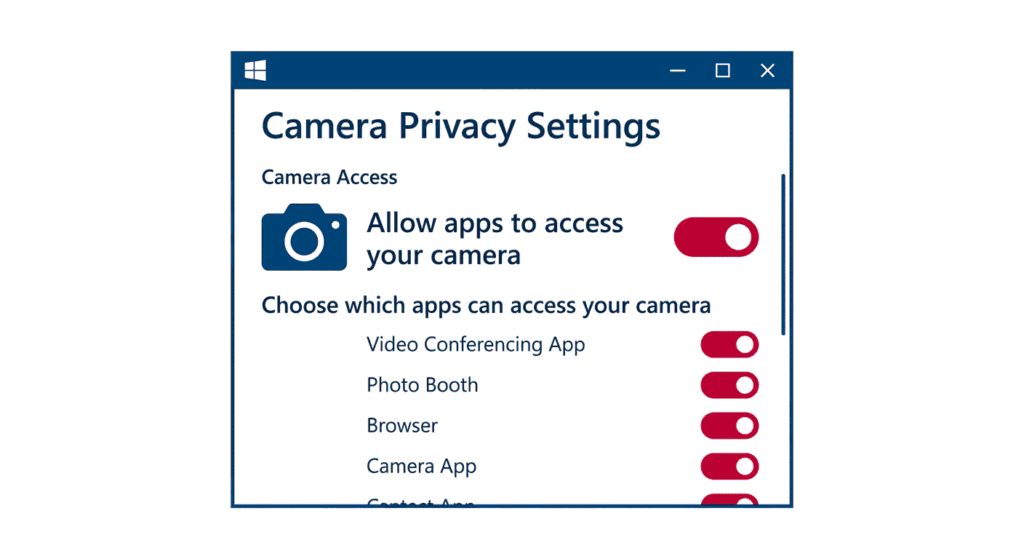
Windows 10 and 11 give you granular control over which apps can access your camera. If these settings are misconfigured, your camera will appear non-functional even though the hardware is perfectly fine.
To check this on Windows 11:
- Click the Start menu and open Settings
- Navigate to Privacy & security > Camera
- Make sure Camera access is toggled On
- Scroll down and ensure Let apps access your camera is also enabled
- Review the list of apps and verify that your video conferencing software (Zoom, Teams, Google Meet, etc.) has permission
For Windows 10, the path is similar: Settings > Privacy > Camera.
If you’ve recently run a Windows Update, these permissions can sometimes reset themselves—so check here even if you’re confident you’ve set them correctly before.
Disable Privacy Mode in Lenovo Vantage
Here’s a fix that trips up a surprising number of users. Lenovo’s own software—Lenovo Vantage—includes a Camera Privacy Mode that can block your webcam independently from Windows settings.
This means you can have all your Windows privacy settings configured correctly, and your camera will still show a black screen or error message because Lenovo Vantage has it locked down.
To check and disable this:
- Open the Start menu and search for Lenovo Vantage
- If it’s not installed, download it from the Microsoft Store
- Once open, click the menu icon and go to My Device Settings > Display & Camera
- Look for Camera Privacy Mode and make sure it’s turned Off
Some users have reported that Lenovo Vantage’s Camera Privacy Mode can get enabled automatically after Windows updates or even after waking from sleep. If this happens repeatedly, updating Lenovo Vantage to the latest version often resolves the issue.
Update or Reinstall the Camera Driver
Outdated or corrupted camera drivers are a frequent cause of webcam failures, especially after a major Windows update. The operating system might install a generic driver that doesn’t play nicely with your Yoga’s specific camera hardware.
To update your camera driver:
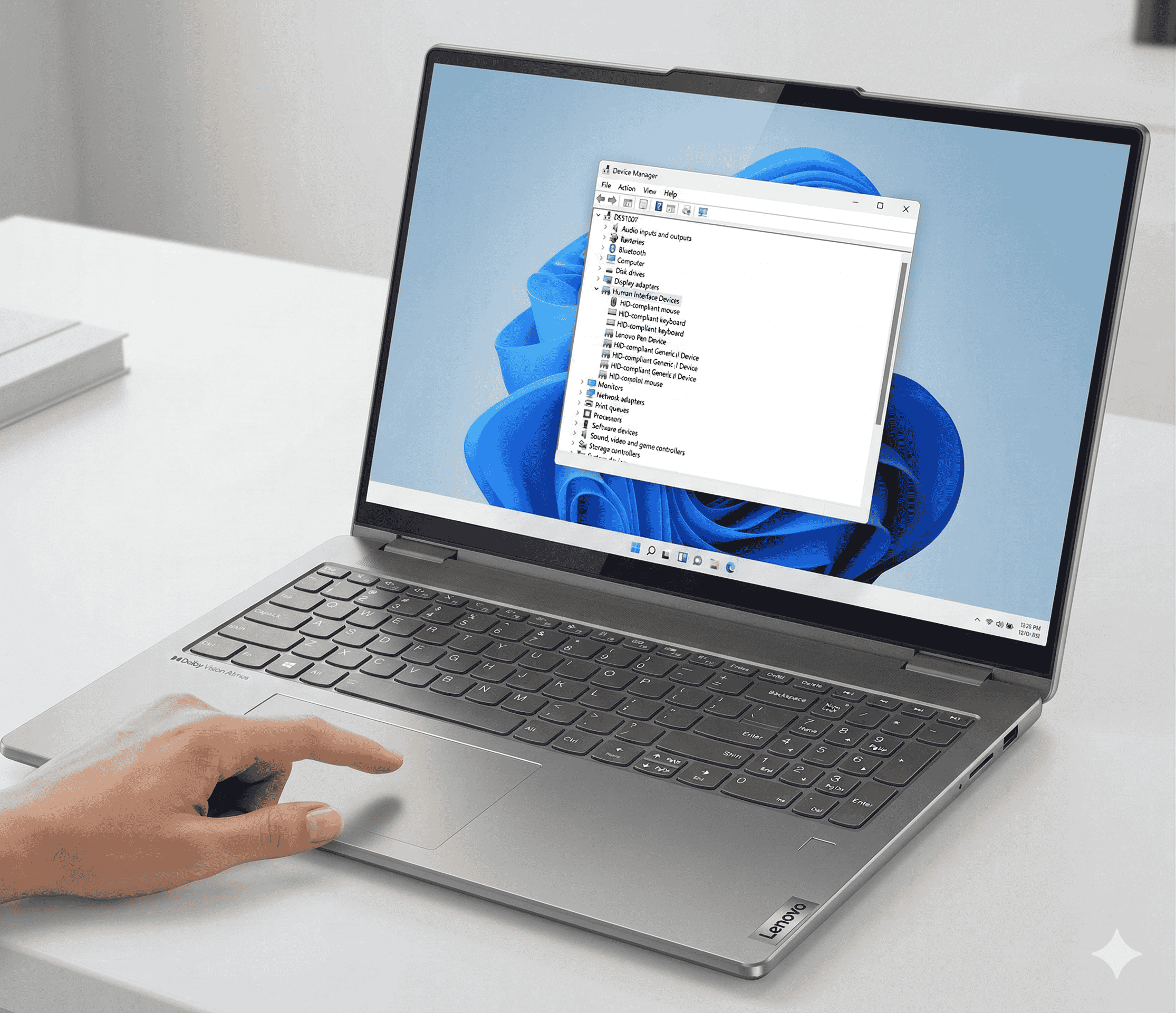
- Press Windows + X and select Device Manager
- Expand the Cameras or Imaging devices section
- Right-click on Integrated Camera (or similar) and select Update driver
- Choose Search automatically for drivers
If Windows says your driver is already up to date but the camera still doesn’t work, try reinstalling it completely:
- In Device Manager, right-click the camera and select Uninstall device
- Check the box for Delete the driver software for this device if it appears
- Restart your laptop
- Windows will automatically reinstall the camera driver on reboot
For the most reliable results, download the latest camera driver directly from Lenovo’s support website. Go to support.lenovo.com, enter your specific Yoga model number, and download the Integrated Camera Driver from the available downloads.
Check BIOS Camera Settings
Some Lenovo Yoga models allow you to enable or disable the integrated camera at the BIOS/UEFI level. If the camera is disabled here, it won’t show up in Windows at all—not in Device Manager, not anywhere.
To access BIOS:
- Fully shut down your laptop (not restart)
- Turn it back on and repeatedly press F2 or Fn + F2 during boot
- Once in BIOS, navigate to the Security or I/O Port Access section
- Look for a setting related to the Integrated Camera and ensure it’s Enabled
- Save and exit (usually F10)
Not every Yoga model has this BIOS option, but if yours does and it’s been accidentally disabled, this is the only fix that will work.
Test Your Camera in Multiple Apps
Before concluding your camera has a hardware problem, test it across several applications:
- The built-in Windows Camera app
- Your web browser at webcamtests.com
- Zoom, Microsoft Teams, or Google Meet
If the camera works in one application but not another, the issue is likely with that specific app’s settings rather than your camera. Check the in-app camera settings and make sure it’s not defaulting to a different camera (like an external webcam you’ve previously connected).
If the camera fails in every single application, you’re likely dealing with a driver issue or hardware problem.
📦 Can’t Visit Us In Person?
No problem! Our mail-in repair service lets you ship your device to us from anywhere. We’ll diagnose, fix, and return it within 2-4 business days with free standard shipping. Need it faster? Next-day delivery is available.
When the Camera Still Won’t Work: Signs of Hardware Failure
If you’ve worked through all the software troubleshooting and your Lenovo Yoga camera is still unresponsive, you may be dealing with a hardware issue. Here are some indicators:
- The camera doesn’t appear in Device Manager at all (not even with a yellow warning triangle)
- You see an error code like “Code 45: Currently, this hardware device is not connected to the computer”
- The camera indicator light never turns on, even when attempting to use the webcam
- Your laptop recently suffered a drop, liquid damage, or has had screen repairs
Internal webcams connect to the motherboard via a thin ribbon cable that runs through the display hinge. On 2-in-1 devices like the Yoga, which flip and rotate frequently, this cable can become loose or damaged over time. If your Yoga has seen heavy use or recent physical trauma, this is a likely culprit.
Signs pointing to a loose or damaged camera cable include intermittent camera functionality (works sometimes, fails others) or the camera cutting out when you adjust the screen angle.
Professional Repair Options
At Gizmo Pros, we regularly diagnose and repair Lenovo Yoga camera issues at our Florida locations in Wesley Chapel, Holiday, and Hudson. Whether it’s a software configuration problem that needs expert troubleshooting or a hardware repair involving the camera module or ribbon cable, our technicians have the tools and experience to get your laptop working again.
All our repairs come with a 90-day limited warranty against defects, and we’ll beat any local competitor’s published price by $10.
If you’re not local to Florida, we also offer a mail-in repair service where you can ship your device to us, and we’ll have it repaired and returned within 2-4 business days via free standard shipping. Next-day delivery is available if you need your laptop back fast.
For comprehensive computer repair services, including diagnostics and hardware replacement, bring your device in for a professional assessment.
Related Issues You Might Experience
Camera problems on Lenovo Yoga laptops sometimes overlap with other hardware and software issues. If you’re troubleshooting your camera, you may also want to check out our guides on:
- Lenovo Yoga 7i Touchpad Not Working – Another common Yoga issue that can stem from driver or hardware problems
- Lenovo Yoga Touch Screen Not Working – Display and touch issues sometimes occur alongside camera failures, especially after physical damage
- How Much Does It Cost to Fix a Laptop Screen? – If your camera issue stems from display assembly damage, understanding repair costs helps you make an informed decision
- Can You Sell a Broken Laptop? – If your Yoga has multiple failing components, you might consider your options
Visit Our Repair Centers
📍 Holiday & Tarpon Springs
📍 Wesley Chapel
📍 Hudson
Frequently Asked Questions
Why does my Lenovo Yoga camera show a black screen?
A black screen typically indicates the camera is being blocked by software rather than a hardware failure. Check Lenovo Vantage’s Camera Privacy Mode, verify Windows privacy settings, and look for a physical privacy shutter covering the lens. If the camera light comes on but the screen stays black, it’s almost certainly a software or permissions issue.
Can I use an external webcam if my built-in camera fails?
Yes, and it’s actually a practical workaround while you arrange repairs. Any USB webcam will work with your Lenovo Yoga, and Windows will detect it automatically. External webcams often provide better video quality than built-in laptop cameras anyway, so this could be a temporary or permanent solution depending on your needs.
Why does my Yoga camera work sometimes but not others?
Intermittent camera issues often point to a loose ribbon cable connection, especially on 2-in-1 laptops that rotate frequently. If the camera cuts out when you adjust the screen angle, this is particularly likely. This type of issue requires professional repair to reseat or replace the cable.
How do I know if my Lenovo camera is a hardware or software problem?
Boot into BIOS and check if the camera is recognized there. If it’s not detected in BIOS, it’s a hardware problem. If it appears in BIOS but not Windows, it’s likely a driver or software issue. You can also boot a Linux live USB—if the camera works there but not in Windows, you’re dealing with a driver problem.
Does Windows Hello affect my camera settings?
Yes. If you have Windows Hello facial recognition set up, it requires constant camera access, which can interfere with certain Lenovo Vantage privacy features. Some users find that the Camera Privacy Mode option in Lenovo Vantage disappears entirely when Windows Hello is active. To regain manual privacy control, you may need to disable Windows Hello in Settings > Accounts > Sign-in options.
Final Thoughts
Most Lenovo Yoga camera issues come down to privacy settings—either Windows blocking access or Lenovo Vantage’s Camera Privacy Mode being enabled. The physical privacy shutter is also a common culprit that’s easy to overlook. Work through the software fixes first, since they’re free and quick. If those don’t resolve the problem, driver reinstallation from Lenovo’s official support site usually does the trick.
For hardware issues—loose cables, damaged modules, or cameras that won’t appear in Device Manager—professional repair is your best path forward. Contact us at Gizmo Pros to schedule a diagnostic, or use our mail-in service if you’re outside the Tampa Bay area.