So your Lenovo Yoga is plugged in and just… not charging. The cable is in, the outlet works, and yet that battery icon is sitting there mocking you. I’ve seen this exact scenario walk through our shop more times than I can count.
Let’s get into it.
Lenovo Yoga Not Charging: Most Common Reasons
First: Is It Actually a Problem, or Is Lenovo Vantage “Protecting” You?
Before you start panicking, check this first — because it trips up a lot of Yoga owners and the fix takes about 30 seconds.
Lenovo Yoga laptops come with a built-in feature called Conservation Mode in the Lenovo Vantage app. When enabled, it intentionally caps your battery charge at around 55–60% to reduce long-term battery wear. If you (or someone else) switched this on at some point, your laptop will sit there showing “plugged in, not charging” and appear completely broken — when it’s actually working as designed.
How to check and disable it:
- Open Lenovo Vantage (search for it in the Start menu)
- Go to Device → My Device Settings → Power (some versions show it under Hardware Settings → Power)
- Look for Conservation Mode — if it’s toggled on, switch it off
- If you see Battery Charge Threshold, make sure the stop-charging value is set to 100%
- Reconnect your charger and watch the battery percentage for a minute
If the percentage starts climbing, you’ve found your culprit. No hardware issues, no trip to the repair shop needed.
Quick note: Conservation Mode is actually a useful feature if your Yoga lives on your desk plugged in most of the time. It genuinely extends battery lifespan. Just know it’s there so it doesn’t catch you off guard.
Check the Obvious Hardware First (Don’t Skip This)
It sounds obvious, but power issues are almost always rooted in something physical. Work through these before anything else:
The wall outlet — plug something else in to confirm it’s live. Surge protectors trip all the time; try a direct wall connection.
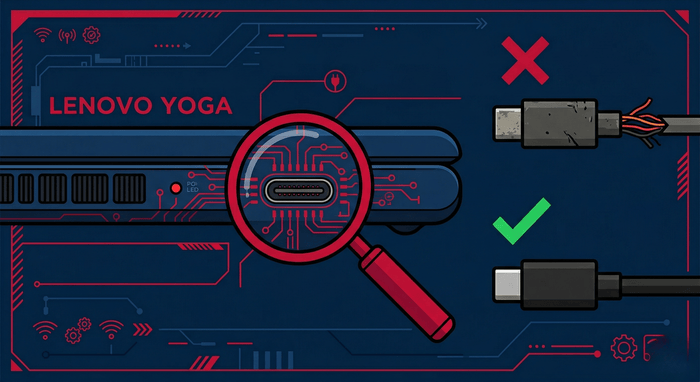
The charger itself — inspect the adapter brick for signs of heat damage, discoloration, or a burnt smell. Bend the cable gently along its length and watch for any flickering in your battery indicator — that tells you the cable has a break inside.
The charging port on the laptop — grab a flashlight and look into the USB-C port. You’re looking for lint, dust, bent pins, or corrosion. Lint buildup in USB-C ports is surprisingly common and completely blocks a good connection. Use a wooden toothpick or a soft, dry brush to gently clear any debris — never use metal tools inside a port.
If you’re using a third-party USB-C charger, also confirm it’s delivering enough wattage. Most Yoga models need at least a 45W–65W adapter to charge properly. A low-watt phone charger might power the device very slowly or not at all, especially under load.
Also worth knowing: Some Lenovo Yoga models have two USB-C ports, but only one supports charging. It’s usually the one marked with a small lightning bolt or power icon. Plugging into the data-only port won’t charge the machine.
Perform a Hard Reset (Power Drain Reset)
This one sounds too simple to work, but it genuinely resolves charging failures caused by a glitched power controller — something we see regularly with Yoga laptops.
Here’s the process:
- Shut down the laptop completely
- Unplug the charger from the laptop
- Hold the power button for 30 full seconds — this drains any residual power from the system
- Release, then reconnect the charger
- Power the laptop back on and check if it’s charging
This forces the embedded controller to reinitialize, which often clears phantom charging errors. Many users report this working when every other software fix failed.
Update Your BIOS and Battery Drivers
Outdated firmware is a more common cause of charging problems than most people realize. Lenovo has released BIOS updates specifically addressing charging behavior on multiple Yoga models, including USB-C port charging issues.
To update your BIOS:
- Go to Lenovo Support and enter your laptop’s model number
- Navigate to Drivers & Software → BIOS/UEFI
- Download and run the latest BIOS update — follow the on-screen instructions carefully
- Do not interrupt the process or let the battery die during the update
Important: Back up your data before any BIOS update. It’s rare for something to go wrong, but it’s not worth the risk.
To update battery drivers in Windows:
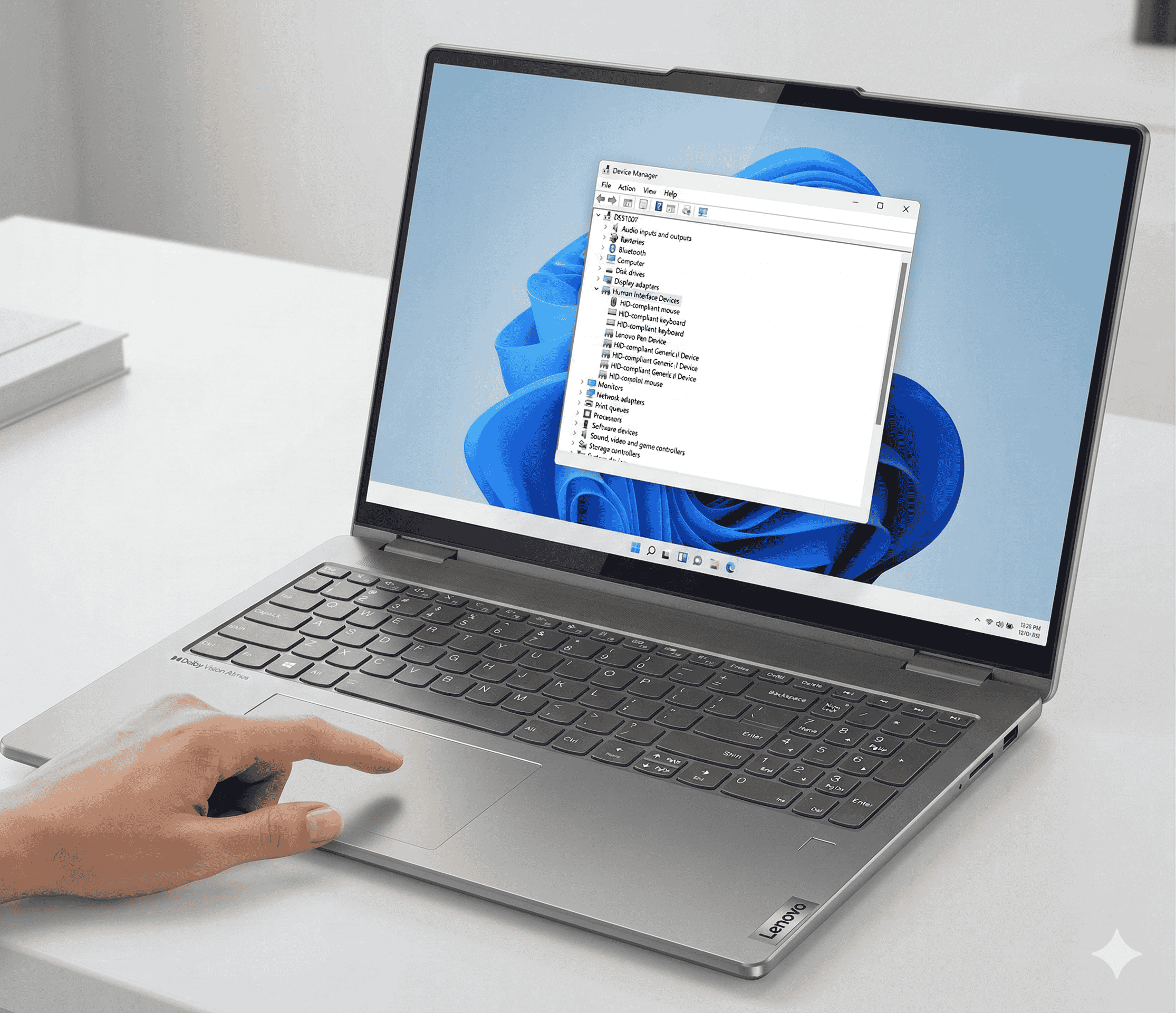
- Right-click the Start button → Device Manager
- Expand Batteries
- Right-click Microsoft ACPI-Compliant Control Method Battery → Update driver
- Restart and check charging again
The “Plugged In, Not Charging” Software Fix
If your Yoga shows that specific message — “Plugged in, not charging” — and Conservation Mode is already off, there’s a quick Windows-side fix worth trying:
- Open Device Manager
- Expand Batteries
- Right-click Microsoft ACPI-Compliant Control Method Battery and choose Uninstall device
- Click Action → Scan for hardware changes — Windows will reinstall the driver
- Plug in your charger and check the result
This essentially resets how Windows communicates with the battery hardware, and it clears driver corruption that can cause false “not charging” reports.
Battery Health: When the Battery Itself Is the Problem
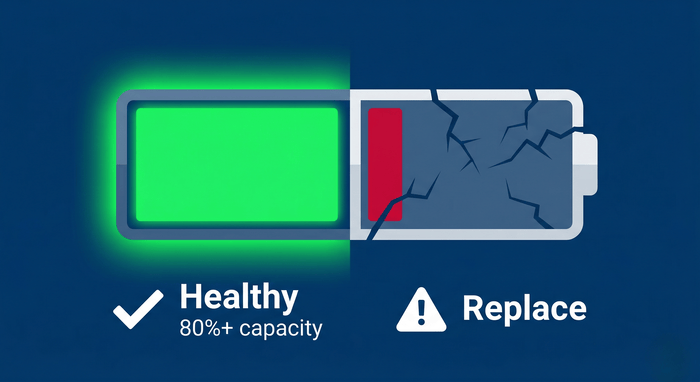
If you’ve had your Yoga for a few years and none of the above fixes work, the battery itself may simply be worn out. Laptop batteries degrade with every charge cycle, and once they drop below 80% of their original capacity, charging behavior can become erratic — slow charging, stopping at low percentages, or refusing to charge at all.
How to run a battery health report on Windows:
- Open Command Prompt as Administrator (search “cmd,” right-click, run as admin)
- Type:
powercfg /batteryreportand press Enter - Open the generated HTML report — you’ll find it at
C:\Users\[your name]\battery-report.html
Look at the Design Capacity vs. Full Charge Capacity. If your full charge capacity is significantly lower than the design capacity — say 35,000 mWh vs. an original 60,000 mWh — the battery has degraded substantially and replacement is the right call.
A swollen battery is a more urgent situation. If the trackpad feels raised, the bottom of the laptop looks bowed, or the chassis won’t sit flat on a desk, stop using the laptop and have it looked at immediately. Swollen lithium batteries can be a fire hazard. (And if you notice other hardware quirks showing up alongside the battery issues — like the touchpad behaving oddly or the touchscreen becoming unresponsive — a swollen battery pressing against internal components could be the common cause.)
Damaged Charging Port: What to Look For
The USB-C charging port on Lenovo Yoga laptops sees a lot of use and is a documented failure point, particularly on models that rely solely on USB-C for power with no barrel connector backup. The port is soldered directly to the motherboard, so physical damage — bent pins, corrosion from moisture, or just wear from years of plugging and unplugging — typically requires professional repair.
Signs the port is the problem:
- The charger wobbles or doesn’t seat firmly
- The battery charges only when you hold the cable at a specific angle
- Visible discoloration, corrosion, or bent pins inside the port
- A flashlight reveals liquid residue or rust inside the connector
This isn’t a DIY situation for most people. The port requires SMD soldering to replace properly — and on some Yoga models, if the damage has reached the charging circuitry on the motherboard, it’s a more involved repair. That said, it’s absolutely fixable by an experienced technician.
Could It Be the Motherboard?
If every fix above has failed — new charger, port looks clean, BIOS is updated, drivers are fresh, battery report shows healthy cells — there may be an issue with the power regulation circuitry on the motherboard. This is the least common cause but not unheard of, especially after liquid exposure or a power surge.
Symptoms that point toward a board-level issue:
- The charger works fine on another laptop
- Battery is relatively new and health report looks fine
- The laptop shows no signs of charging even with a direct power reset
- The issue appeared suddenly after a power event (storm, surge, etc.)
Board-level repairs require professional diagnosis. Some charging circuit failures are repairable with microsoldering; others require a full board replacement. A shop that’s experienced with Lenovo hardware can tell you quickly which situation you’re dealing with.
If you’d rather not bring it in, our mail-in repair service makes it easy — ship your Yoga to us, we diagnose and fix it, and send it back within 2–4 business days with free return shipping. Next-day return is available too if you’re in a hurry.
Troubleshooting Summary
Lenovo Yoga not charging — troubleshooting guide
Match your symptom to the most likely cause and first fix to try
| Symptom | Most likely cause | First fix to try |
|---|---|---|
| “Plugged in, not charging” in Windows | Conservation Mode or driver issue | Check Lenovo Vantage Conservation Mode settings and reinstall the ACPI battery driver in Device Manager. |
| Battery stops charging at 55–60% | Conservation Mode enabled | Open Lenovo Vantage, go to Device → Power, and switch Conservation Mode off. |
| Charges only when holding cable at an angle | Damaged charging port | The charging port is likely damaged. Have it professionally inspected and replaced by a certified technician. |
| Very slow charging | Wrong wattage charger | Use a 65W or higher USB-C Power Delivery adapter. Low-wattage chargers cannot keep pace under load. |
| No charge at all, port looks clean | Battery failure or motherboard issue | Run a Windows battery health report using the command: powercfg /batteryreport. Contact a technician if capacity is significantly degraded. |
| Laptop won’t turn on at all | Deeply discharged battery or hardware failure | Charge for at least 30 minutes before attempting to power on. Perform a hard reset by holding the power button for 30 seconds. Seek professional diagnosis if there is still no response. |
When Should You Just Come In?
Here’s the honest answer: if you’ve worked through the steps above and your Yoga still won’t charge, it’s time for a professional look. Port damage, swollen batteries, and motherboard issues aren’t things to leave sitting — they tend to get worse over time, not better.
We repair Lenovo Yoga laptops at all three of our Florida locations — Wesley Chapel, Holiday, and Hudson — and most repairs are completed while you wait. Every repair comes with a 90-day warranty, and we’ll beat any local competitor’s published price by $10.
Not local? Use our mail-in service — ship your laptop to us and we’ll have it back in your hands within 2–4 business days.
And if you’re dealing with other Yoga gremlins beyond the charging issue — like a camera that’s stopped working — we handle those too. Sometimes multiple small problems show up together when a device is aging, and it’s worth getting a full once-over rather than chasing them one by one.
Visit Our Repair Centers
📍 Holiday & Tarpon Springs
📍 Wesley Chapel
📍 Hudson
FAQs
Why does my Lenovo Yoga say “plugged in, not charging” at 80%?
This is usually Conservation Mode or a Battery Charge Threshold set in Lenovo Vantage. The app intentionally limits charging to protect long-term battery health. Open Vantage, go to Power settings, and disable Conservation Mode or set the charge threshold to 100%.
Can I charge a Lenovo Yoga with any USB-C charger?
Technically yes, but not effectively. Most Yoga models need a 45W–65W USB-C Power Delivery charger to charge at a normal rate. Low-wattage phone chargers (5W–18W) may power the laptop very slowly or drain faster than they charge during use. Always use the original adapter or a certified equivalent.
How long do Lenovo Yoga batteries last?
With normal use, a Lenovo Yoga battery holds its capacity well for around 2–3 years or 300–500 full charge cycles. After that, you may notice shorter runtimes and erratic charging behavior. A battery replacement at that point is usually more cost-effective than buying a new laptop.
Is it worth repairing a Lenovo Yoga that won’t charge?
In most cases, yes — especially if it’s just a charging port or battery issue. These are relatively straightforward repairs compared to the cost of a new machine. If you’re curious whether it makes more sense to repair or sell and upgrade, this breakdown on selling a broken laptop might help you decide.
My Lenovo Yoga won’t charge AND won’t turn on — what do I do?
First, leave it plugged in for at least 30–60 minutes with a charger you know works — if the battery fully drained, it needs time to recover enough charge to boot. Try a hard reset (hold the power button for 30 seconds) after plugging in. If there’s still no response after an hour, the issue is likely hardware-level and needs a professional diagnosis.