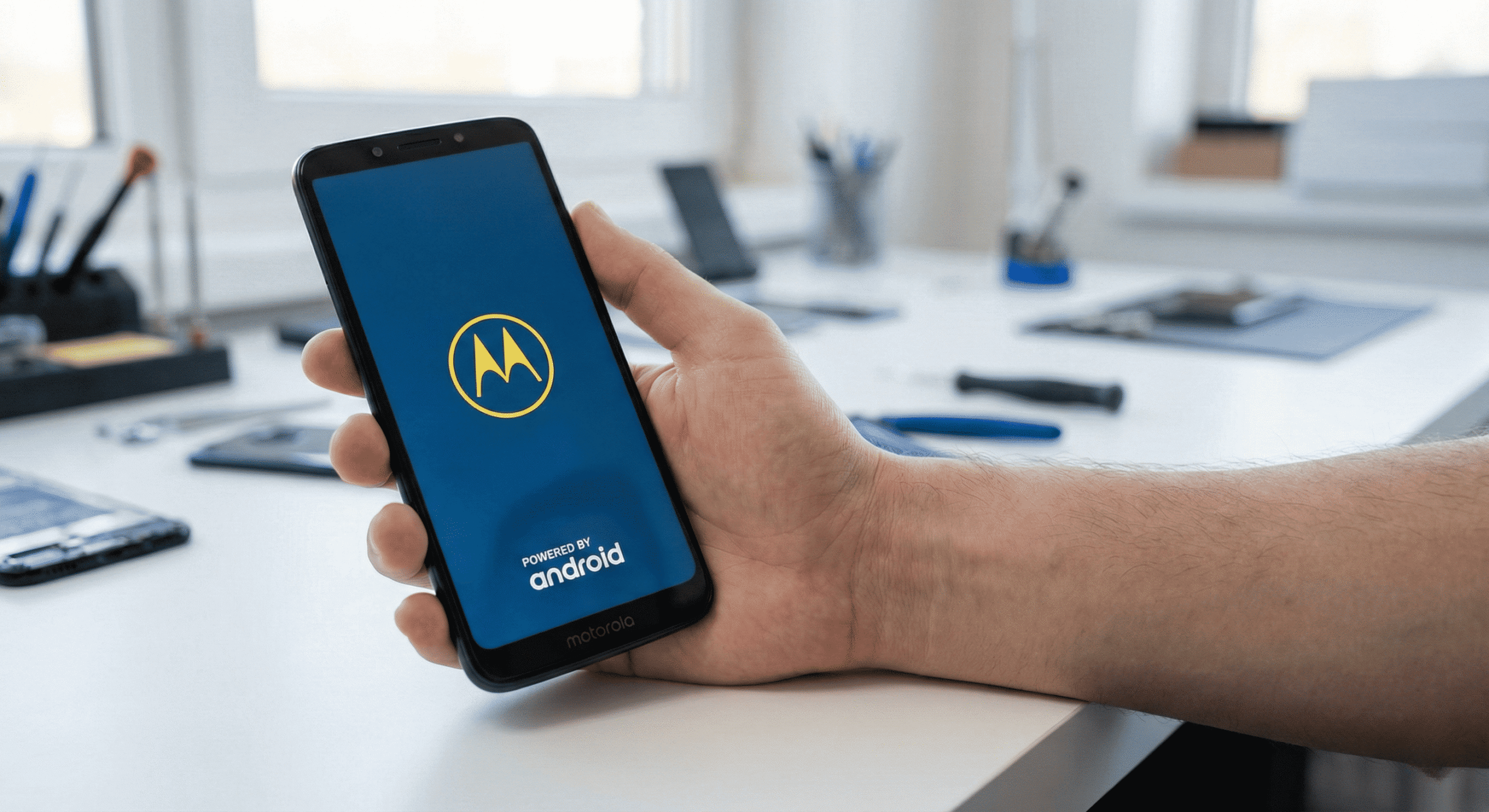
You grab your Motorola phone, and… the logo stares back at you. No home screen. No apps. Just that little “M” symbol taunting you like a screen that forgot what it was supposed to do next.
After fixing hundreds of Motorola devices over the years at our branches in Florida (especially in Hudson; I have no idea why everyone in Hudson has a Moto G😅), I can tell you that the startup screen freeze is more common than you’d think, and it’s usually fixable at home. Let’s walk through what’s actually happening and how to get your phone back to normal.
Common Reasons Your Motorola Phone Is Stuck on Startup Screen
When your phone gets stuck on the startup screen (or boot logo), it’s usually trying to tell you something went wrong during the boot process. The device powers on, the Motorola logo appears, and then… nothing. Sometimes it restarts over and over (a boot loop), and sometimes it just sits there indefinitely.
Here’s what’s typically behind this behavior:
Software-related causes:
- A system update got interrupted or installed incorrectly
- A recently installed app conflicts with the operating system
- Corrupted system files or cache data
- Malware infection (especially from apps downloaded outside the Play Store)
Hardware-related causes:
- Depleted or failing battery that can’t sustain the boot process
- Damaged charging port affecting power delivery
- Faulty power button causing erratic signals
- In rare cases, motherboard or processor issues
Most cases involve software problems, which you can fix yourself. Let’s start with the simplest solutions.
Solution 1: Force Restart Your Motorola
This sounds basic because it is—but it works more often than you’d expect. A force restart clears temporary glitches without touching your data.
How to do it:
- Press and hold the Power button for 20-30 seconds straight
- Don’t let go even if the screen flashes or the device vibrates
- Wait until the phone completely shuts down
- Leave it alone for about a minute
- Press the Power button normally to turn it back on
If your Motorola has a removable battery (older models), take it out, wait 30 seconds, put it back in, and power on.
Solution 2: Charge Your Phone Properly
A battery that’s too drained can cause your phone to get stuck during startup. The device might have just enough power to show the logo but not enough to complete the boot process.
Here’s what to do:
- Connect your phone to the original Motorola charger (or at least a known-good charger)
- Plug it into a wall outlet—not a USB port on a computer
- Leave it charging for at least 30 minutes before attempting to turn it on
- While still connected to power, try the force restart method above
One thing I’ve noticed working on customer phones: third-party chargers or damaged cables are often the hidden culprit. If your charging accessories are worn out, they might not deliver enough power for a successful boot.
Solution 3: Boot into Safe Mode
Safe Mode starts your Motorola with only the essential system apps—no third-party apps run at all. If your phone boots successfully in Safe Mode, that tells you a third-party app is causing the problem.
Here’s how to access Safe Mode:
- Power off your device completely (hold Power for 30 seconds if needed)
- Wait until it’s fully off
- Press and hold the Power button to turn it back on
- When you see the Motorola logo appear, immediately press and hold the Volume Down button
- Keep holding Volume Down until the phone finishes booting
- You should see “Safe Mode” displayed in the corner of your screen
If your phone boots normally in Safe Mode, the fix is straightforward: uninstall any apps you recently downloaded, especially anything from outside the Google Play Store. After removing the problematic app, restart your phone normally.
Solution 4: Wipe the Cache Partition
Your phone stores temporary system data in a cache partition to speed things up. Sometimes this cache gets corrupted—especially after a software update—and causes boot problems. Clearing it removes these temporary files without deleting your personal data like photos, contacts, or apps.
To wipe the cache partition:
- Turn off your phone completely
- Press and hold the Volume Down button and the Power button simultaneously
- When the phone turns on and you see the boot menu, release both buttons
- Use the Volume buttons to scroll to “Recovery mode”
- Press the Power button to select it
- You’ll see an Android robot with a red exclamation mark (or “No Command”)
- While holding the Power button, tap the Volume Up button once, then release both
- Use Volume buttons to scroll to “Wipe cache partition“
- Press Power to select it
- Confirm the action and wait for the process to complete
- Select “Reboot system now”
This process typically takes about 5-10 minutes depending on how much cached data your phone has.
📦 Can’t Visit Us In Person?
No problem! Our mail-in repair service lets you ship your device to us from anywhere. We’ll diagnose, fix, and return it within 2-4 business days with free standard shipping. Need it faster? Next-day delivery is available.
Solution 5: Factory Reset via Recovery Mode
If nothing else has worked, a factory reset from Recovery Mode is your next option. This will erase everything on your phone—apps, settings, photos, and all personal data—so it’s a last resort before seeking professional help.
Important: You won’t be able to back up your data if your phone isn’t booting. If the data on your phone is important and you haven’t backed it up, you may want to skip to the professional repair section below.
To perform a factory reset:
- Turn off your phone completely
- Press and hold Volume Down + Power buttons together
- When the boot menu appears, release both buttons
- Navigate to “Recovery mode” using Volume buttons and select with Power
- At the Android robot screen, hold Power and tap Volume Up once
- Scroll to “Wipe data/factory reset” and select it
- Confirm by selecting “Factory data reset”
- Wait for the process to finish
- Select “Reboot system now”
Your phone will restart as if it were brand new out of the box.
Solution 6: Use Motorola’s Rescue and Smart Assistant Tool
Motorola provides an official desktop tool that can rescue phones stuck in boot loops or experiencing system failures. This software essentially reinstalls the firmware on your device.
What you’ll need:
- A Windows computer (Windows 10 or 11, 64-bit)
- A USB cable
- Your phone’s IMEI number (usually printed on the original box or under the battery on older models)
How to use it:
- Download “Rescue and Smart Assistant” from Motorola’s official support website
- Install and launch the tool on your computer
- Sign in with a Lenovo ID (or create one)
- Click “Rescue Now”
- Power off your Motorola phone
- Press and hold the Volume Down button while connecting the phone to your PC via USB
- Hold until you see the Android logo appear on your phone
- In the software, confirm your device model and click “Download” to get the correct firmware
- Once downloaded, click “Rescue Now” and follow the prompts
This process will reinstall the operating system. Note that this also erases your data, similar to a factory reset.
When the Problem Is Actually Hardware
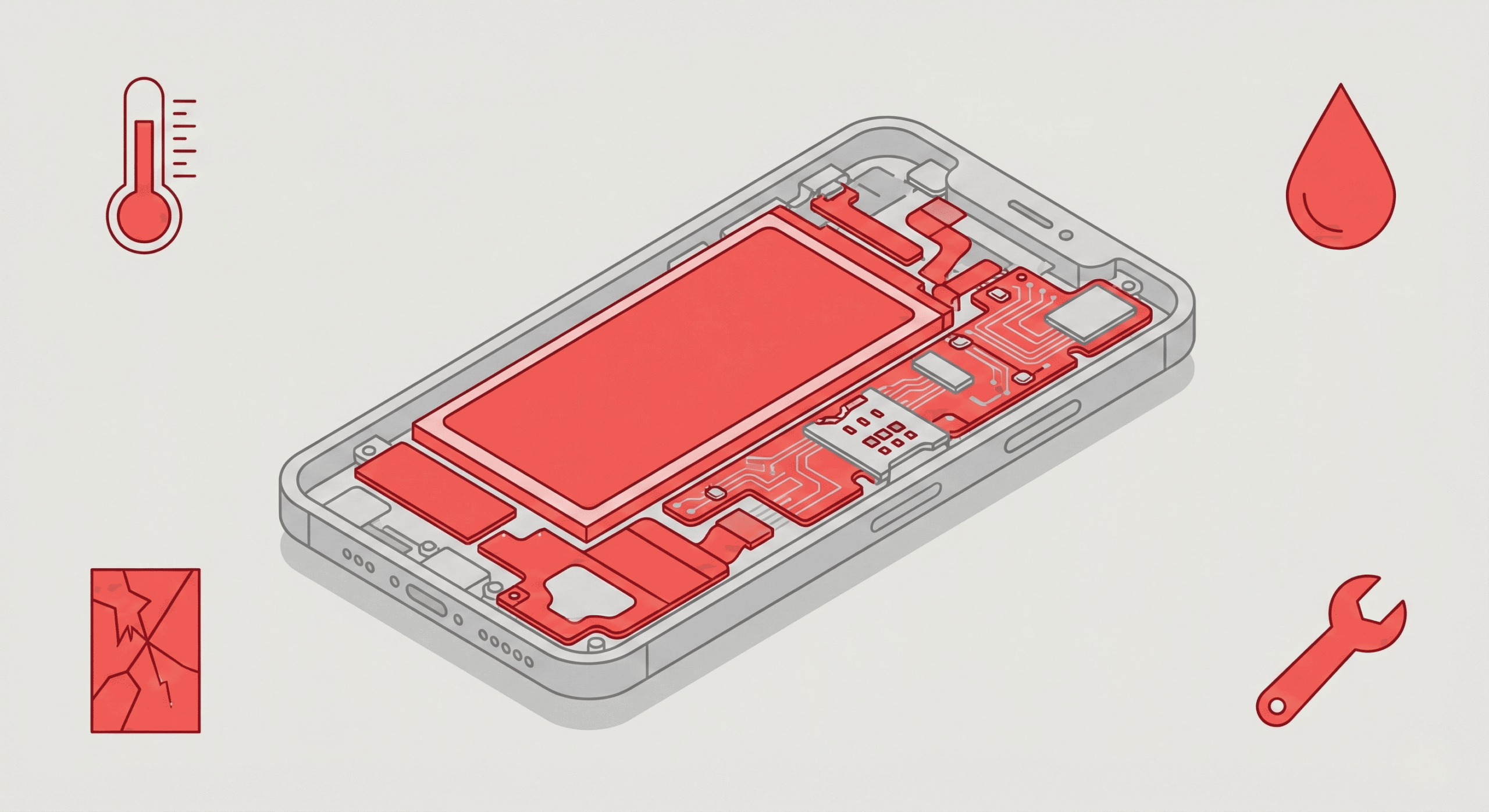
Sometimes a phone stuck on the startup screen isn’t a software issue at all. If you’ve tried everything above and your Motorola still won’t boot properly, you might be dealing with hardware damage.
Signs that suggest hardware problems:
- The phone gets unusually hot during boot attempts
- You hear clicking or unusual sounds
- There’s visible physical damage to the device
- The phone was recently dropped or exposed to water
- The battery was showing problems before the startup issue began
If your phone shows a blinking white light and won’t turn on, that’s another indicator that the problem might require professional diagnosis.
Hardware issues like a failing motherboard, damaged display connectors, or a defective battery aren’t DIY-fixable. These require proper diagnostic equipment and access to replacement parts.
Visit Our Repair Centers
📍 Holiday & Tarpon Springs
📍 Wesley Chapel
Getting Professional Help
At Gizmo Pros, we work on Motorola devices every week—from budget Moto G models to flagship Edge phones. We’ve seen boot loop issues caused by everything from bad updates to microscopic damage on internal components.
When you bring your phone to us, we’ll:
- Run proper diagnostics to identify the exact cause
- Attempt data recovery if possible (even on phones that won’t boot)
- Use quality replacement parts if hardware repair is needed
- Back everything with our 90-day warranty
🎁 Our mail-in repair service lets you ship your device to us—we’ll diagnose, fix, and return it within 2-4 business days via free regular shipping. Need it faster? Next-day delivery is available for an additional fee.
FAQs
How long should I wait for the Motorola logo before trying fixes?
If your phone has been stuck on the logo for more than 10-15 minutes without any change, it’s not going to resolve on its own. Time to start troubleshooting.
Will I lose my data if I wipe the cache partition?
No. Wiping the cache partition only removes temporary system files. Your photos, apps, contacts, and other personal data remain untouched.
My phone keeps restarting over and over. Is that the same problem?
Yes, that’s called a boot loop, and the same solutions apply. Boot loops typically mean the phone keeps trying to start but hits the same error each time.
Can a bad charger really cause boot problems?
Absolutely. If your charger doesn’t deliver enough power, your phone might boot partially and then fail. Always try the original charger first.
Is it worth repairing an older Motorola phone?
It depends on the repair cost versus the phone’s value. For phones with simple issues like corrupted software, a professional repair can extend the device’s life significantly for a fraction of the cost of a new phone.