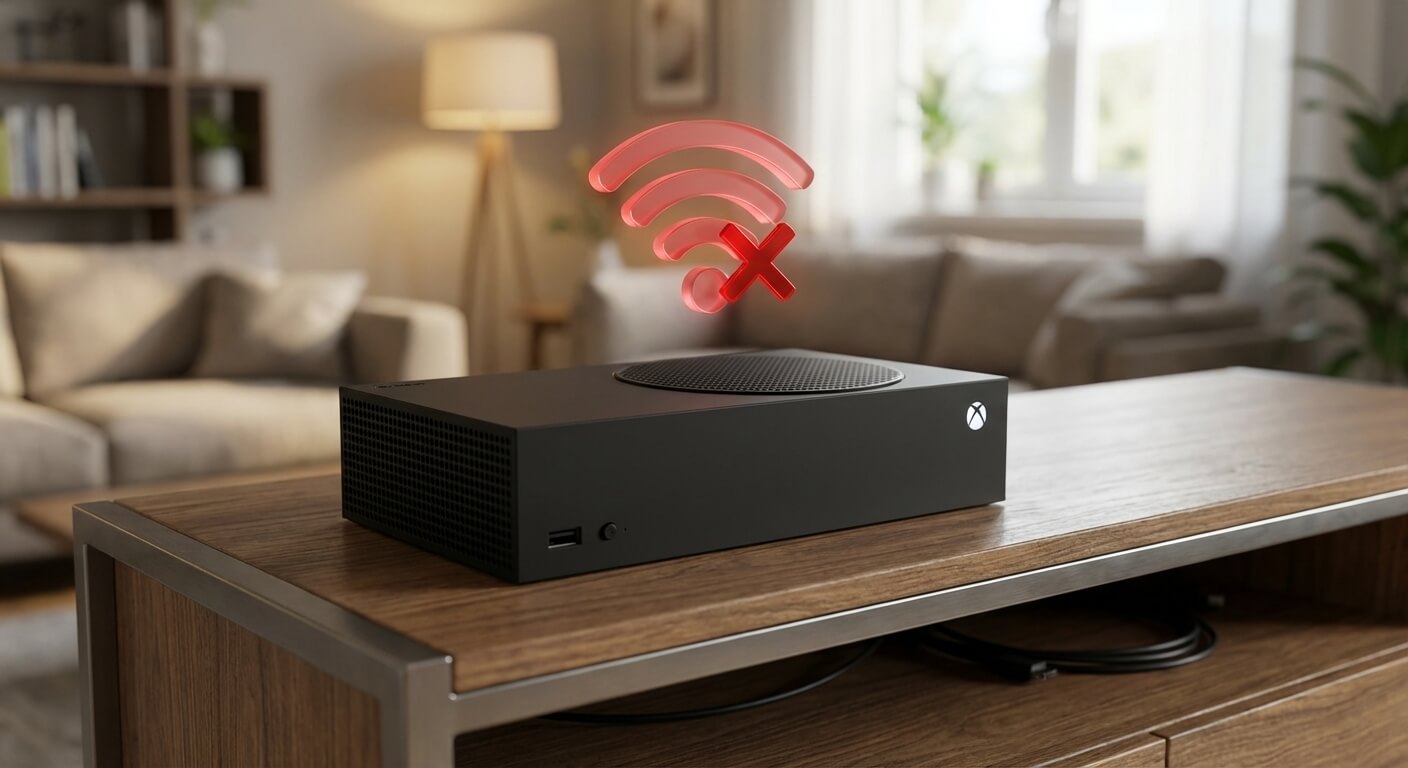
While WiFi issues with the Xbox Series S aren’t super common, they’re annoying enough when they happen. Luckily, most of the time, you can fix them yourself in just a few minutes. We’ve walked plenty of customers through these exact steps at our Gizmo Pros locations, and nine times out of ten, the problem gets solved without even needing to bring the console in. Let’s figure out what’s going on and get you back online.
Why Your Xbox Series S Won’t Connect to WiFi
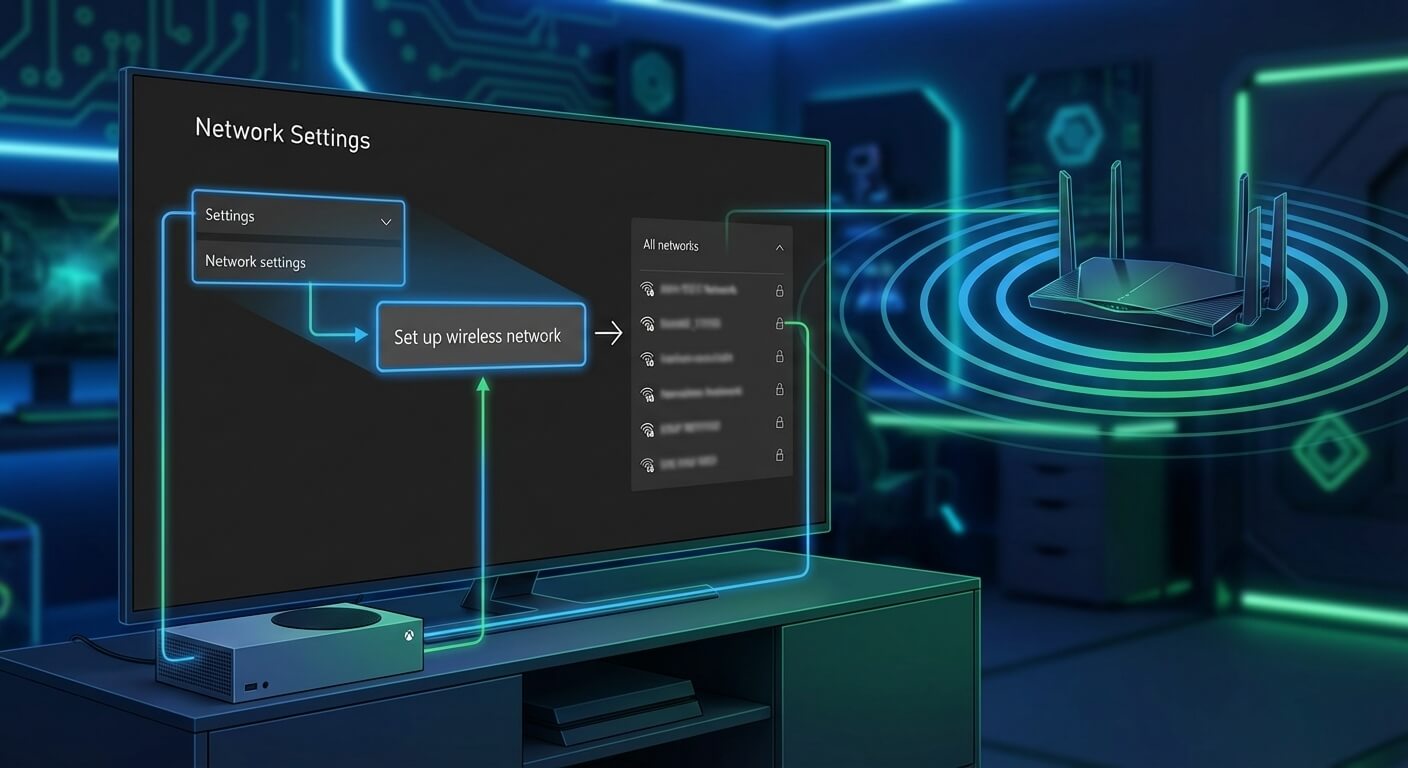
Before we jump into solutions, understanding what’s causing the problem helps you fix it faster. The Xbox Series S can have WiFi issues for several reasons:
Network-related causes:
- Router compatibility issues with the console’s wireless adapter
- Interference from other devices on the 2.4GHz or 5GHz bands
- Outdated router firmware
- DNS server problems
- MAC address filtering enabled on your router
Console-specific issues:
- Corrupted network settings
- Outdated system software
- Hardware damage to the wireless adapter (rare but possible, especially after drops or overheating incidents)
- Software glitches after system updates
Environmental factors:
- Distance from the router
- Physical obstructions (walls, furniture, metal objects)
- Competing wireless signals from neighbors
Quick Fixes to Try First
Start with these simple solutions before moving to more advanced troubleshooting:
1. Power Cycle Everything
This fixes more problems than you’d think. Here’s the proper way to do it:
For your Xbox Series S:
- Hold the Xbox button on your console for 10 seconds until it shuts down completely
- Unplug the power cable from both the console and wall outlet
- Wait 2 full minutes (this clears residual power and resets the network adapter)
- Plug everything back in and power on
For your router:
- Unplug your router and modem
- Wait 30 seconds
- Plug in the modem first, wait until all lights stabilize
- Then plug in the router and wait for it to fully boot
2. Check Your WiFi Password
It sounds obvious, but if you recently changed your WiFi password and your Xbox is trying to use the old one, it’ll fail every time. Go to Settings > General > Network Settings and re-enter your credentials.
3. Move Closer to Your Router
As a quick test, move your Xbox Series S within 10 feet of your router with a clear line of sight. If it connects immediately, your issue is distance or interference-related.
Step-by-Step Troubleshooting Guide
If the quick fixes didn’t work, follow these steps in order:
Check Your Network Status
Press the Xbox button > Profile & system > Settings > General > Network settings. Look at what error message appears. Common ones include:
- “Can’t connect to your DHCP server” – Router is having trouble assigning an IP address
- “DNS isn’t resolving Xbox server names” – DNS configuration issue
- “Can’t get a teredo IP address” – NAT type problem affecting online gaming
Switch Between 2.4GHz and 5GHz Bands
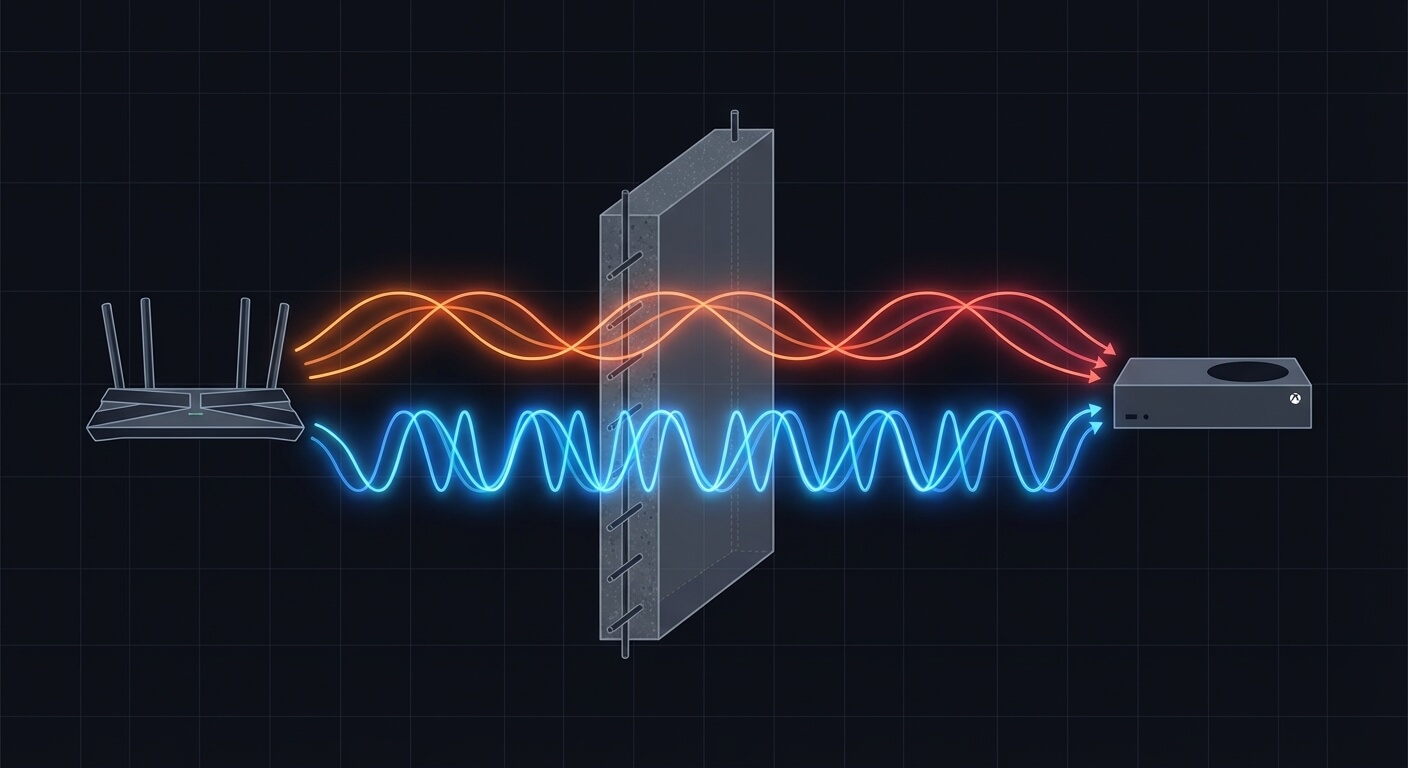
The Xbox Series S supports both frequency bands, and sometimes one works better than the other:
If your router broadcasts separate networks for each band:
- Try connecting to the 2.4GHz network if you’re far from the router (better range, more penetration through walls)
- Try 5GHz if you’re close to the router (faster speeds, less interference)
If you have a combined network:
- Your router automatically chooses the band, but sometimes it picks poorly
- Access your router settings (usually through a web browser at 192.168.1.1 or 192.168.0.1)
- Look for “band steering” or “smart connect” settings and try disabling them
- Create separate SSIDs for 2.4GHz and 5GHz bands
Clear Alternate MAC Address
This resets your console’s network identity and often resolves connection issues:
- Go to Settings > General > Network settings
- Select Advanced settings
- Choose Alternate MAC address
- Select Clear
- Restart your console when prompted
Your Xbox will get a fresh network configuration when it reboots.
Reset Your Network Settings
If clearing the MAC address didn’t help:
- Settings > General > Network settings
- Select Network settings > Advanced settings
- Choose Alternate MAC address > Clear
- Then go back and select “Test network connection”
- If it still fails, go to Settings > System > Console info
- Select “Reset console” but choose “Reset and keep my games & apps”
This resets network settings without deleting your games.
Update Your Console
Microsoft regularly releases updates that fix connectivity bugs:
- Press the Xbox button
- Go to Profile & system > Settings > System > Updates
- If an update is available, install it
- If it says your console is offline and can’t check for updates, try connecting via ethernet cable temporarily to download any pending updates
Configure DNS Settings Manually
Sometimes your ISP’s DNS servers are slow or unreliable. Switching to public DNS can help:
- Settings > General > Network settings
- Select Advanced settings
- Choose DNS settings > Manual
- For Primary DNS, enter: 8.8.8.8 (Google’s DNS)
- For Secondary DNS, enter: 8.8.4.4
- Save and test your connection
Alternative DNS options that work well for gaming:
- Cloudflare: Primary 1.1.1.1, Secondary 1.0.0.1
- OpenDNS: Primary 208.67.222.222, Secondary 208.67.220.220
Check Your Router Settings
Log into your router’s admin panel and verify these settings:
Disable MAC Address Filtering:
- If enabled, your router might be blocking your Xbox
- Either disable this feature or add your Xbox’s MAC address to the approved list
- Find your Xbox’s MAC address in Settings > General > Network settings > Advanced settings
Check for Firmware Updates:
- Router manufacturers release updates that improve device compatibility
- Look for the firmware or system update section in your router settings
Adjust Channel Settings:
- For 2.4GHz: Channels 1, 6, or 11 have the least overlap and interference
- For 5GHz: Try channels in the 36-48 range first
- Many routers have an “Auto” setting that sometimes picks congested channels
UPnP Settings:
- Universal Plug and Play helps with Xbox Live connectivity
- Make sure UPnP is enabled in your router settings
- This is often under “Advanced” or “Gaming” sections
Advanced Solutions for Persistent Issues
Use a Wired Connection Temporarily
If you have an ethernet cable handy, connecting directly to your router accomplishes two things:
- You can determine if the problem is specifically with the wireless adapter
- You can download system updates and troubleshoot more effectively while connected
If your Xbox works perfectly when wired but won’t connect wirelessly, the wireless adapter may have hardware issues.
Factory Reset Your Router
Before you factory reset your router, make sure you have:
- Your ISP login credentials (if needed)
- A list of any custom settings you’ve configured
- Access to reconfigure all your other devices afterward
Most routers have a small reset button that needs to be held for 10-30 seconds. This wipes all custom settings and returns it to factory defaults, which can eliminate configuration conflicts.
Check for Console Hardware Issues
WiFi adapter failures are uncommon but can happen, especially if:
- Your console has experienced physical damage
- It’s been exposed to excessive heat
- Liquid somehow got inside the console
Signs of hardware failure:
- No WiFi networks appear at all when scanning
- WiFi option is completely grayed out
- Other controller features like stick drift are also developing (unrelated to wifi connection, but suggesting broader hardware degradation)
When to Get Professional Help
Some WiFi issues require professional diagnosis and repair. Consider bringing your console to us if:
- None of the above solutions worked
- Your Xbox doesn’t detect any WiFi networks at all
- The console previously suffered physical damage or liquid exposure
- You notice other hardware issues developing simultaneously
- The warranty repair process through Microsoft seems too slow or complicated
At Gizmo Pros, we’ve repaired countless Xbox Series S consoles with WiFi problems. Our technicians can:
- Perform detailed diagnostics to pinpoint hardware vs. software issues
- Replace faulty wireless adapters with quality components
- Address related problems like thermal paste degradation that can affect wireless performance
- Complete most repairs while you wait
We back all our work with a 90-day warranty and offer locations in Wesley Chapel, Holiday, and Hudson for your convenience. Plus, we’ll beat any local competitor’s published price by $10. Want to know more about potential costs? Check out our breakdown of Xbox Series S repair costs.
Still Having Issues?
WiFi connectivity problems can be incredibly frustrating, but they’re almost always fixable. Work through the solutions above systematically, starting with the simplest and moving toward more advanced fixes.
If you’ve exhausted all troubleshooting steps and your Xbox Series S still won’t connect, there’s likely a hardware issue that needs professional attention. Our team at Gizmo Pros has the experience and tools to diagnose and fix the problem quickly. We’re located in Wesley Chapel, Holiday, and Hudson, and we’d be happy to get your gaming back on track.