If your hard drive is clicking, running slow, or throwing errors you have never seen before, it is telling you something. Drives rarely fail out of nowhere, they usually send warning signs for days or weeks first. Knowing what to look for is the difference between walking away with every file intact and losing years of photos, documents, or work.
Mechanical Failure vs. Logical Failure
Not every hard drive problem is the same kind of problem, and the symptoms usually tell you which type you are dealing with.
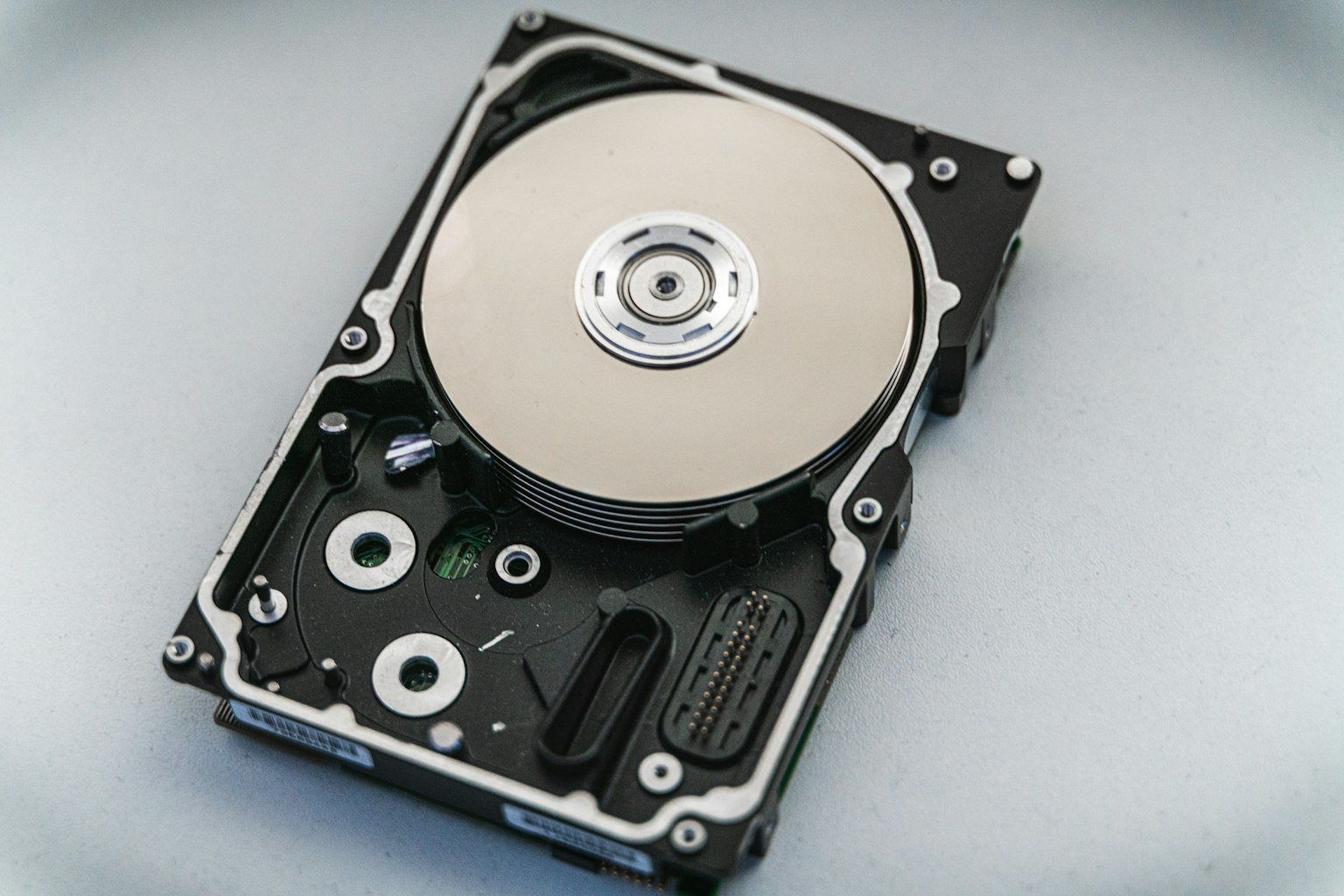
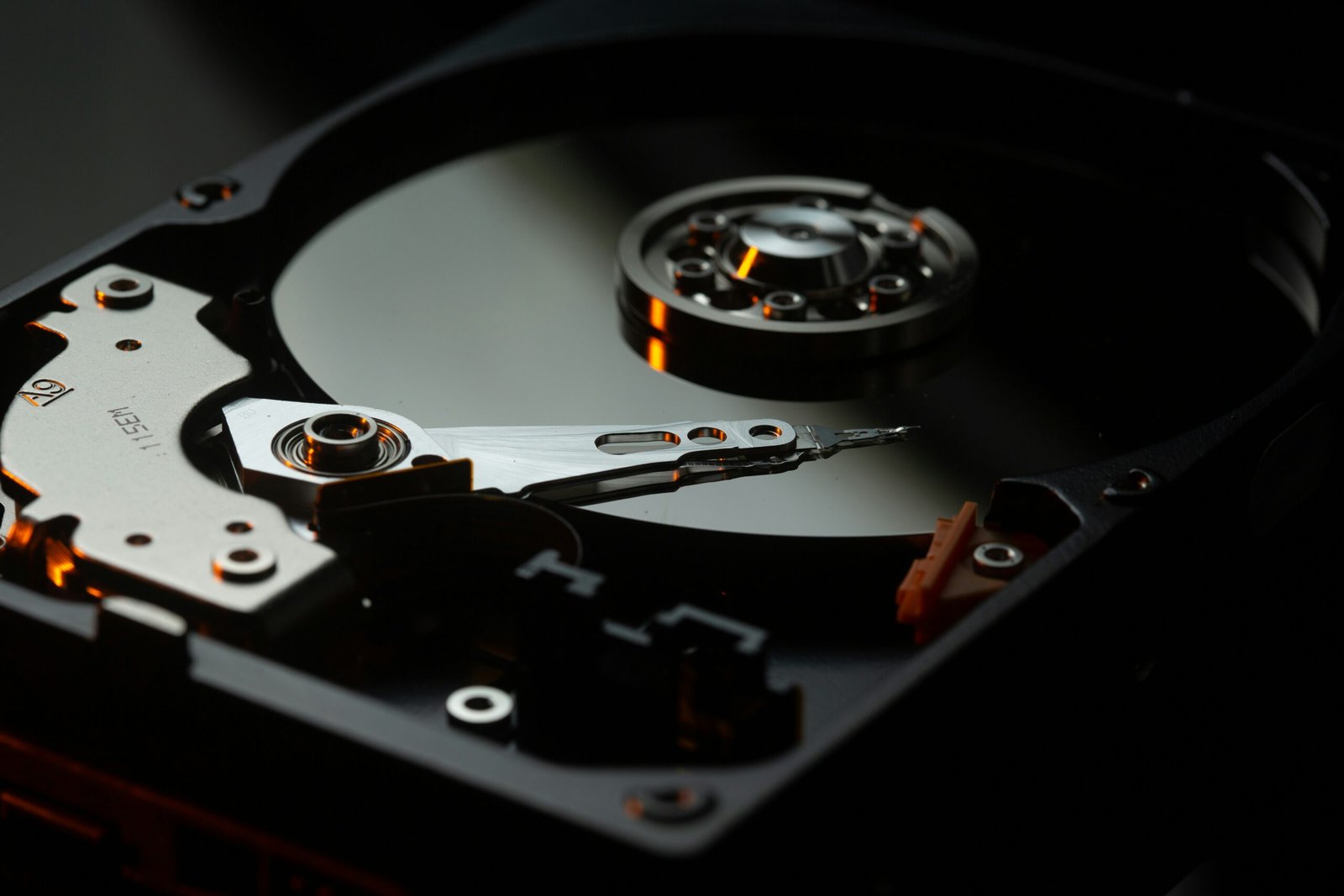
Mechanical failure is physical. The spinning platters, the read/write head, or the motor inside the drive is wearing out or has already broken. This is the kind that causes clicking, grinding, or a drive that will not spin up at all. It gets worse the longer the drive keeps running.
Logical failure is not physical. The drive itself is fine, but the file system, partition table, or operating system data on it is corrupted. This shows up as a drive that is not “seen” correctly, files that will not open, or a computer that asks you to format a disk that used to work perfectly.
The reason this distinction matters is that what you do next is different for each one. A mechanical failure means power it down and stop using it. A logical failure is usually safe to leave powered on, though you still should not write new data to it if there is anything on it worth saving.
10 Hard Drive Failure Symptoms
Here is what we see most often on the bench, roughly in order of how urgent each one is.
| Symptom | What It Usually Means | What To Do |
|---|---|---|
| Clicking or grinding noise | Read/write head or motor failure | Power down immediately, stop using it |
| Loud whirring or repeated spin-up/spin-down | Motor or spindle bearing wearing out | Back up now, plan for replacement |
| Drive not showing up at all | Could be the drive, the cable, or the enclosure | Try a different cable or port before assuming the worst |
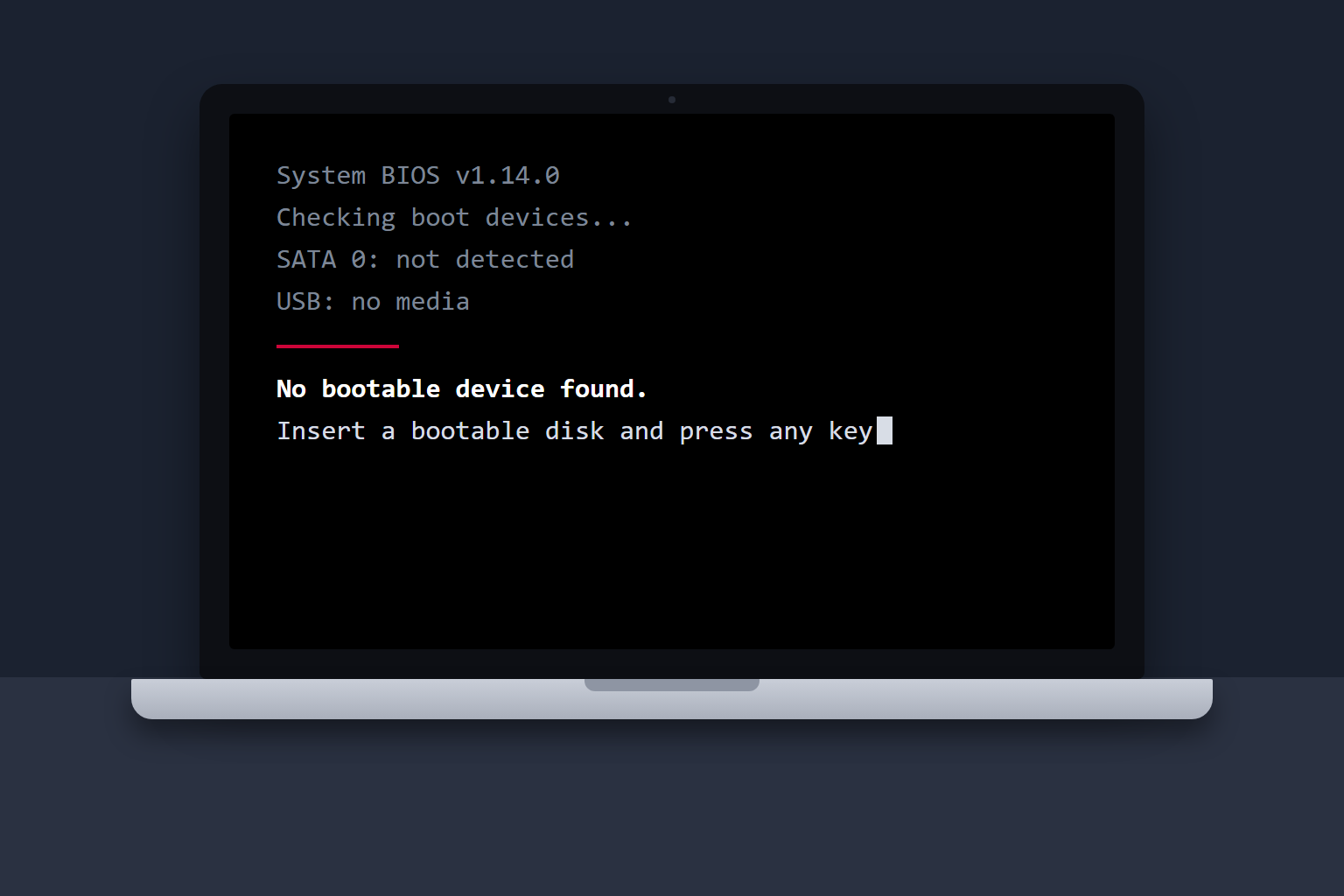
| “No boot device found” on startup | Drive, boot data, or connection issue | Check BIOS to see if the drive is even detected |
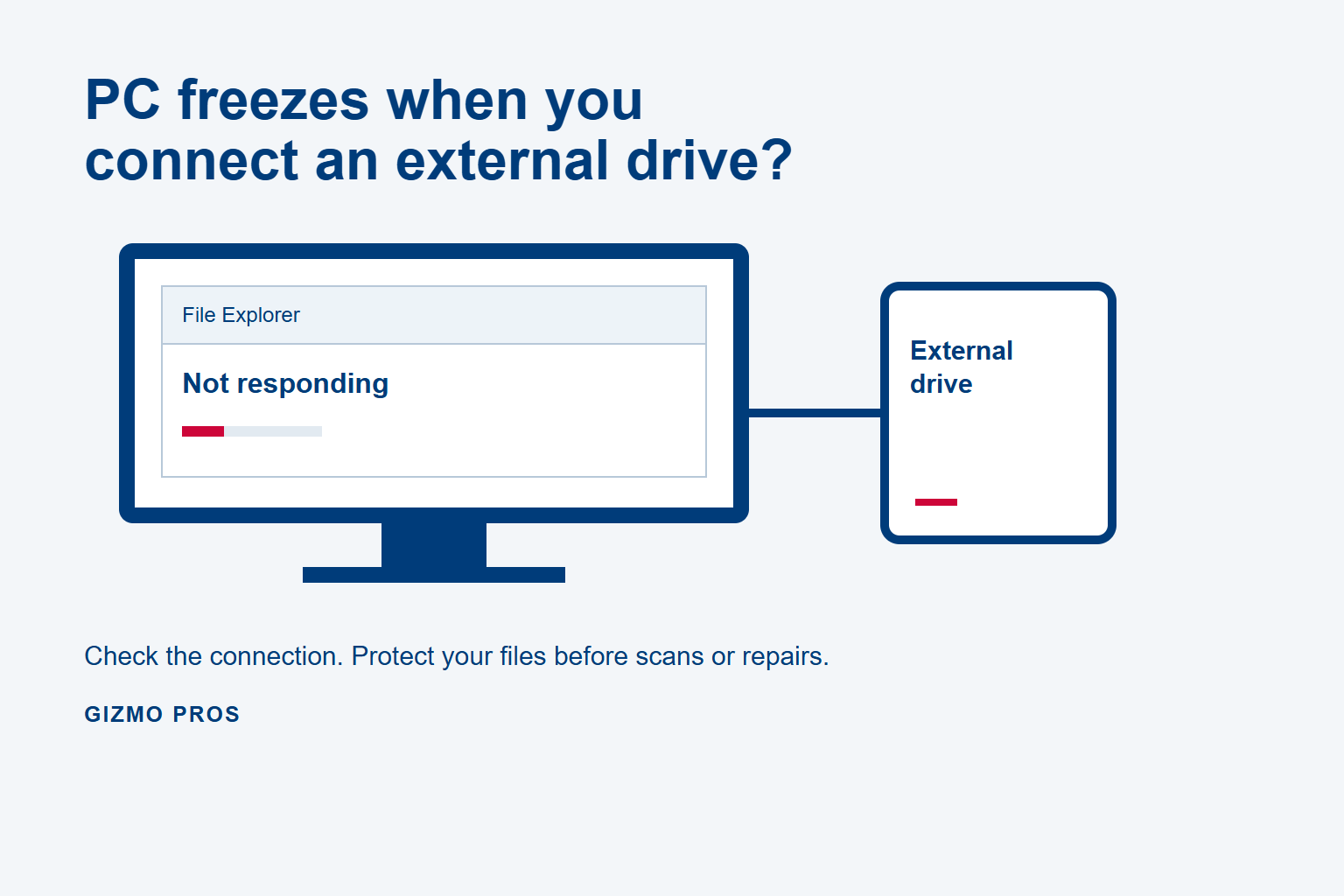
| Computer freezing or crawling during file access | Bad sectors forcing repeated retries | Back up immediately, avoid reboots |
| Files that will not open or are suddenly corrupted | Bad sectors or failing file system | Copy what still opens to a second drive now |
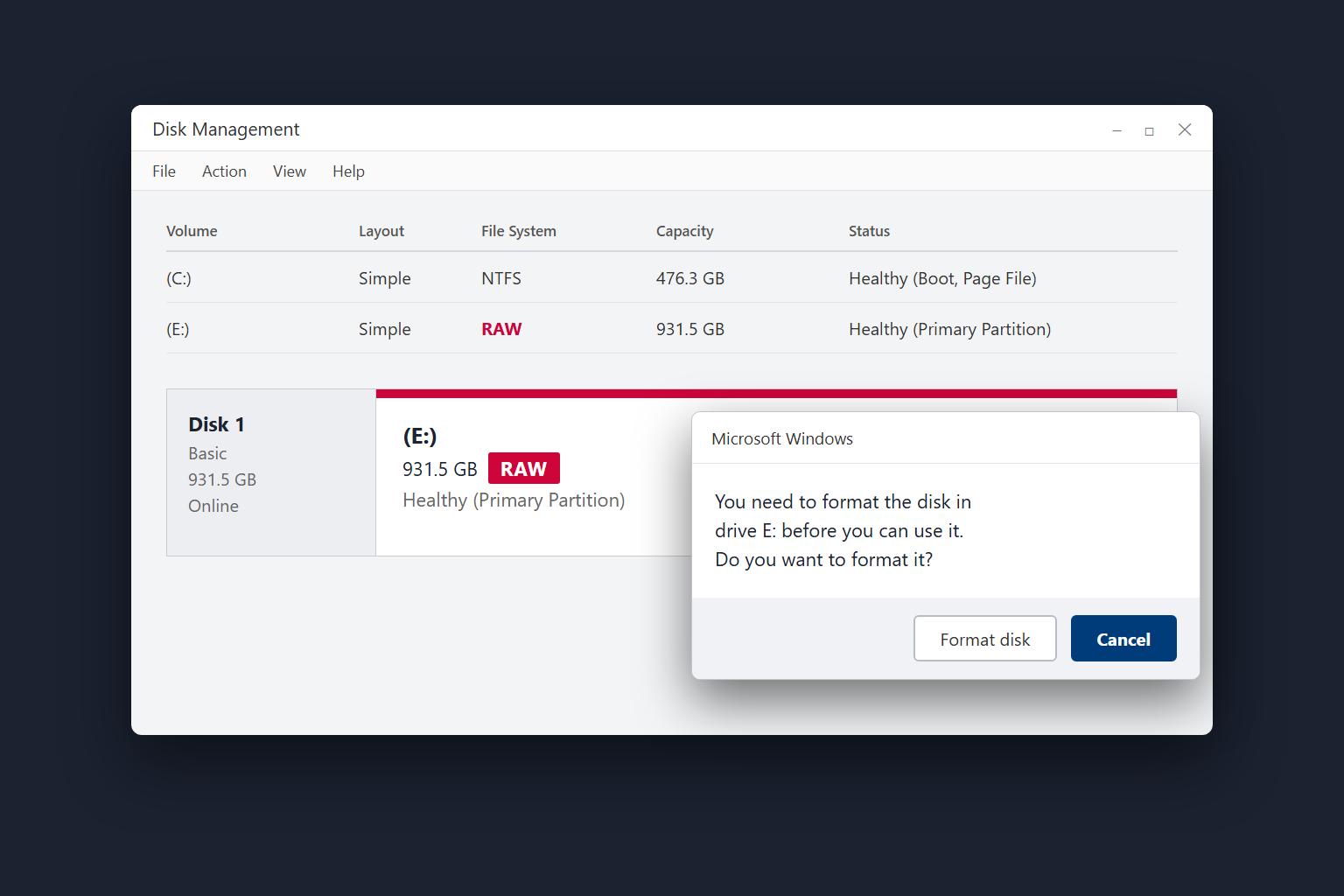
| “You need to format this disk” message | Corrupted file system, drive hardware often fine | Do not click format, the files are usually still there |
| Frequent blue screens or crashes | Drive errors interrupting the operating system | Run a S.M.A.R.T. check if the system will boot |
| Unusual heat coming from the drive or enclosure | Failing components drawing excess power | Let it cool, back up, do not keep running it hot |
| Files or folders disappearing on their own | File system corruption or failing sectors | Stop writing new data to the drive right away |
A drive that will not power on at all is a different situation than one showing these warning signs, in that case the diagnostic tells us whether it is electrical or mechanical before anything else happens.
Seeing Any of These Right Now?
Power the drive down and let us take a look. Diagnostics are free at all three of our Florida locations, no appointment needed.
Do SSDs Fail the Same Way?
Not really. A traditional hard drive (HDD) has spinning platters and a moving read/write head, so it tends to fail mechanically, with the noises and grinding described above. A solid-state drive (SSD) has no moving parts, so it almost never clicks or grinds. Instead, an SSD failing tends to look like sudden slowdowns, a drive that goes read-only without warning, files that corrupt for no obvious reason, or the drive simply vanishing from the system one day with no buildup at all. If you are not sure which type you have, check your device’s specifications or ask us during the free diagnostic, since the recovery approach for each is genuinely different.
What To Do the Moment You Notice These Symptoms
1. Stop Using the Drive
Every additional read or write is a chance to make things worse, especially with a mechanical issue. If the drive is clicking or grinding, power it down and do not power it back on until a technician has looked at it.
2. Do Not Run Repair Tools Repeatedly
Running CHKDSK or a similar repair utility over and over on a drive with bad sectors can push it past the point of recovery. One careful pass by someone who knows what they are looking at is safer than several automated attempts.
3. Back Up What You Can, While You Can
If the drive is still accessible and just running slow or throwing occasional errors, copy your most important files to a second drive or cloud storage right now, starting with anything irreplaceable.
4. Skip the DIY Recovery Software on a Clicking Drive
Data recovery software works by reading the drive, which is the last thing you want happening on a drive with a mechanical fault. It is built for logical failures, not physical ones.
5. Bring It In Before the Damage Spreads
Drives that come in early recover far more often than drives someone spent a week troubleshooting on their own. If a drive is degrading, the sooner it stops spinning, the more of it is still readable when we open it up.
Not Near Wesley Chapel, Holiday, or Hudson? Ship It to Us.
Our mail-in repair service takes drives from anywhere in the USA. Same free diagnostic, same honest quote before anything is touched, and every repair carries our 90-day warranty.
Is a Failing Drive Usually Recoverable?
More often than most people expect, but it depends heavily on which symptom you are seeing and how long it has been going on. According to Backblaze’s long-running drive reliability data, mechanical wear accounts for the large majority of eventual hard drive failures, and drives typically show measurable warning signs, tracked internally through S.M.A.R.T. monitoring, well before they die completely. That data-backed pattern matches what we see at the bench: a drive that is clicking but still spinning usually has more recoverable data than a drive that has already stopped, and a logical failure (corruption, accidental formatting, a bad file system) recovers well in the vast majority of cases because the physical media itself is untouched. The free diagnostic is what tells us where your specific drive falls on that spectrum, and we will give you honest odds before you spend a dollar rather than after.
When to Stop and Call a Technician
Some situations are not worth troubleshooting at home. Bring the drive in (or mail it to us) if:
- It is clicking, grinding, or making any noise it did not make before.
- It has water, heat, or fire damage.
- Files or folders are disappearing and you have not deleted anything.
- You have already run repair tools more than once with no improvement.
- The data on it matters more than the cost of a proper diagnosis.
Diagnostics are always free at Gizmo Pros, and we will beat a competitor’s written quote by $10. Straightforward repairs, like a cable, enclosure, or a straight drive swap, are usually finished the same day. Recovery jobs typically run 24 to 72 hours depending on how damaged the drive actually is, and if you are weighing repair against recovery, our full hard drive repair and data recovery breakdown covers both in detail, including what each option costs and how we decide which one fits your situation. If your drive is also acting up in a laptop that will not start at all, our guide on a laptop that won’t boot but the fan spins walks through that related scenario.
Let Us Diagnose It Before It Gets Worse
Free diagnostic, honest odds, and a straight answer on repair versus recovery. Visit us in Wesley Chapel, Holiday, or Hudson, or ship your drive from anywhere in the USA.
Visit Our Repair Centers
📍 Wesley Chapel
Near Pasco-Hernando State College, Porter Campus. Walk-ins welcome, free diagnostics on every drive.
📍 Holiday
On US-19, serving Holiday, Tarpon Springs, and New Port Richey. Same free diagnostic process.
📍 Hudson
Serving Hudson and western Pasco County. Bring the drive in, no appointment necessary.
Frequently Asked Questions
What is the first sign a hard drive is about to fail?
For a traditional hard drive, it is usually a sound: clicking, grinding, or a whirring that was not there before. For an SSD, it is more often a sudden slowdown or files that will not open, since SSDs have no moving parts to make noise as they wear out.
Can a clicking hard drive still be recovered?
Often, yes, especially if it is powered down as soon as the clicking starts. The clicking itself is usually the read/write head failing to find the right position, and the data on the platters underneath can still be intact. The key is stopping the drive from spinning further, not powering through it.
My computer says I need to format the disk. Should I?
No. That message means the operating system cannot read the file system, not that your files are gone. Formatting will erase what is recoverable. Stop using the drive and have it looked at first.
How long does a hard drive usually last before failing?
Most drives run for several years, but it varies widely by usage, heat, and drive quality. Rather than watching a calendar, watch for the actual warning signs above, noise, slowdowns, errors, since those tell you far more than age alone.
Is it cheaper to repair a hard drive or replace it?
If the data on it does not matter, a straight replacement is usually the cheaper and faster option. If the data matters, recovery is the real question, and diagnostics are free, so you will know the honest cost and odds before deciding either way.
Do you recover data from external hard drives too?
Yes. External drives, USB flash drives, and SD cards go through the same free diagnostic as internal drives. A lot of “dead” external drives turn out to be a failed enclosure or cable rather than the drive itself.
Do not wait for a clicking drive to go silent.
Free diagnostic. Honest odds. 90-day warranty on every repair. Visit us in Wesley Chapel, Holiday, or Hudson, or ship your drive from anywhere in the USA.