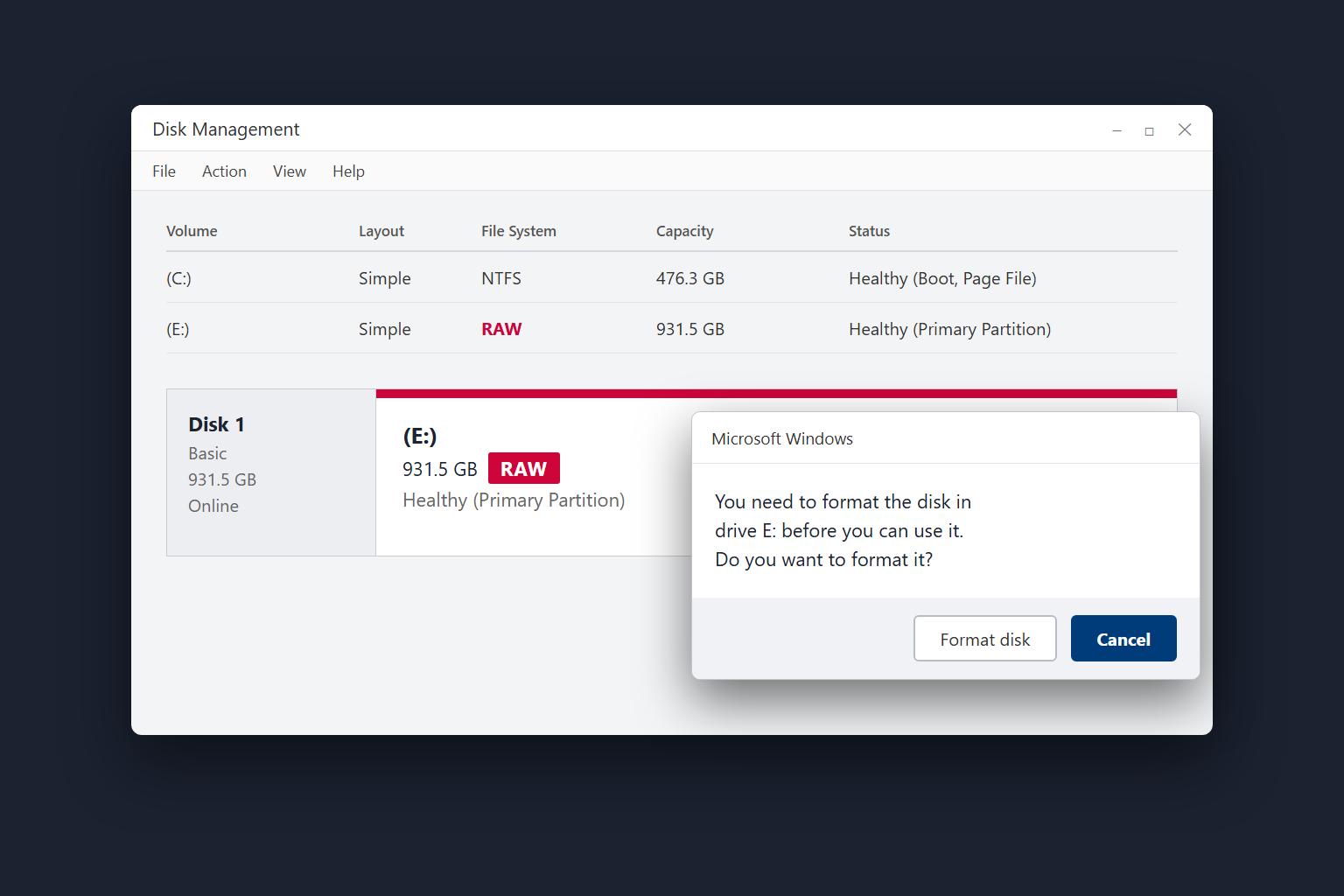
Windows asks you to format a drive you have used before. Disk Management calls it RAW. If the drive holds your only copy of anything important, close the format prompt. You can deal with the drive later. First, protect the files.
RAW describes what Windows can read: it has found a volume, but it cannot make sense of the file system. The files may still be there. The drive itself may be healthy or failing. That one label cannot settle either question.
A brand new, empty disk is different. It may show RAW simply because nobody has formatted it yet. The advice below is for a drive that held files before Windows started asking to format it.
The format prompt can wait
Formatting creates a new file system. It can make an empty drive usable, but it is the wrong first step for a drive with files you want back. Microsoft’s Disk Management guidance is blunt about this: format a RAW partition only when you know it is empty. Formatting erases data.
Our rule is to secure the data before trying to repair the drive. We would rather examine an untouched disk than one that has already been through several repair utilities.
Listen to the drive, then check what Windows sees
Start with the simple physical checks. For an external drive that spins normally, try another cable and a direct USB port. A second computer can help rule out a problem with the first one. Make this a short check, not an afternoon of reconnecting the same failing disk.
Stop if it clicks, beeps, grinds, repeatedly disconnects, or takes an unusually long time to appear. A long scan asks a lot of a drive that may already be struggling. Our beeping drive guide explains why that sound deserves attention.
If the drive is stable, right click Start and open Disk Management. Match the disk by its capacity before you do anything else. The words RAW, Unallocated, and Offline point to different problems. So does a normal NTFS or exFAT volume with no drive letter.
What the Disk Management labels tell you
| Label | What Windows is showing | Next move |
|---|---|---|
| RAW | A volume is present, but Windows cannot read its file system. | Keep the drive unchanged if it held files. Plan recovery first. |
| Unallocated | No usable partition appears in that space. | Do not create a new volume if files were there. |
| Offline | Windows detects the disk but has not brought it online. | Find out why it is offline before changing disk settings. |
| NTFS or exFAT, no letter | The file system is recognized, but the volume has no drive letter. | Check whether assigning a drive letter restores access. |
These labels describe what Windows can see. They do not measure the drive’s physical health.
If the drive was encrypted, look for its unlock password or recovery key. A locked drive needs its key before you can judge what is on it.
If this is your computer’s startup drive and Windows will not load, you may not be able to open Disk Management. Our no bootable device guide covers that situation.
The problem with CHKDSK on a RAW drive
The /f switch tells CHKDSK to repair file system errors, changing file system data when it runs. On a truly RAW volume, Windows commonly replies that CHKDSK is not available for RAW drives. Microsoft’s CHKDSK documentation explains what its repair options do.
When the drive contains the only copy of your files, make a copy or recover the files to another disk before letting any tool change the original. A stable drive may be suitable for a sector level image or careful software recovery. Save recovered files elsewhere. If the drive is noisy or keeps dropping out, stop using it and ask a recovery specialist to assess it.
Once the files are safe
If you have recovered what you need, or you know the disk was empty, you can format the correct disk in Disk Management to make it usable again. Check the capacity and disk number carefully. Formatting will not repair a bad cable or failing hardware. If the same drive turns RAW again, or shows other hard drive failure symptoms, do not trust it with important files.
If you want us to examine it, tell us whether it makes noise, whether it stays connected, what Disk Management shows, and whether there is another copy of the files. Those details help us decide whether to start with a connection check, data recovery, or hardware work. If you are outside our local service area, contact us about mail-in repair before shipping a drive that clicks or beeps.