If your fan is spinning, your laptop is getting power and the motherboard is at least partly alive. That rules out the scariest, most expensive failures and points us at a short list of fixable culprits. Let me walk you through exactly what’s going on and what to try before you assume the worst.
What It Means When the Laptop Won’t Boot but Fan Spins
When you press the power button, your laptop runs through a quick self-check called the POST (Power-On Self-Test) before it ever loads Windows or macOS. The fan spinning up tells us power is reaching the board and the system is trying to start. The problem is that something is stopping it from finishing the POST or from showing you anything on screen.
In plain terms: the heart is beating, but the machine is choking somewhere in the startup sequence. Nine times out of ten in our shop, the cause is one of these: bad or loose RAM, a display you can’t see (the laptop is actually booting, the screen just isn’t showing it), a failed boot drive, corrupted firmware, or a thermal problem forcing repeated shutdowns. The trick is figuring out which one, and most of that you can narrow down at home in about ten minutes.
Common Causes (and What Each One Looks Like)
Here’s the quick-reference chart I more or less keep in my head when one of these comes across the bench:
| What You Notice | Most Likely Cause | First Thing to Try |
|---|---|---|
| Fan spins, screen stays totally black, no logo | Loose or failed RAM | Power drain, then reseat memory |
| Fan and lights on, but a very faint image if you shine a light on the screen | Backlight or display cable | Connect an external monitor |
| Logo appears, then “No bootable device” or a spinning cursor forever | Failed SSD/HDD or corrupt OS | Check boot drive in BIOS |
| Beeping pattern or blinking caps-lock/power LED | Hardware fault flagged by firmware | Note the pattern, decode it |
| Fan roars loud, then shuts off after a few seconds | Overheating / thermal shutdown | Clean vents, check cooling |
| Stuck on the manufacturer logo or BIOS screen | Corrupted BIOS/UEFI settings | Reset BIOS to defaults / clear CMOS |
If the fan isn’t running at all and the laptop is dead silent, that’s a different diagnosis path entirely, our guide on computer fans not spinning covers that scenario.
Not Sure Where the Problem Is?
We’ll run a free diagnostic with no obligation. Come into any of our three Florida locations, or ship your laptop to us from anywhere in the USA.
Step-by-Step Fixes You Can Try at Home
Work through these in order. Don’t skip ahead, the early steps are quick and they solve more cases than you’d expect.
1. Do a Hard Reset (Power Drain)
This clears residual electrical charge that can lock up the board, and it’s the single most effective first move.
- Unplug the charger and disconnect every USB device, SD card, and external drive.
- If your battery is removable, take it out. If it’s built in, leave it.
- Press and hold the power button for 30 to 60 seconds.
- Plug the charger back in (battery still out, if removable) and try to power on.
You’d be surprised how often a stubborn laptop wakes right up after this.
2. Rule Out the Screen With an External Monitor
This step is the one most people skip, and it’s the one that saves the most money. A laptop that “won’t boot” is very often booting just fine, you simply can’t see it because the backlight or display cable has failed.
- Plug an external monitor or TV into your laptop’s HDMI or USB-C port.
- Power the laptop on and watch the external display.
- Also try shining a flashlight at an angle across your laptop’s own screen. If you can make out a faint desktop or logo, the panel is alive but the backlight is dead.
If the picture shows up on the external monitor, congratulations, your laptop works. The fault is in the screen, the backlight, or the cable behind the hinge, which is a far cheaper repair than a logic board.
3. Reseat the RAM
Loose or failing memory is the number-one cause of a fan-spinning, blank-screen, no-POST laptop. If you’re comfortable opening the access panel:
- Power off and unplug everything.
- Open the memory cover, push the clips out, and remove each RAM stick.
- Firmly reseat them until both clips snap back. If you have two sticks, try booting with just one at a time.
4. Listen and Watch for Codes
Many laptops report hardware faults through beep patterns or a blinking caps-lock, num-lock, or power LED. A repeating pattern isn’t random, it’s the firmware telling you which component failed (often RAM, GPU, or CPU). Count the beeps or blinks and look up the code for your specific brand.
5. Reset the BIOS / Clear CMOS
If the machine powers to a logo or BIOS screen and freezes, corrupted firmware settings may be the holdup. Enter BIOS (usually by tapping F2, F10, or Delete at startup), choose “Load Optimized/Setup Defaults,” save, and exit. If you can’t even reach BIOS, clearing the CMOS battery is the next move, and that’s usually a job for a technician.
6. Disconnect Everything and Check the Boot Drive
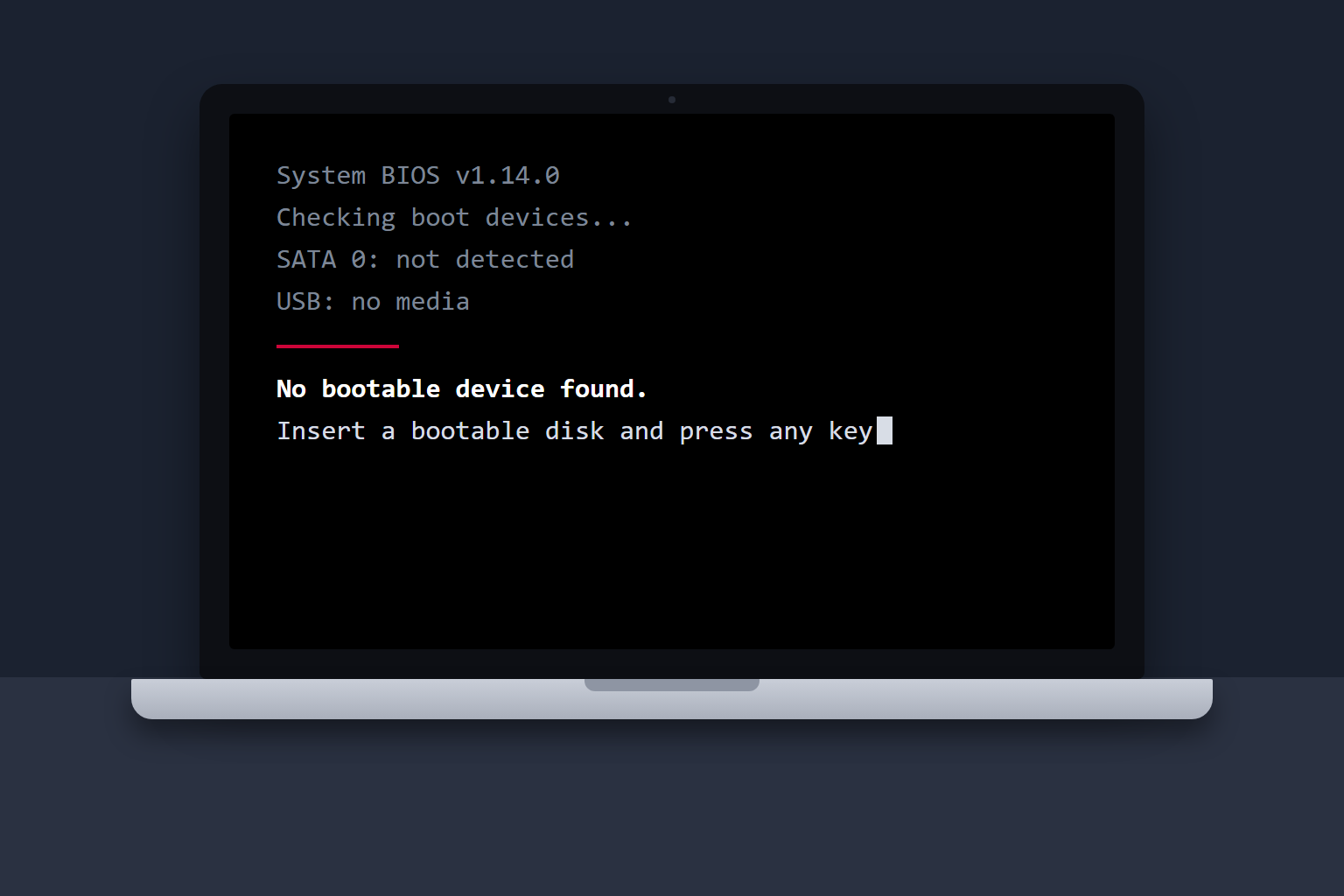
A faulty USB device or external drive can hang the boot process, so unplug them all and retry. If you get a “No bootable device found” message, the SSD or hard drive, or the operating system on it, is the problem. A failing drive can sometimes be cloned and recovered if you act before it dies completely.
When Heat Is the Real Problem
There’s a specific version of this issue worth calling out: the fan spins up loud and fast, the laptop runs for a few seconds, then cuts out, sometimes looping over and over. That’s a thermal shutdown. The system is detecting dangerous heat and killing power to protect itself.
The usual culprits are years of dust packed into the heatsink, a fan that’s spinning but not actually moving air, or dried-out thermal paste between the CPU and cooler. Ironically, a noisy, hard-working fan is often the clue, it’s running flat-out because it can’t keep up. A professional cleaning and fresh thermal paste fixes the vast majority of these, and it’s an affordable repair. If you want a sense of what that runs, our breakdown of laptop fan repair costs lays it out clearly. Staying on top of heat is also one of the biggest factors in making your laptop last longer in general.
Tried Everything and Still No Boot? Ship It to Us.
Our mail-in laptop repair service lets you send your machine to us from anywhere in the USA. Most repairs are diagnosed, fixed, and shipped back within 2–4 business days via free standard return shipping. Need it sooner? Next-day return delivery is available for an additional fee. Every repair carries our 90-day warranty.
When to Stop and Call a Technician
DIY steps are great for the easy wins, but some failures need diagnostic gear, a microscope, and a steady hand. Bring it in (or mail it in) if:
- You’ve done the power drain, external monitor test, and RAM reseat with no change.
- You smell anything burnt, see liquid damage, or notice swelling near the battery.
- The laptop beeps or blinks a code pointing at the CPU, GPU, or motherboard.
- There’s no display on an external monitor either, which usually means a board-level fault.
What the repair costs depends heavily on your brand and what failed. A reseat or drive swap is minor; a board-level repair is more involved. If you want ballpark figures for your machine, we’ve put together brand-specific guides for Dell, HP, and Lenovo repair costs. Whatever the job, our diagnostics are free, we keep our prices below the local average, and we’ll beat any local competitor’s published price for the same repair by $10.
Let a Real Technician Look at It, Free
Visit us in Wesley Chapel, Holiday, or Hudson, or ship your laptop from anywhere in the USA. Free diagnostic, no commitment, 90-day warranty on every repair.
Visit Our Repair Centers
📍 Holiday & Tarpon Springs
📍 Wesley Chapel
📍 Hudson
Frequently Asked Questions
Why does my laptop fan spin but the screen stays black?
The fan spinning means power is reaching the motherboard, but the system isn’t completing its startup self-test or isn’t sending an image to the display. The most common reasons are loose or failed RAM and a dead backlight (where the laptop is actually booting, you just can’t see it). Test with an external monitor first, then reseat the RAM.
Is a fan-spinning, no-boot laptop expensive to fix?
Not usually. The most frequent fixes, a RAM reseat, a screen or backlight repair, a fresh boot drive, or a cooling-system cleaning, are all on the affordable end. Board-level failures cost more, but those are the minority. We offer free diagnostics so you know the exact cost before committing, and our pricing runs below the local average.
Could it be the screen and not the laptop itself?
Absolutely, and it happens constantly. If an external monitor shows a normal picture, or a flashlight reveals a faint image on your own screen, the laptop is fine and the issue is the display panel, backlight, or video cable. That’s a much cheaper repair than people fear.
How do I know if it’s the RAM?
A completely black screen with the fan running, no logo, no beep, points strongly at memory. Reseating the sticks or testing one at a time often brings it back. If a beep or LED pattern matches your brand’s memory error code, that confirms it.
My fan gets loud, then the laptop shuts off. What’s that?
That’s a thermal shutdown. The laptop is overheating, usually from dust-clogged vents, a failing fan, or old thermal paste, and shutting down to protect itself. A professional cleaning and re-paste resolves most of these. See our laptop fan repair cost guide for what to expect.
Can I mail my laptop in if I’m not near a Gizmo Pros location?
Yes. Our mail-in repair service accepts laptops from anywhere in the USA. Ship it to us, we diagnose and fix it, then send it back within 2–4 business days via free standard return shipping. Next-day return is available for an extra fee, and every repair is backed by our 90-day warranty.
Do you warranty laptop repairs?
Every repair at Gizmo Pros comes with a 90-day limited warranty against defects, valid across all three Florida locations: Wesley Chapel, Holiday, and Hudson. If the same issue comes back within that window, we make it right.
Still Won’t Boot? We’ll Get It Running.
Free diagnostic. Below-average pricing. 90-day warranty. Visit us in Wesley Chapel, Holiday, or Hudson, or ship your laptop from anywhere in the USA.