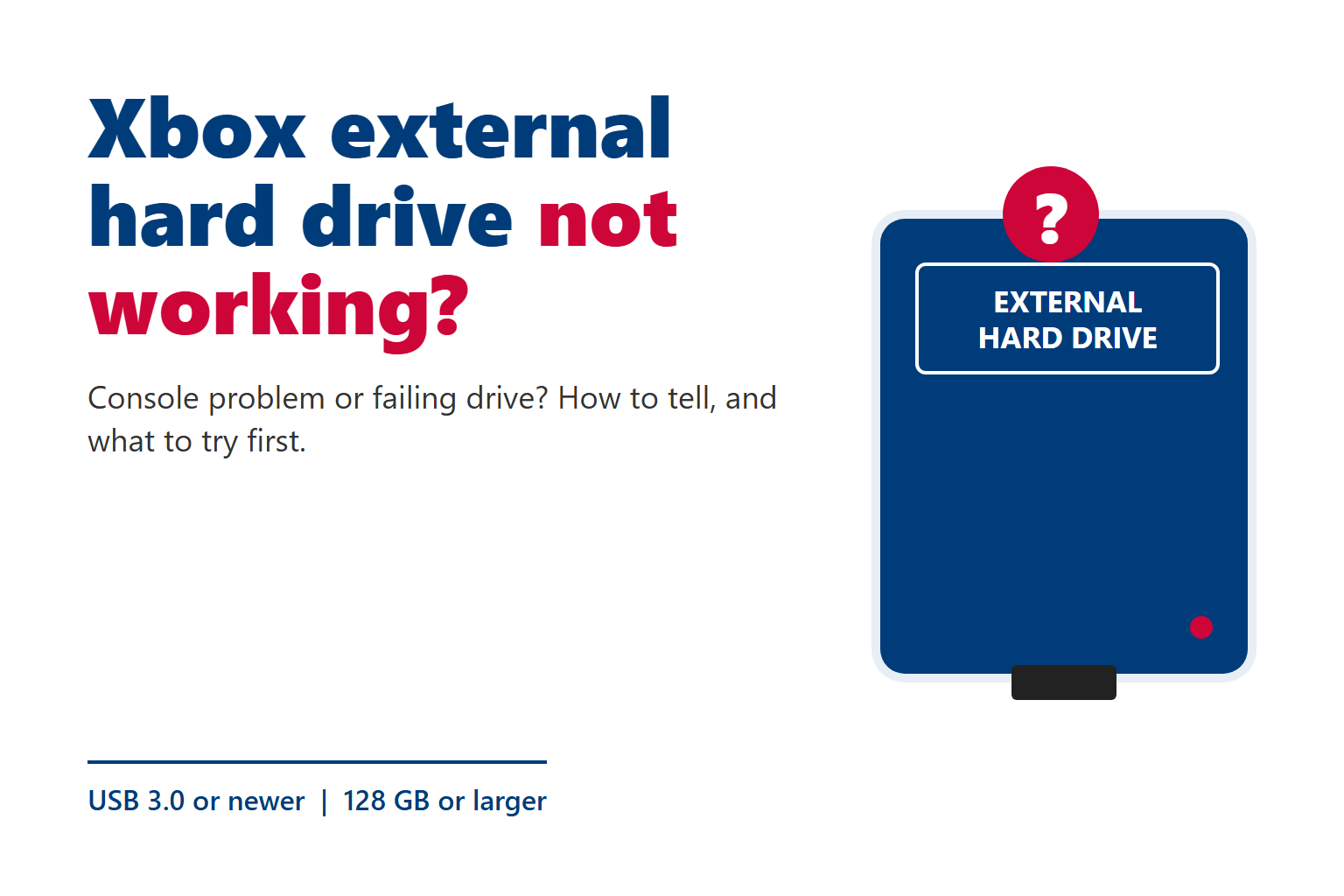
If your Xbox external hard drive is not working, first check whether the console cannot see the drive or simply cannot play a particular game from it. A missing drive calls for connection checks. A Series X|S game asking for faster storage usually needs to be moved.
This guide covers USB hard drives and USB SSDs on Xbox One and Xbox Series X|S. A Storage Expansion Card that fits into the dedicated slot on a Series console is a different device.
Start with what your Xbox is doing
Open Settings > System > Storage devices and look for the external drive. A missing connection notification alone does not tell you whether the drive is available.
- The drive is missing from storage settingsStart with the connection and restart checks.
- The drive appears, but a game asks for faster storageCheck where that game can run. The USB drive may be working normally.
- Xbox asks to format a drive that used to workCancel first. Read the format decision before erasing anything.
- Games freeze or the drive keeps disconnectingCheck the connection once, then compare the drive and console. Stop if abnormal noise begins.
Fix an Xbox external hard drive that is not detected
For a quiet drive with no physical damage, work through these checks in order. Stop as soon as it stays connected. Quit games and wait for installs or transfers to finish before disconnecting storage.
Connect directly to the Xbox
Remove any USB hub, extension cable or stand connection. Plug the drive into a USB port on the console itself, then check Storage devices again. Try another console USB port if it is still missing.
Check the cable and power supply
Reseat both cable ends. If the cable is detachable, try a known-working replacement that supports USB 3.0 or later and matches the drive connector. A power light does not confirm a working data connection.
If the drive has its own power adapter, check the outlet and both power connections. Use the correct adapter specified for that drive. Do not try a random adapter just because its plug fits.
Restart, then reconnect after Xbox starts
Use the Xbox power menu to restart the console. If the drive is still missing, shut the console down fully, disconnect the drive, start the Xbox, and reconnect the drive once the dashboard has loaded. Check Storage devices again.
Do not keep repeating this cycle on a drive that disconnects or makes abnormal sounds.
Check for a console update
Go to Settings > System > Updates and install an available console update. After it finishes, check storage again. If the problem only happens after waking the console, note that pattern for support rather than repeatedly unplugging the drive during use.
Confirm the drive qualifies for game storage
USB game storage needs at least 128 GB capacity and a USB 3.0 or newer connection. Check the drive specification and cable, not just the plug shape. A drive configured for media will not serve as installed-game storage until Xbox formats it for games, erasing what is on it.
Seagate’s Xbox USB storage guide confirms the capacity and connection requirements and recommends reconnecting after startup, changing ports and removing hubs.
Drive detected, but the game will not launch?
If Xbox lists the drive and its installed games, check the game’s storage requirement before replacing hardware. A USB SSD still connects through USB and does not take the place of a Series X|S Storage Expansion Card.
| Storage | Store games | Play games |
|---|---|---|
| USB hard drive or USB SSD | Yes, including Series X|S games. | Compatible Xbox One and backward-compatible games. Games requiring faster storage must be moved first. |
| Internal console SSD | Yes. | Yes, including games requiring Series X|S storage speeds. |
| Compatible Storage Expansion Card | Yes. | Yes, including games requiring Series X|S storage speeds. |
For Series X|S optimized games, plan to use internal storage or a compatible expansion card for play. If Xbox displays a faster-storage message, move the game there through its storage management options. Keeping a copy on USB can save you downloading it again later.
If one game fails while others run normally from the same drive, try moving that game to internal storage. If it still fails there, investigate its installation, updates or account access before blaming the external drive.
Xbox wants to format the drive. Should you agree?
Formatting is a setup step for an empty drive. It is also destructive, so decide based on what is on the drive.
- New or fully backed-up drive: if it meets the requirements, follow the Xbox format prompts. Check that you selected the correct device.
- Drive holding files you need: cancel. Copy accessible files to a separate device and verify the copies before formatting.
- Previously working Xbox game drive: cancel and finish the connection checks first. An unexpected format prompt does not establish whether the cause is corrupted storage information, a connection fault or failing hardware.
If you have confirmed that the drive contains only replaceable game installations, reformatting can be a reasonable later step after the connection checks. Expect to reinstall the games. Formatting will not fix a bad cable or a physically failing drive.
Do not reset the entire Xbox as an early external-drive fix. It adds disruption without identifying which part of the connection is failing.
Use a second-device test without erasing anything
If the drive is still missing, a comparison can help separate the console from the drive, cable or enclosure. Only do this if the drive is quiet and has no physical damage warning signs.
On Windows, check detection rather than readable files
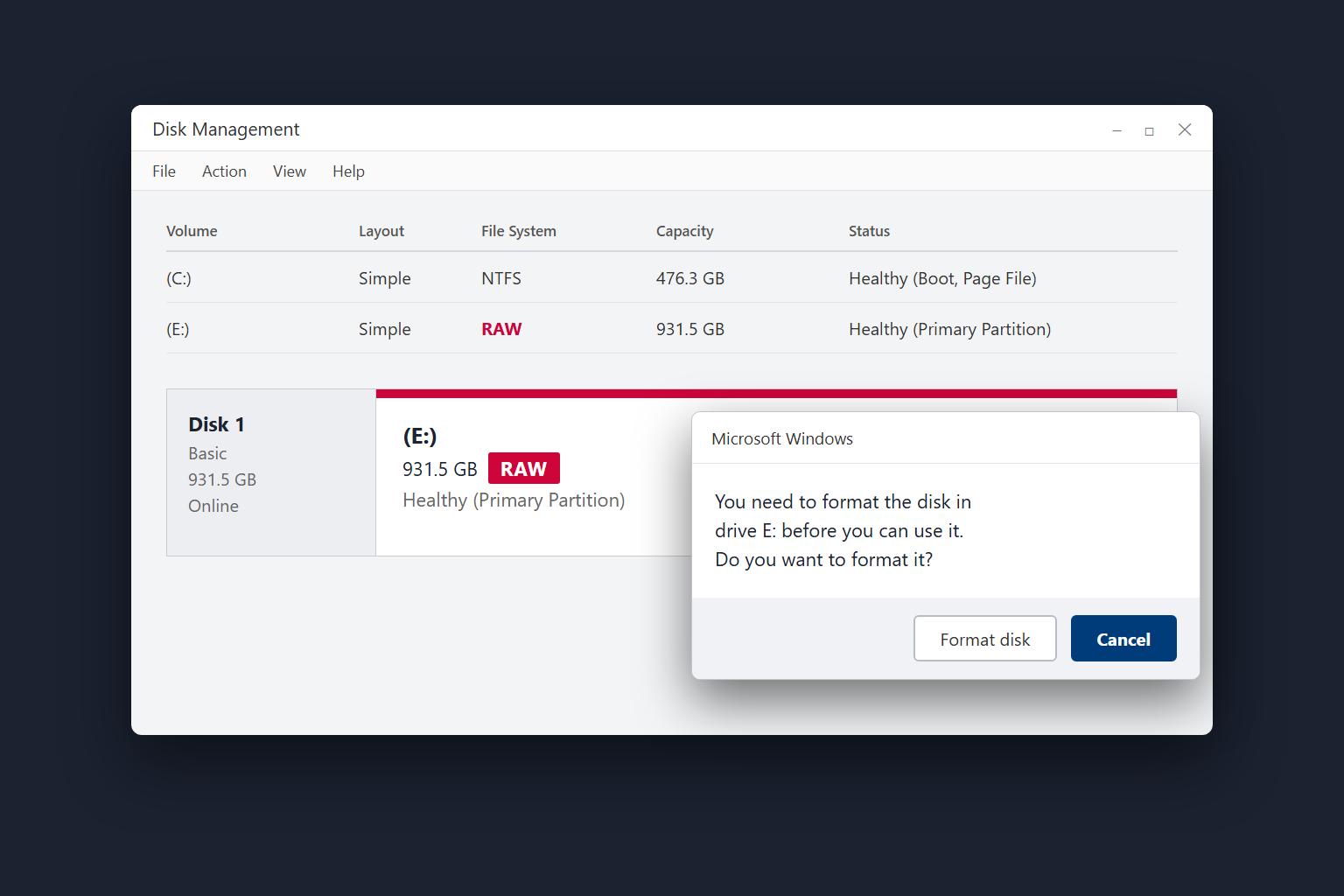
Connect the drive and open Disk Management from the Start button’s right-click menu. Look for a disk matching its capacity. Cancel any request to initialize or format it. Do not delete partitions or run repair commands for this check.
An Xbox game-formatted drive may not open in File Explorer. That alone does not mean it is damaged. Appearing in Disk Management only confirms detection; it does not prove that every part of the drive is healthy.
A RAW or unrecognized file system on a PC is also not enough to diagnose corruption on an Xbox game drive. If this was an ordinary PC-readable drive before the problem, our RAW hard drive guide explains that separate situation.
| Result | What it suggests | Next step |
|---|---|---|
| The drive works on another Xbox | The first console’s connection or software needs attention. | Compare ports and updates on the first console. |
| Another compatible game drive works on your Xbox | The original drive, cable or setup is more suspect. | Check its cable and data needs before considering a format. |
| Several known-working drives fail on your Xbox | The console becomes more suspect, especially if failures follow one port. | Seek console support or a port assessment. |
| The drive is absent on a PC too | The drive, cable, enclosure or power supply may be at fault. | Stop repeating tests. Choose recovery or replacement based on what you need to keep. |
Do not format your comparison drive just to perform a test. A controller working in a USB port does not establish that the port can maintain a reliable storage connection.
When to stop troubleshooting
Stop powering the drive on if it grinds, repeatedly clicks loudly, smells burnt, has liquid damage, or began failing after a drop. If it contains irreplaceable files, leave it disconnected and seek a data recovery assessment before running scans.
A steady hum and occasional soft seeking clicks can be normal for a spinning hard drive. Beeping can indicate insufficient power, so the sound alone is not proof of mechanical failure. Seagate’s drive sound guide explains the distinction. If beeping continues with the correct direct connection and power supply, stop cycling the power. Our guide to an external hard drive that is beeping covers the next decision.
A quiet drive can fail too. Repeated disconnects or stalled reads that continue after a cable and port change justify retiring it from regular use. If important files are accessible, prioritize copying them elsewhere rather than stress-testing the drive. Do not open the sealed drive, freeze it or keep trying repair utilities on the only copy of your files.
Decide what you actually need back
Installed games, saved progress and personal files are different things. Games can usually be reinstalled if you still have the disc, purchase entitlement or required subscription access. Xbox One and Series game saves normally live on the console and sync to the cloud while connected to the Xbox network. Replacing a USB game drive is not normally a reason to erase console saves. Do not assume progress from offline play has synced.
Captures or personal files stored on an external drive need their own backup. Check what exists elsewhere before deciding the drive is safe to erase. See Xbox’s cloud game saves FAQ for sync details.
Keep the replacement simple
Choose storage for the games you want to play: a suitable USB drive for compatible older games and game storage, or a compatible expansion card if you need more space to play Series X|S games directly. Keep personal files on separate, backed-up storage.
Place the drive on a stable surface with ventilation. Leave slack in the cable so it cannot pull the drive off a shelf, and avoid moving a spinning hard drive. Finish transfers and shut the console down fully before disconnecting it.