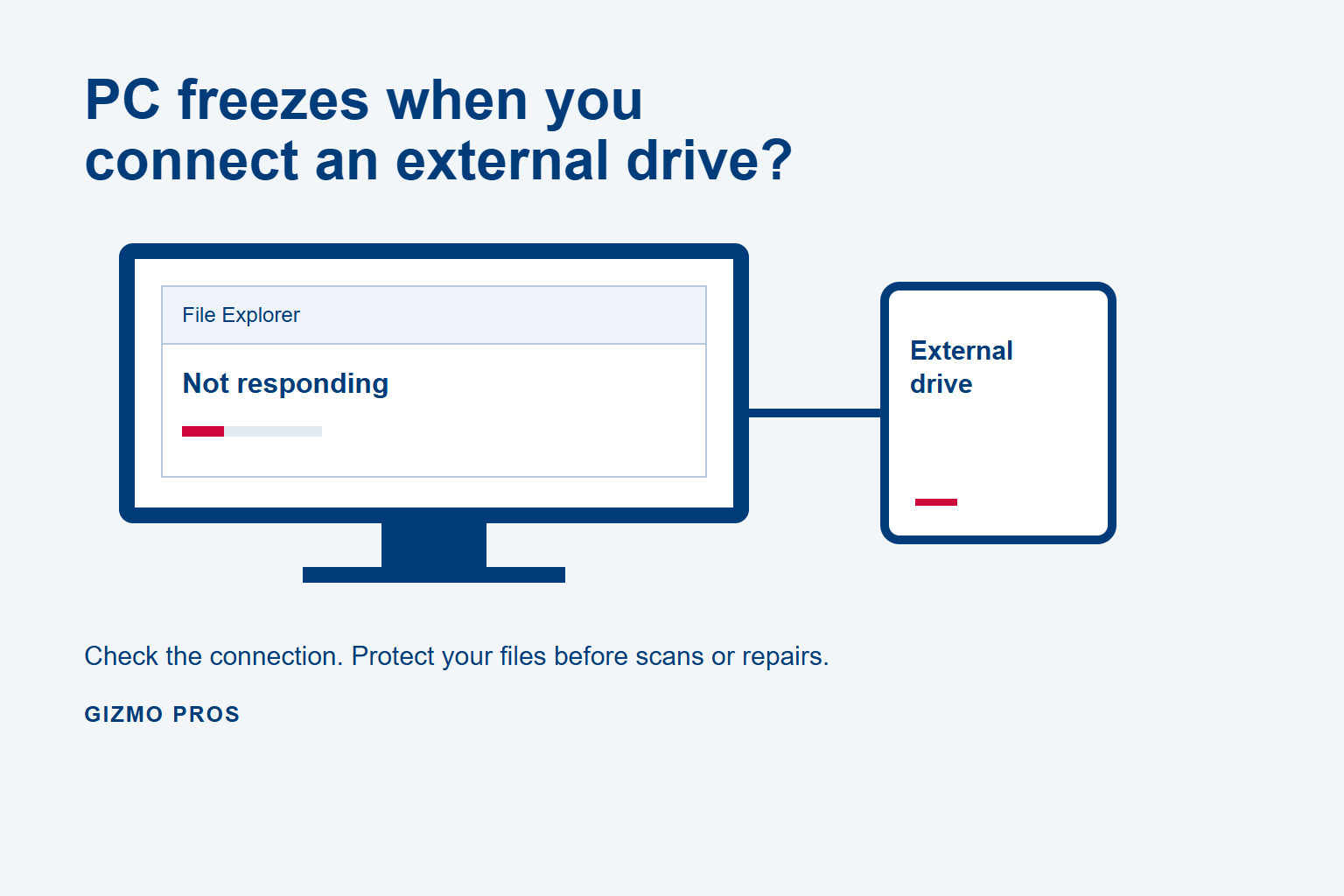
An external hard drive causing your PC to freeze can have several causes: a damaged USB cable, an unreliable power supply, file system corruption, or a drive that cannot read its data reliably. The freeze alone does not identify the fault. Start by deciding whether the files are backed up, then check the connection before trying repair software.
If the drive holds the only copy of important files and repeatedly freezes the computer, stop testing it. A disk that briefly becomes readable may give you a chance to copy files, but repeated failures call for a recovery assessment.
Get the PC responding without making the problem worse
Close applications using the external drive, if Windows still responds. Cancel any file copy and allow it to stop, then use Safely Remove Hardware before unplugging the drive. Removing it during a write can corrupt files.
If the entire PC stays unresponsive, try Ctrl + Alt + Delete and use the power menu to shut down. If that also fails, holding the power button may be necessary as a last resort. Unsaved work can be lost. Disconnect the external drive once the computer is off, then start the PC without it.
A computer that runs normally with the drive disconnected points toward the external drive or its connection. It does not prove the disk itself has failed. If the PC still freezes without the drive, investigate the computer separately before blaming the external storage.
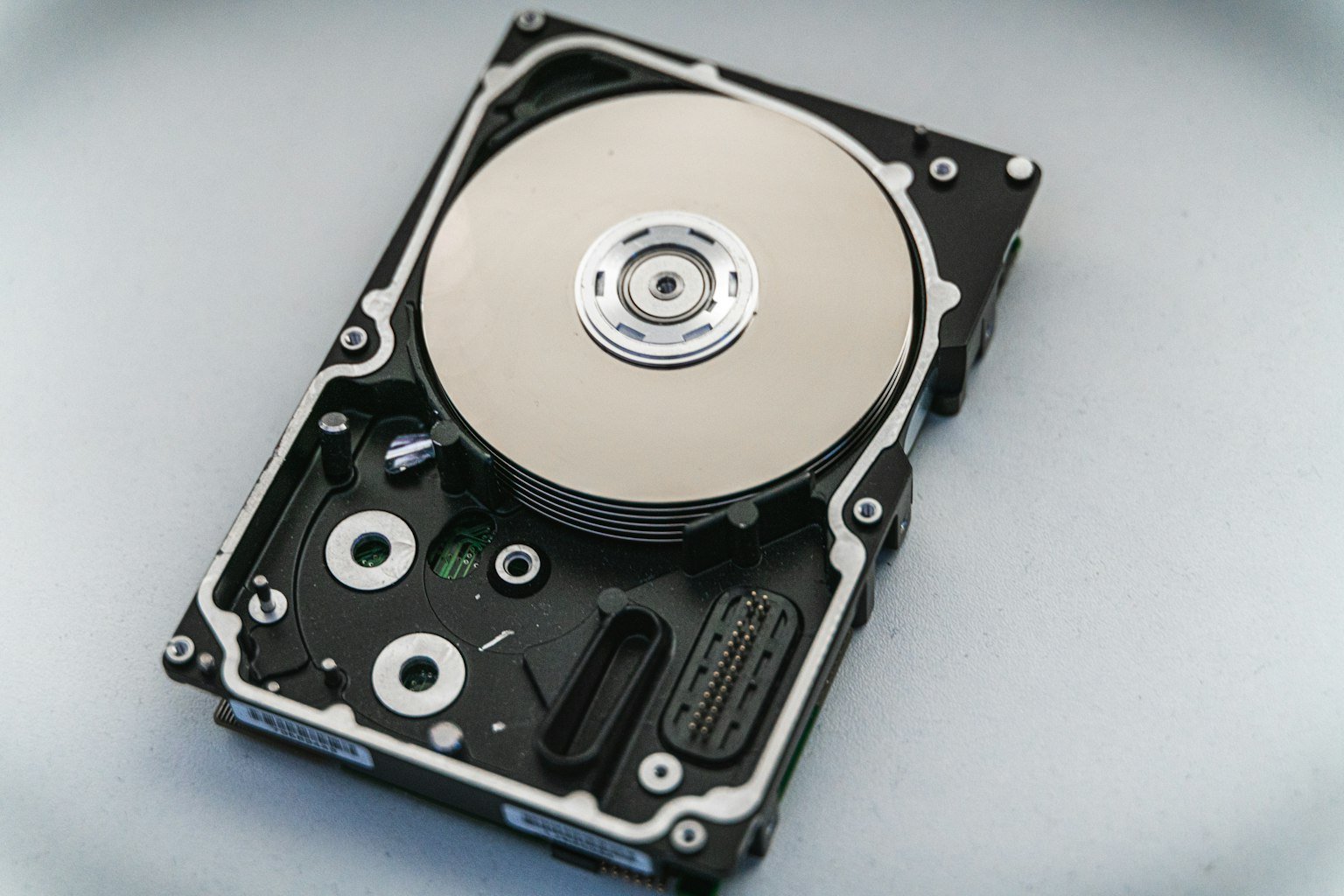
If you hear grinding or repeated loud clicking from the drive, power it down and leave it disconnected. Ordinary soft seek sounds are different. Beeping can also reflect inadequate power; our external hard drive beeping guide explains that symptom in more detail.
Why an external drive can make Windows hang
File Explorer and other programs have to wait for storage requests to finish. If the disk or USB connection stops responding, an application can appear frozen while Windows waits or retries. A folder window that hangs is different from a full system lockup, even though both can start when you connect the same drive.
Pay attention to the trigger. Does it freeze as soon as you plug the drive in, only when you open a folder, or partway through a transfer? That detail makes the next check more useful:
| When it freezes | What to check | What it cannot prove |
|---|---|---|
| As soon as you connect | Cable, power, USB port and enclosure | It does not identify which part failed. |
| At the same folder or file | Possible read errors or file system damage. Stop repeating the operation. | It does not prove the disk is physically healthy. |
| Only through a hub or dock | A direct USB connection | One successful connection does not establish long-term reliability. |
| After waking from sleep | PC and dock support guidance for power or controller issues | It does not rule out a drive fault. |
Check the connection before running a scan
Only continue with these checks if the drive has no alarming sounds or physical damage and you accept the risk of another access attempt. If the files are irreplaceable and unbacked up, get advice before reconnecting it.
- Remove the hub, dock or extension cable.
- Try another compatible data cable, then another USB port.
- If the drive uses an adapter, use the power supply specified for its model.
- If it stays quiet and stable enough to test, try it briefly on another computer. Decline format or initialize prompts.
These connection checks follow Seagate’s USB troubleshooting guidance. Change one thing at a time so you know which change affected the result.
If the drive works through a replacement cable, copy important files to a separate healthy disk and check that the copies open. Keep the suspect cable out of use. If the same drive freezes two computers after a cable change, the drive or enclosure becomes more suspect. That still does not distinguish the enclosure electronics from the disk inside.
If the drive opens, copy the important files first
Use the first stable access to copy files you cannot replace. Save them to another physical drive, not another folder on the problem disk. Copy instead of moving, and start with the files that matter most.
If copying repeatedly stalls, the drive disconnects, or new abnormal sounds appear, stop. Do not keep restarting the same transfer or launch several recovery programs against the disk. A recovery specialist can assess whether imaging the drive with equipment that handles read errors is appropriate. Recovery is never guaranteed.
What to check in Windows after the data is safe
Read Disk Management without accepting its repair prompts
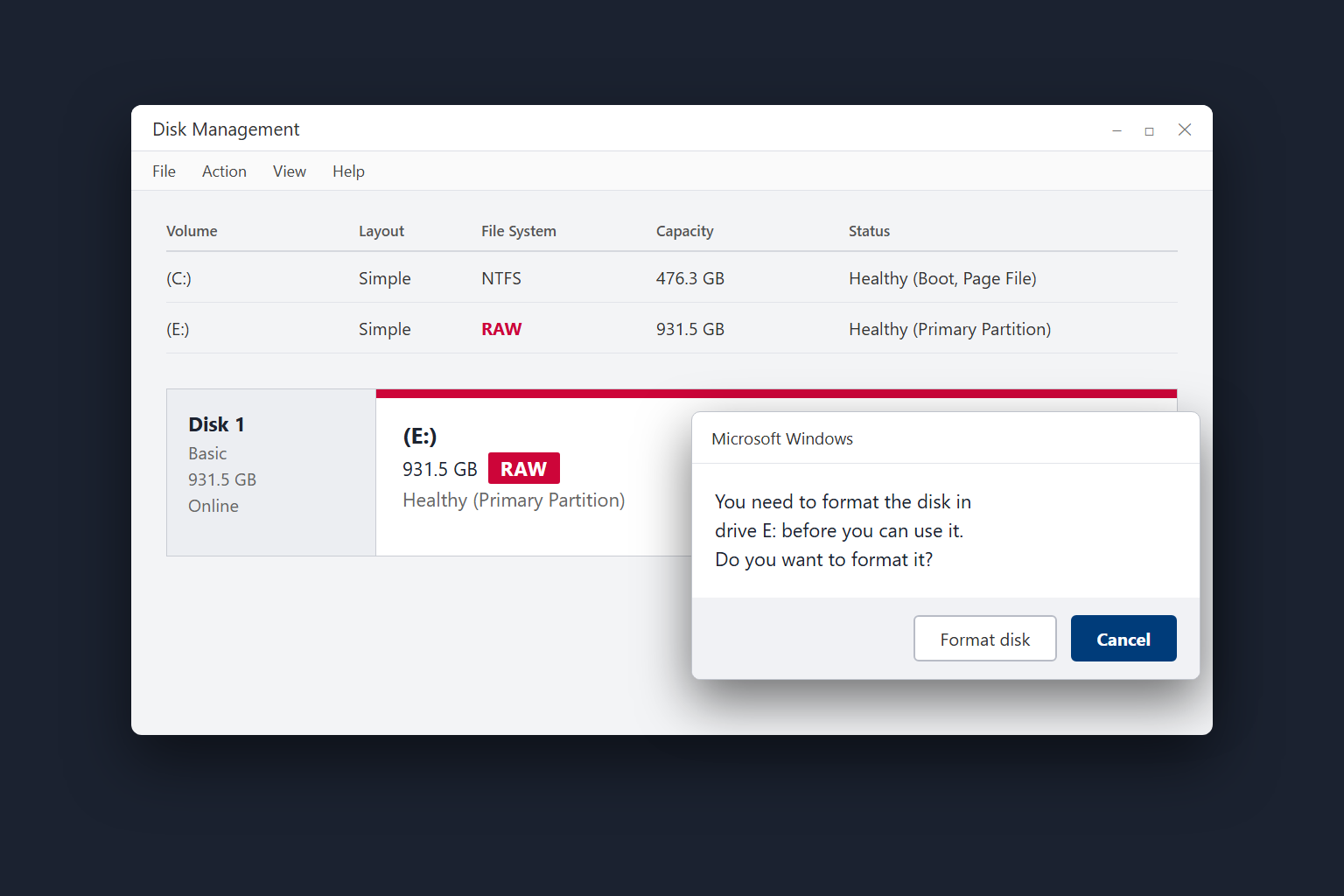
Right-click Start and open Disk Management. Match the external disk by its capacity and model where shown. If Disk Management itself hangs while the drive is connected, do not keep reopening it.
RAW means Windows cannot recognize a usable file system on that volume. Unallocated space means it does not show a usable allocated volume there. Neither label tells you that the files are expendable. Close prompts to format, initialize or create a new volume on a previously used disk. Our RAW hard drive guide explains the difference and what to do before formatting.
Separate a PC problem from a drive problem
If the drive works reliably on another PC, back it up there before working on the original computer. With the suspect drive disconnected, install Windows updates and check the computer manufacturer’s support page for applicable USB or chipset drivers. Avoid third-party driver download sites.
Many USB drives use drivers already included in Windows. Downloading a supposed hard drive driver is unlikely to repair damaged media or a corrupted file system, as Seagate’s driver FAQ explains.
For a problem limited to waking from sleep, note the PC model, dock model and when the freeze occurs. Check their manufacturers’ guidance before changing USB power settings across the system.
Run diagnostics after verifying your backup
A manufacturer’s short diagnostic can help assess the drive once the files are safe. A pass does not rule out an intermittent connection fault, and a failed test is a reason to stop relying on that drive.
Do not start with chkdsk /f or chkdsk /r when you still need files from an unstable disk. Microsoft’s CHKDSK documentation states that /f changes the file system to fix errors, while /r includes those repairs and scans for bad sectors. A large scan can take hours. These commands do not repair failed heads or a damaged USB cable.
When to bring the drive in
Stop home troubleshooting if the drive repeatedly freezes more than one computer, cannot complete a copy, has suffered a drop, or makes grinding or repeated loud clicking sounds. Keep the enclosure closed. Opening or swapping parts can introduce additional problems, and some models depend on their original electronics to access the data.
Gizmo Pros offers hard drive repair assessments in Wesley Chapel, Holiday and Hudson. Tell us whether the files are backed up, what happens when you connect the drive, and which cable or port checks you have already tried. If the files are the priority, ask about data recovery before authorizing repairs. Contact the shop before shipping a noisy or damaged drive.