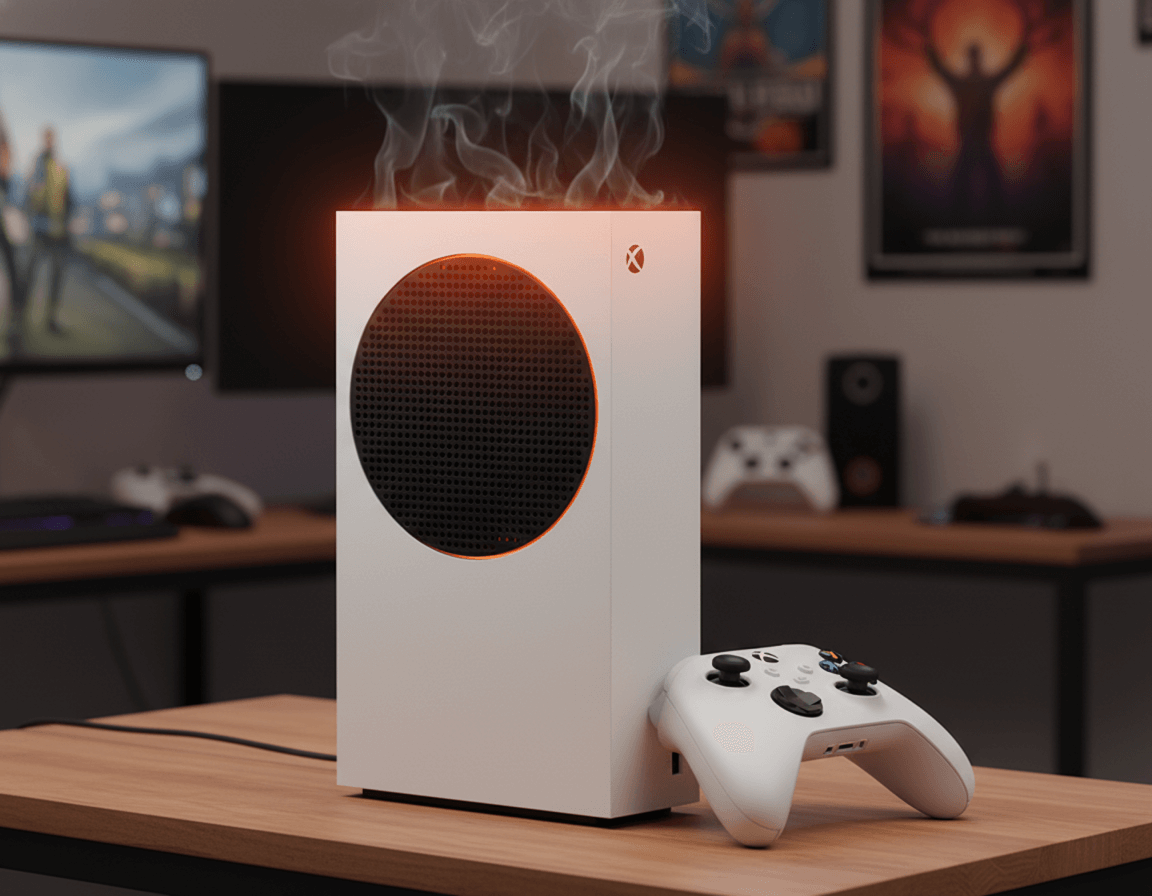
Over the years working at our Wesley Chapel repair shop, I’ve seen countless Xbox consoles come through our doors with overheating issues. The good news? Most of these problems are preventable and fixable without needing a complete hardware overhaul. Let’s dig into why your Xbox Series S is overheating and what you can do about it.
Understanding Xbox Series S Overheating Issues
The Xbox Series S is designed with a sophisticated cooling system that includes a single fan and heat sink to manage the heat generated by its custom AMD processor and GPU. When everything’s working correctly, the console should run quietly and stay cool even during intensive gaming sessions.
However, the Series S generates significant heat during operation—particularly when playing graphically demanding games or running apps in the background. When the internal temperature exceeds safe levels, the console’s built-in thermal protection kicks in to prevent permanent damage.
Normal vs. Abnormal Heat
It’s important to understand that your Xbox Series S will naturally get warm during use. The top and rear vents should feel warm to the touch after an hour of gameplay—that’s perfectly normal. What’s not normal:
- The console feeling hot enough to be uncomfortable to touch
- Frequent automatic shutdowns with overheating warnings
- The fan running at maximum speed constantly
- Performance throttling or frame rate drops during gameplay
- The console shutting down within 30 minutes of starting a game
Here’s Why Your Xbox Series S Keeps Overheating
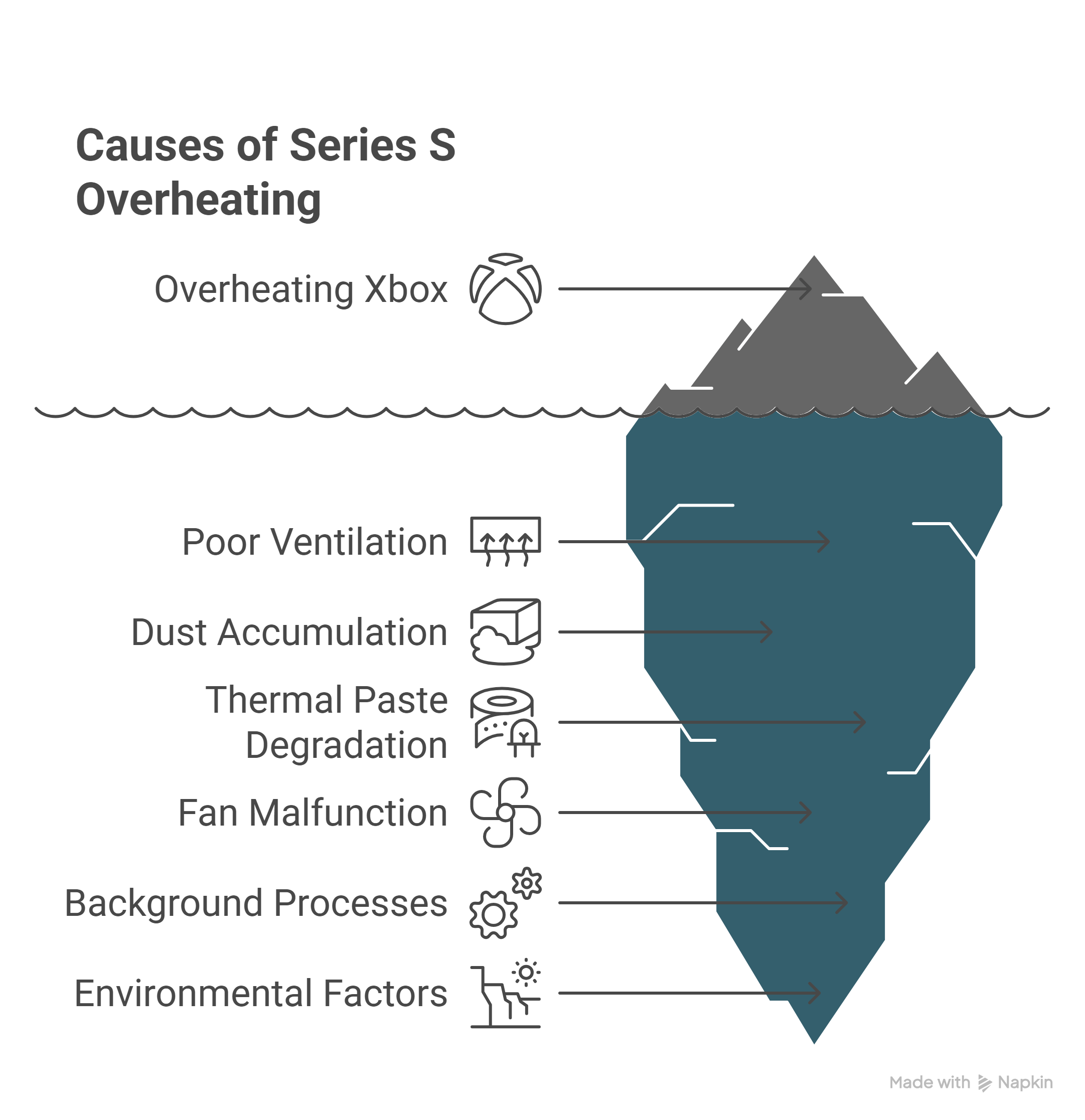
Poor Ventilation and Placement
The most common culprit is improper console placement. The Xbox Series S needs breathing room—specifically around its top and rear vents where hot air exhausts. Common mistakes include:
- Placing the console inside enclosed entertainment centers
- Setting it directly on carpet or soft surfaces
- Stacking other electronics on top of it
- Positioning it too close to walls or in corners
- Keeping it in rooms with poor air circulation
Dust Accumulation
Dust is the silent killer of electronics. Over time, dust particles get pulled into your Xbox Series S through the intake vents and accumulate on the internal fan blades and heat sink fins. This buildup acts like a blanket, trapping heat inside and reducing the cooling system’s efficiency.
Even if you keep a relatively clean home, dust accumulation is inevitable. The fan creates negative pressure that actively pulls in airborne particles, and after 6-12 months of regular use, enough dust can collect to impact thermal performance.
Thermal Paste Degradation
Inside your Xbox Series S, thermal paste sits between the processor and the heat sink, facilitating heat transfer. While Microsoft uses quality thermal paste during manufacturing, it can degrade over time—especially if the console has experienced repeated overheating cycles. Degraded thermal paste loses its effectiveness, creating a thermal barrier instead of a thermal bridge.
Fan Malfunction
The cooling fan in your Xbox Series S should automatically adjust its speed based on internal temperatures. If the fan motor is failing, the bearings are worn, or the fan blades are damaged, it won’t move enough air to keep the system cool. You might notice unusual noises like grinding, clicking, or rattling when the fan struggles.
Background Processes and Quick Resume
The Xbox Series S’s Quick Resume feature is fantastic for jumping between games, but it keeps games suspended in memory, which requires power and generates heat. Additionally, automatic updates, game downloads, and apps running in the background all contribute to the thermal load on your system.
Environmental Factors
External factors play a bigger role than many people realize:
- Room temperature: Gaming in a room above 80°F puts extra stress on the cooling system
- Direct sunlight: Placing the console near windows where sunlight hits it directly
- Poor room ventilation: Closed rooms without airflow trap hot air
- Nearby heat sources: Positioning the console near radiators, space heaters, or other electronics
———————————
We’ve fixed hundreds of Xbox devices over the years, and our 1500+ positive Google reviews show we do it right. Visit our Wesley Chapel or Holiday locations, or we’ll come to you in Zephyrhills, Tarpon Springs, or New Port Richey.
———————————
How to Fix Overheating of Xbox Series S
Immediate Solutions You Can Try Right Now
1. Check Your Console Placement
Move your Xbox Series S to an open, well-ventilated location. Ideally:
- Place it on a hard, flat surface
- Ensure at least 4-6 inches of clearance on all sides
- Keep the top completely clear
- Position it away from walls and corners
- Never place it inside cabinets or enclosed spaces
If you’re tight on space, consider a dedicated console stand that elevates the unit and improves airflow underneath.
2. Clean the Exterior Vents
Grab a can of compressed air and carefully blow out the vents on your Xbox Series S. Focus on:
- The top circular vent (exhaust)
- The rear rectangular vents (exhaust)
- The bottom intake vents
- Side grilles if accessible
Hold the can upright and use short bursts rather than continuous spray. Keep the nozzle at least 3-4 inches away from the vents to avoid forcing moisture into the console.
3. Improve Room Conditions
Lower the ambient temperature if possible:
- Turn on air conditioning or a fan
- Open windows for cross-ventilation
- Avoid gaming during the hottest parts of the day
- Keep the console away from direct sunlight
4. Manage Background Tasks
Close games and apps you’re not actively using:
- Press the Xbox button to open the guide
- Highlight the game or app
- Press the Menu button (three horizontal lines)
- Select “Quit”
Disable Quick Resume for particularly demanding games if you notice persistent overheating. You can also turn off automatic updates during gaming sessions through the system settings.
5. Give It a Break
If your Xbox Series S shuts down from overheating, let it cool completely before restarting—at least 30-60 minutes. Repeatedly restarting a hot console can accelerate thermal paste degradation and stress internal components.
————————————–
Call us at +1 (813) 994-4966 or +1(727) 376-1126 to discuss your Series S situation.
————————————–
Advanced Cleaning and Maintenance
Internal Dust Removal
For dust that’s accumulated inside the console, a more thorough cleaning is necessary. This involves partially disassembling the Xbox Series S to access the fan and heat sink.
Important: Opening your console will void your Microsoft warranty if it’s still active. If your Xbox is under warranty, contact Microsoft support first.
If you’re comfortable proceeding:
- Power off the console completely and unplug all cables
- Wait at least 30 minutes for internal components to cool
- Remove the rear expansion slot cover
- Carefully remove the outer shell screws (you’ll need a TR8 Torx security screwdriver)
- Gently separate the shell to expose the internal fan
- Use compressed air to clean the fan blades and visible heat sink fins
- Reassemble carefully, ensuring all clips snap back into place
If you’re not comfortable doing this yourself, our team at Gizmo Pros can handle thorough internal cleaning for you. We use specialized tools and techniques to safely remove dust buildup without risking damage to sensitive components.
Thermal Paste Replacement
Replacing thermal paste is more involved and requires complete disassembly of the cooling system. This procedure involves:
- Removing the motherboard shield
- Detaching the heat sink from the processor
- Carefully cleaning off old thermal paste with isopropyl alcohol
- Applying fresh, high-quality thermal paste
- Reassembling the cooling system with proper mounting pressure
This is definitely a job for professionals. Using too much or too little thermal paste, or applying uneven pressure when reattaching the heat sink, can actually make thermal performance worse. We regularly perform thermal paste replacements on gaming consoles at our shop, and the improvement in thermal performance is often dramatic.
Hardware Solutions
External Cooling Accessories
Several third-party cooling solutions are available for the Xbox Series S:
Cooling stands: These elevate the console and often include additional fans to improve airflow. Look for models with USB-powered fans that draw power from the console itself.
Intercooler fans: These attach to the console’s exhaust vents to help pull hot air away more effectively. While they can help in some situations, quality varies significantly between brands.
Cooling pads: Similar to laptop cooling pads, these provide a ventilated platform with built-in fans.
A word of caution: Not all external cooling solutions are beneficial. Some poorly designed products can actually disrupt the console’s intended airflow pattern or create additional noise without providing meaningful thermal benefit. Stick with well-reviewed products from reputable manufacturers.
Fan Replacement
If your Xbox Series S fan is failing, replacement is necessary. Signs your fan needs replacement include:
- Loud grinding or clicking noises
- Fan not spinning at all
- Fan spinning intermittently
- Visible damage to fan blades
Fan replacement requires full console disassembly and desoldering/resoldering of electrical connections. This is specialist work that requires both technical knowledge and the right tools.
At Gizmo Pros, we stock quality replacement fans and can swap out a faulty cooling fan while ensuring your console’s warranty seals remain intact where possible. We test the console thoroughly after any cooling system repair to verify proper thermal performance.
————————————–
Call us at +1 (813) 994-4966 or +1(727) 376-1126 to discuss your Series S situation.
————————————–
When to Seek Professional Help
Some situations require professional diagnosis and repair:
- Repeated overheating despite trying all fixes: This suggests internal hardware issues that need expert attention
- Physical damage: If your console has been dropped or damaged, internal components may be compromised
- Warranty concerns: If your Xbox is still under warranty, don’t risk voiding it with DIY repairs
- Liquid damage: Any liquid exposure requires immediate professional cleaning to prevent corrosion
- Electrical issues: Problems with power delivery can cause overheating alongside other symptoms
If you’re wondering about the cost implications of professional repairs, understanding Xbox Series S repair pricing can help you make an informed decision about whether to repair or replace your console. In many cases, professional repair is significantly more cost-effective than buying a new unit, especially when dealing with common issues like overheating.
How Gizmo Pros Can Help
At our Wesley Chapel, Holiday, and Hudson locations, we’ve diagnosed and repaired countless overheating gaming consoles over the years. Our comprehensive Xbox Series S service includes:
Thermal diagnostics: We use professional-grade equipment to measure actual internal temperatures and identify exactly what’s causing overheating.
Deep cleaning: Our technicians safely disassemble your console for thorough internal cleaning, removing dust from fans, heat sinks, and all air pathways.
Thermal paste replacement: We use high-quality thermal compound and apply it with precision to ensure optimal heat transfer.
Component replacement: If your cooling fan or other hardware needs replacement, we stock quality parts and complete repairs quickly.
Performance testing: After any repair, we run your Xbox Series S through rigorous testing to verify temperatures stay within safe ranges during demanding workloads.
We back all repairs with our 90-day limited warranty against defects, and most services are completed while you wait. Our 550+ positive Google reviews reflect our commitment to quality work and fair pricing.
Conclusion
An overheating Xbox Series S is frustrating, but it’s rarely a death sentence for your console. Most overheating issues stem from preventable problems like poor ventilation and dust buildup. Start with the simple fixes—improve placement, clean the vents, manage background processes—and you’ll likely see immediate improvement.
For persistent overheating problems or if you’re uncomfortable performing internal maintenance yourself, professional service is worth the investment. A properly serviced Xbox Series S should run cool and quiet for years to come, letting you focus on what matters: your games.
Don’t let overheating cut your gaming sessions short. Whether you tackle the fix yourself or bring your console to our shop, addressing thermal issues promptly protects your investment and ensures smooth gameplay.