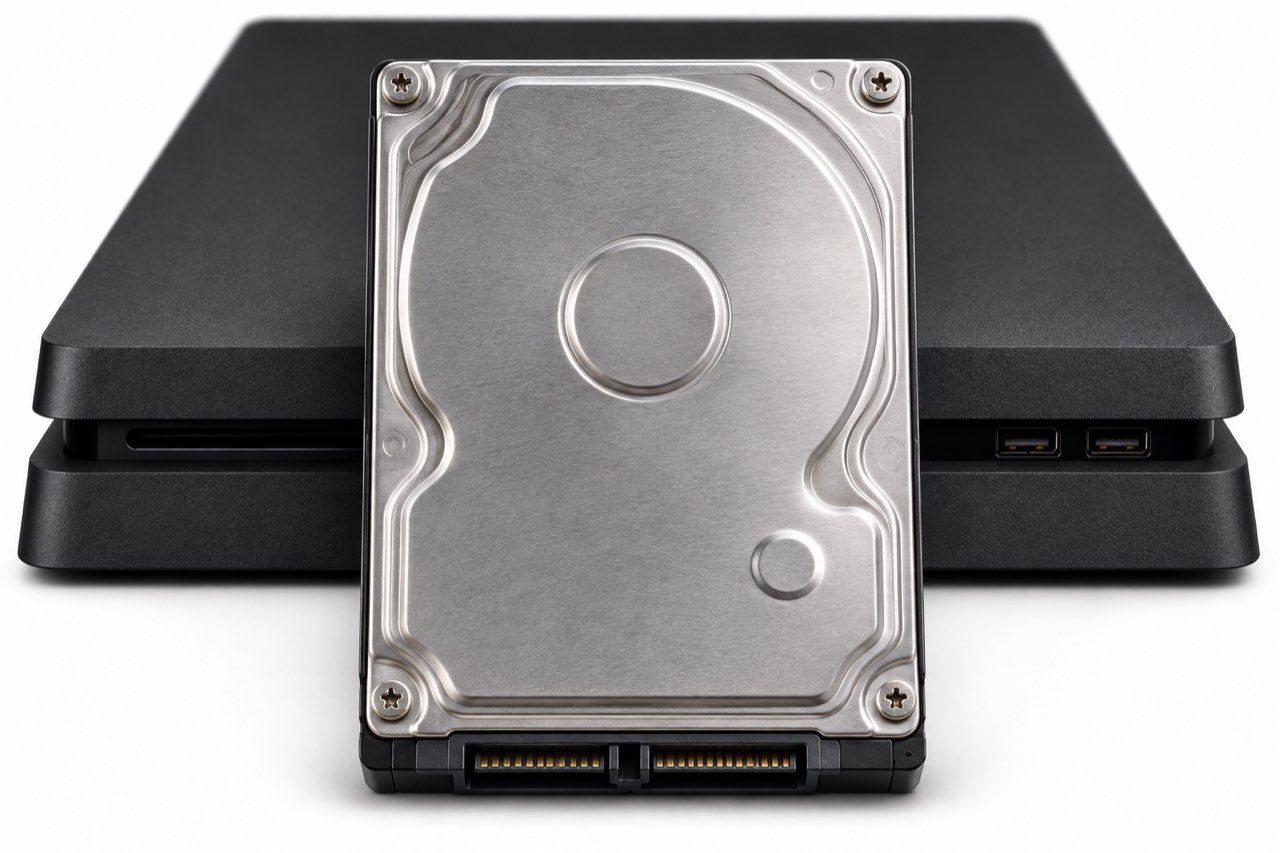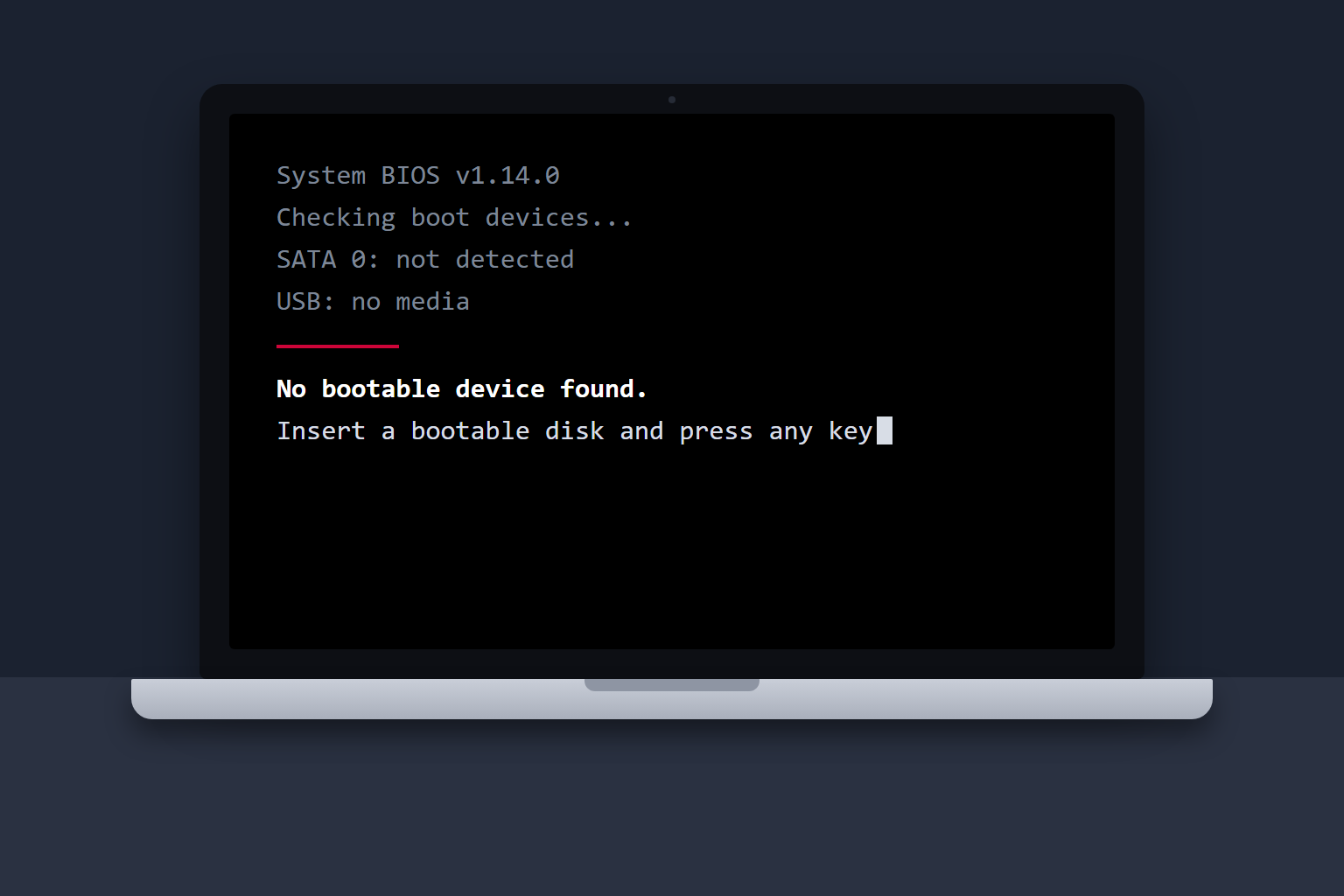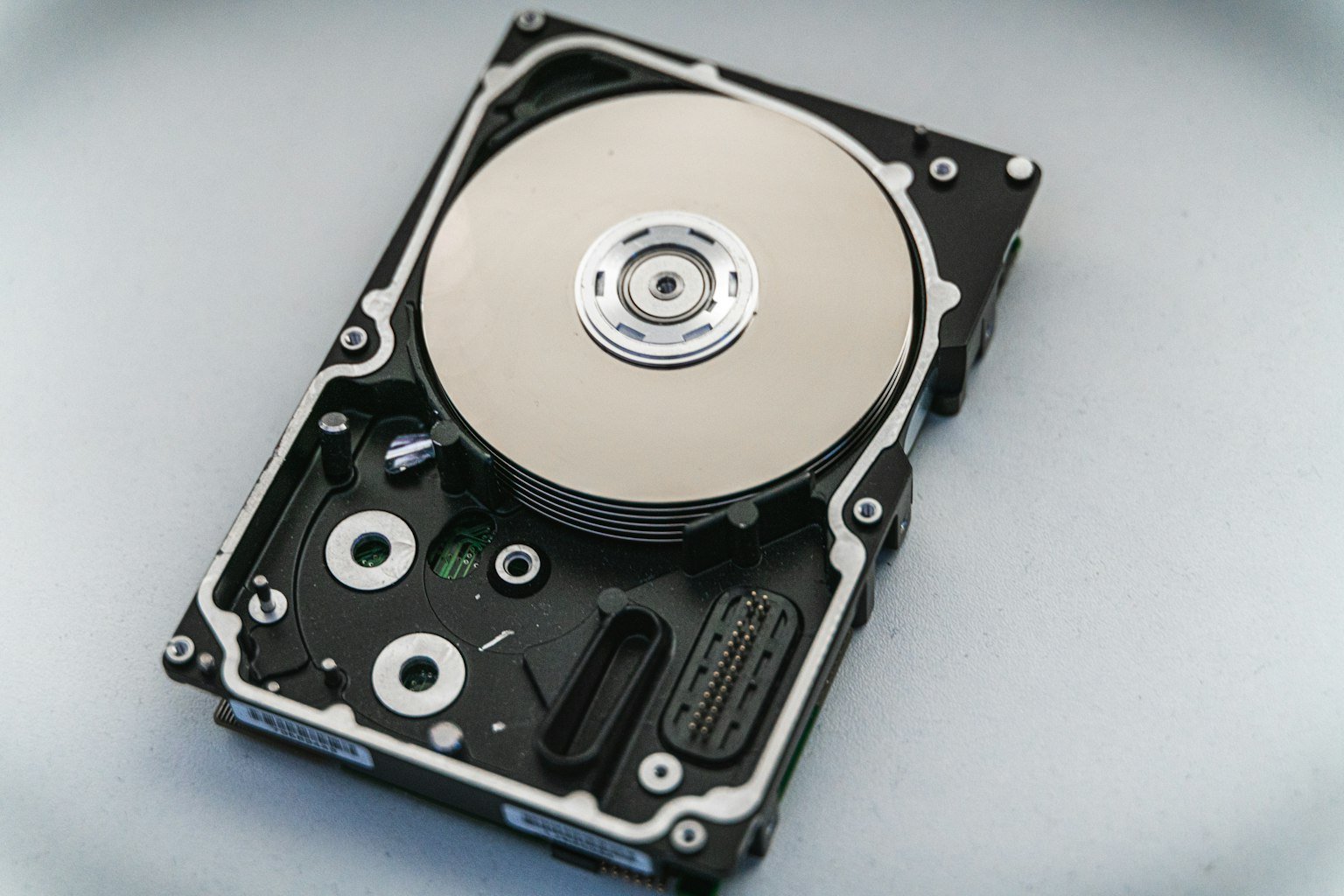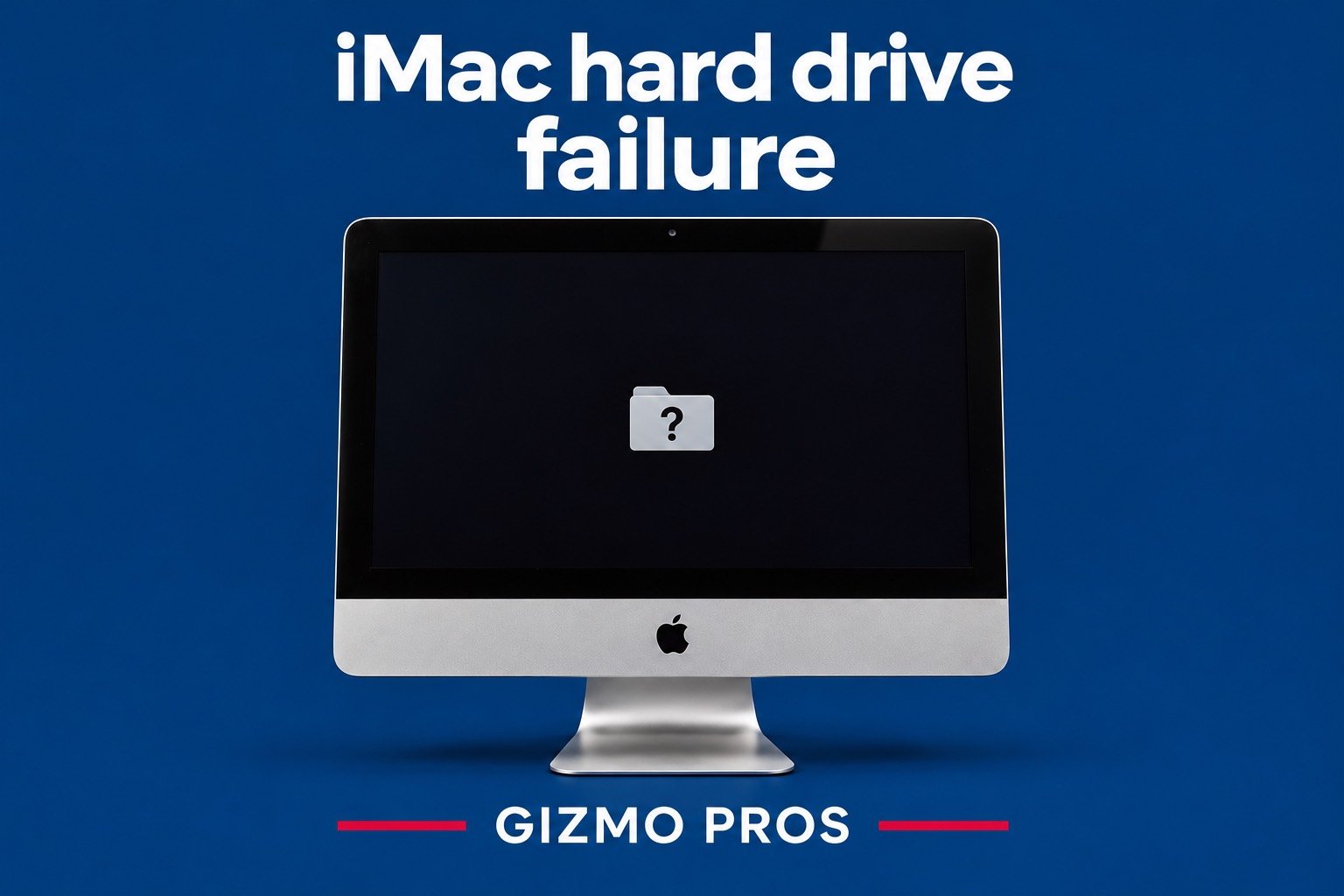
An iMac hard drive can fail gradually. Finder freezes when you open a folder, a file copy stalls, and one morning the Mac starts up to a flashing folder with a question mark. That folder means the Mac can't find a usable startup disk or macOS installation. The cause could be a damaged file system, a failing drive, or another hardware fault.
Shut down if you hear repeated clicking or grinding from an older iMac, or if the internal drive keeps disappearing and you need files that aren't backed up. Repeated startups and full-disk scans can put more strain on a failing drive.
| What you see or hear | What to do first |
|---|---|
| Repeated clicking or grinding | Shut down. If the iMac has a mechanical drive and you need its files, ask about recovery before powering it on again. |
| Finder hangs, but files still copy | Save irreplaceable files to another drive first. Stop if the drive drops out or copies repeatedly fail. |
| Flashing question mark, with a current backup | Open macOS Recovery and check whether Disk Utility can see the internal device. |
| Internal device missing in Disk Utility | Check that Show All Devices is selected. If the device is still missing, get the Mac diagnosed. |
Find out what storage your iMac uses
Depending on the configuration, an Intel iMac may have a mechanical hard drive, a Fusion Drive, or an SSD. A Fusion Drive combines a mechanical disk and flash storage into one volume. Apple silicon iMacs use SSD storage, so they can have storage failures without making any drive noise. Check your iMac model and chip in About This Mac if it still starts.
Slow startup on its own tells you little. An older mechanical drive can feel slow even when healthy. Pay more attention to changes such as Finder hanging every time you open the same folder, failed file copies, or a disk that appears only on some startups. See our guide to hard drive failure symptoms for other signs to compare.
Check the startup disk after securing your files
If you have a current backup and the drive shows no signs of mechanical trouble, open macOS Recovery. On an Intel iMac, turn it on and immediately hold Command-R. On an Apple silicon iMac, start from shutdown and hold the power button until startup options appear. Choose Options, then Continue.
In Disk Utility, choose View > Show All Devices. Look for the internal storage device itself. A device may still be listed even when its startup volume won't mount. If it is visible and your files are safe, run First Aid from the lowest volume upward through any containers and then the device. First Aid checks the file system. If the device disappears or errors keep returning after a repair, have the hardware checked. See Apple's Disk Utility instructions.
On a Fusion Drive iMac, you may see two separate drives where you used to see one. Tell the technician what Disk Utility shows. Apple's procedure for recreating a split Fusion Drive erases both drives. Wait until you have verified the backup or decided you no longer need the files.
Decide whether you need recovery, replacement, or both
If the internal drive is missing, makes repeated mechanical noises, or contains files you can't replace, tell the shop that the files come first. Replacing a failed drive can get a compatible Intel iMac working again, but the files are still on the old drive. The repair options depend on the exact iMac model and storage configuration.
When you contact Gizmo Pros about hard drive repair, share the iMac model, what you saw on the screen, and the date of your last backup. That helps the technician work out whether to check the storage connection, assess the drive for recovery, or quote a replacement.