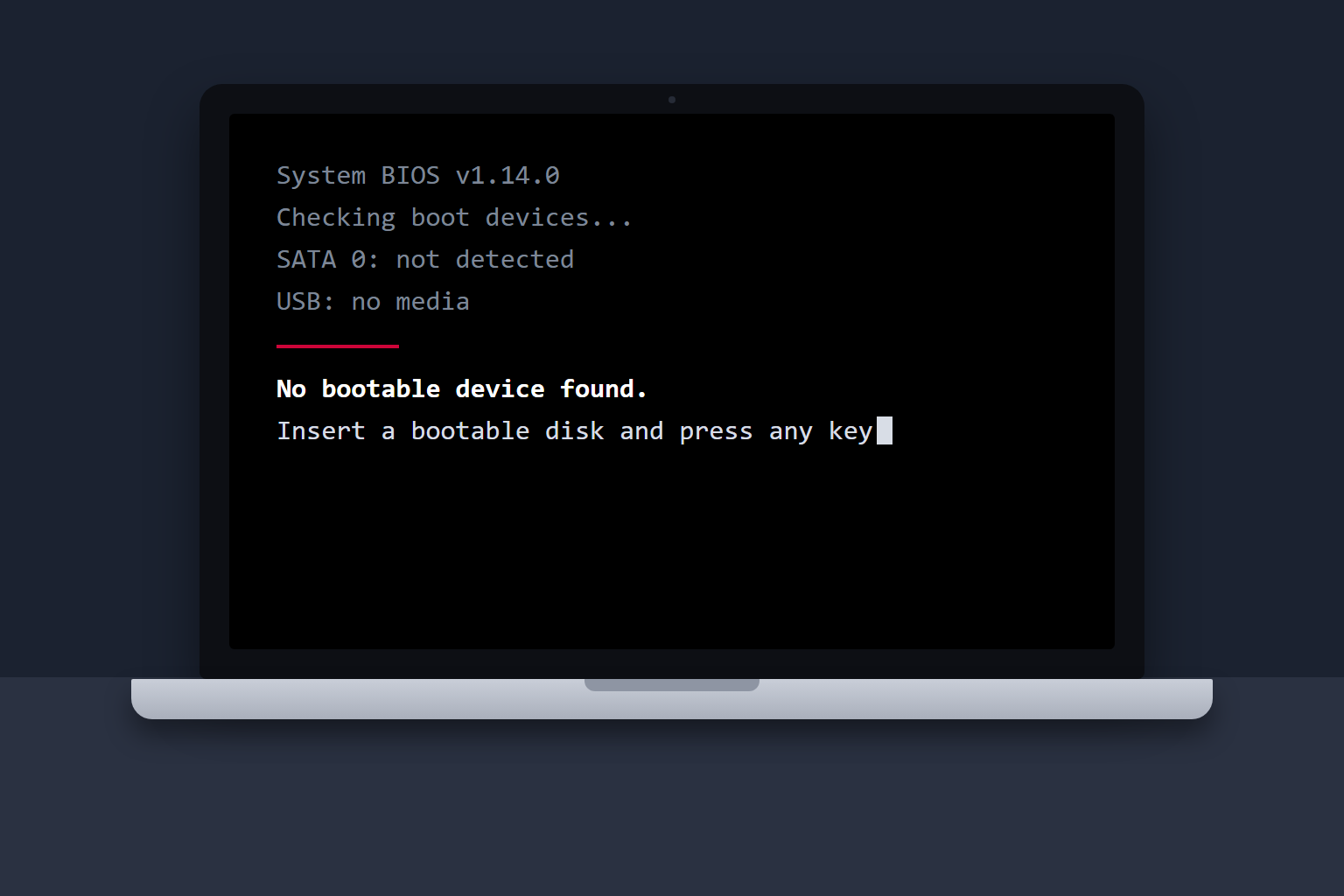
“No bootable device” means your computer started up but could not find anything to load Windows from. The screen goes black, or shows a line like “No boot device found” or “Reboot and select proper boot device,” and nothing else happens. The fix depends on one question: is the drive still readable, or is the drive itself failing?
Most of the time the answer is good news. A wrong setting, a loose connection or damaged boot files will all cause this error, and all of them are fixable without losing anything. Below is what causes it, the fixes to try in order, and the point where you should stop so your files stay safe.
What “no bootable device” actually means
When you press the power button, the computer’s firmware (the BIOS or UEFI) runs a quick self-check, then looks for a drive that holds a startup record, which tells it where Windows lives. If it cannot find that record, you get this error. The computer is working. It just has nothing to start from.
That tells you something useful. The motherboard, processor and memory are usually fine. The problem sits somewhere between the firmware and the drive, and there are only a handful of places for it to hide:
- The firmware is looking in the wrong place. The boot order points at a USB port, a network adapter or an empty slot instead of your main drive.
- The drive is not being detected. A loose connection, a dead connector or a drive that has failed will all make it invisible.
- The boot files are damaged. The drive is fine, but the small startup partition or boot record that points to Windows is corrupted. A failed update or a sudden power loss is the usual trigger.
- The firmware settings changed. A dead CMOS battery, a BIOS update or someone switching between UEFI and Legacy mode can make a perfectly good drive look unbootable.
- The drive is failing. This is the one that costs people their files, and it is the reason the order of the steps below matters.
What you are seeing and what it usually means
This table is a rough guide from what comes across our bench, not a diagnosis. It tells you where to start.
| What you notice | Most likely cause | Where to start |
|---|---|---|
| Error appeared after a Windows update or a power cut | Damaged boot files | Startup Repair from a recovery USB, then the boot repair commands |
| Error appeared after plugging in a USB drive, SD card or after a BIOS change | Wrong boot order or UEFI and Legacy mismatch | Unplug everything, then check the boot order in BIOS |
| BIOS does not list your drive at all | Loose connection or a failed drive | Reseat the drive if you can, and stop here if it still is not listed |
| Clicking, grinding or repeated beeping from the drive | Mechanical failure | Power off now and do not turn it back on |
| Date and time reset to a default, plus the error | Dead CMOS battery clearing your BIOS settings | Reload BIOS defaults, set the boot order again, replace the battery |
| Error came after a fall, a knock or the laptop got very hot | Damaged drive or drive connector | Do not keep restarting it. Get it checked. |
Before you try anything: protect your files
If this error showed up on a laptop with files you cannot replace, read this section first. The fixes below are safe for a healthy drive. On a drive that is starting to fail, every extra restart and every repair tool that scans the whole disk is a gamble.
A drive that is on its way out usually gives warnings first. If you remember any of the signs in our guide to hard drive failure symptoms, such as freezing, files that would not open, or a laptop that had slowed to a crawl before this happened, treat the drive as suspect. In that case, skip straight to the section on when to stop.
Whatever you do, don’t reinstall Windows, reset the PC, or agree to format the drive as a way to “get it working.” Those options erase the drive. If it turns out the drive was fine and only the boot files were damaged, you will have wiped your own files for nothing.
How to fix a “no bootable device” error, step by step
Work through these in order. The early steps take a few minutes and solve more cases than you would expect.
1. Unplug everything and restart
Remove every USB drive, SD card, external hard drive, dongle and any disc. Then hold the power button for about 15 seconds to force a full shutdown, and start it again. If a stray USB stick was set to boot first, the error disappears, and it is one of the most common causes we see.
2. Drain the power on a laptop
Shut the laptop down, unplug the charger, and if the battery is removable, take it out. Hold the power button for 30 seconds, put everything back, and try again. This clears leftover charge that can confuse the firmware. If the laptop starts but behaves oddly, our article on a laptop that won’t boot but the fan spins covers the other things that stop a startup, such as memory and display faults.
3. Check whether the BIOS can see your drive
This is the most important diagnostic step, because it splits the problem in two. Restart and tap the BIOS key as the logo appears. It is usually F2, Delete, F10 or Esc, depending on the brand. Look for a storage, boot or system information screen that lists your drives.
- The drive is listed. The hardware is talking to the firmware, so the cause is the boot order, the firmware mode or the boot files. Keep going to the next step.
- The drive is not listed. Either the connection is bad or the drive has failed. Go to the section on a missing drive below.
4. Fix the boot order and boot mode
In the boot menu, make sure your main drive, often labeled “Windows Boot Manager” or showing the drive’s model name, sits at the top. Anything that says USB, network or PXE should come after it.
Then look at the boot mode. Modern Windows installations use UEFI. Older ones use Legacy, sometimes labeled CSM. If the setting got switched, a healthy drive will not boot. Microsoft explains the difference in its page on booting to UEFI or Legacy BIOS mode, and Wikipedia has a plain-language overview of UEFI if you want the background. If you do not know which your PC uses, try the other one, save, and see if it starts. Switching back is harmless.
If none of that helps, find the option called “Load Defaults” or “Restore Factory Settings,” apply it, and set the boot order once more.
5. Run Startup Repair from a recovery USB
If the drive shows up in BIOS but Windows will not load, the boot files are the likely problem. Windows can usually repair them itself, but you need to start from outside the broken installation. On another working PC, use Microsoft’s media creation tool to make a Windows installer on a USB stick. Plug it into the broken computer and boot from it using the boot menu key (often F12 or F9).
On the first screen, choose your language, then Repair your computer, then Troubleshoot, then Advanced options, and then Startup Repair. Let it run. Microsoft lists the full set of Windows recovery options if you want to see what else is on offer, but only Startup Repair and the Command Prompt matter here. Avoid “Reset this PC” for now.
6. Rebuild the boot records from the Command Prompt
If Startup Repair cannot fix it, go back to Advanced options and open the Command Prompt. Type these one at a time, pressing Enter after each:
bootrec /scanoschecks whether it can find a Windows installation.bootrec /fixmbrwrites a fresh master boot record.bootrec /fixbootwrites a new boot sector.bootrec /rebuildbcdrebuilds the boot configuration data and offers to add any Windows installation it finds.
On many UEFI computers, bootrec /fixboot returns “Access is denied.” That is normal, and it does not mean the drive is dead. The usual workaround is to assign a letter to the small EFI partition with diskpart and then run bcdboot C:\Windows /s S: /f UEFI, replacing S with whatever letter you assigned and C with the drive that holds Windows. If you are not comfortable with diskpart, this is a sensible place to stop, because choosing the wrong partition at that prompt is the kind of mistake that wipes a drive.
7. Be careful with chkdsk
You will see advice to run chkdsk C: /f /r. On a healthy drive it is fine. On a failing drive it reads every sector, which stresses the drive and can push it from “struggling” to “dead.” Only run it if your files are backed up or you have decided they are not worth worrying about. If the drive makes any unusual noise, skip it.
If the BIOS does not detect your drive at all
A drive missing from the BIOS is a different problem from damaged boot files, and it is a more serious one. There are three possibilities, in order of how often we find them:
- A loose connection. On a desktop, reseat the SATA or power cable. On a laptop with a 2.5-inch drive, the drive can work loose from its connector after a knock. An NVMe or M.2 SSD can sit slightly out of its slot, particularly in a laptop that has been moved around a lot.
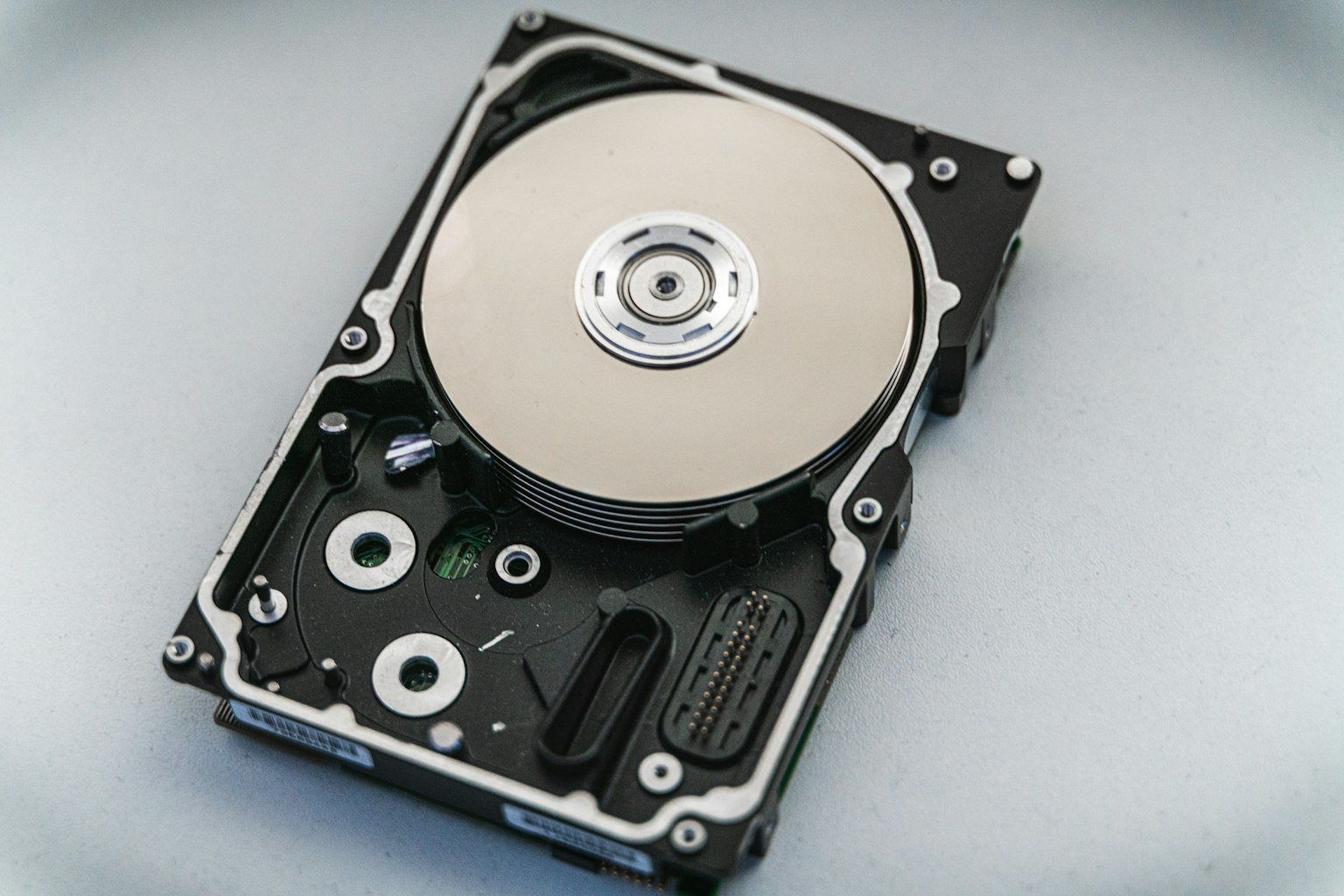
- A failed drive. The drive’s electronics or its controller have died. For a spinning hard drive, that often comes with clicking or a drive that never spins up.
- A fault on the board. It happens, but it is rare compared with the first two.
If you are comfortable opening your own laptop, you can reseat the drive once. If it is still not listed afterwards, stop. A drive the firmware cannot see is not a drive that tools like Startup Repair can fix, and the more it gets powered up, the lower the odds of a clean recovery.
Some of these drives are fully recoverable. Others are not. The difference often comes down to how much the drive has been run since it first failed. Our hard drive repair page explains what we can do with a drive that has dropped out of sight, and a free diagnostic tells you which kind you have.
Laptop, desktop, SSD or hard drive: does it change anything?
The steps are the same, but a few details differ.
- Laptops. Brand matters mostly for the BIOS key, and the error text varies. Dell and HP often say “No bootable device found,” Lenovo tends to say “No boot device found,” and some Acer and Gateway models say “Reboot and select proper boot device.” The causes are identical. If a Gateway or similar laptop is showing a black screen instead of an error message, see our guide to a Gateway laptop black screen and not booting.
- Desktops. Easier to open and check. A SATA cable that has shifted in its port is a classic cause, and testing with a different cable and port costs nothing.
- SSDs. An SSD does not click or grind when it fails. It just disappears from the BIOS, or shows up with the wrong size. That makes the BIOS check in step 3 even more useful. SSDs can also fail without warning, so a drive that vanishes is worth backing up the moment it comes back, if it does.
- Hard drives. They give warnings. Clicking, a slow laptop and files that fail to open often come first. If any of that sounds familiar, our guide to an external hard drive that is beeping explains why start-up noises should never be ignored, and that advice applies to internal drives as well.
For drive health in general, a tool that reads SMART data will often show a drive in trouble before it fails. Backblaze has a useful explanation of which SMART stats actually predict drive failure, if you want to look at yours once the computer is running again.
When to stop and get help
The rule is simple. If the drive is not listed in BIOS, if it makes any noise it did not make before, or if you have tried the steps above and the error is still there, stop. Every extra power-up on a failing drive is a gamble, and the people who get their files back are usually the ones who stopped early.
It is especially important to stop when:
- the drive clicks, grinds, beeps or does not spin up,
- the error started after the laptop was dropped or knocked,
- the drive is missing from the BIOS even after reseating it, or
- the files on it are not backed up anywhere else.
At that point the job is no longer fixing the error. It is getting the files off safely. We look at drives for free at all three of our Pasco County shops, and the diagnostic tells us whether it is a setting, the boot files, the connector or the drive itself. You can bring it to us in Wesley Chapel, Holiday or Hudson.
Not near our Florida locations? Ship it to us instead.
If you are outside Wesley Chapel, Holiday or Hudson, you can mail the laptop or the drive in. Pack it with plenty of padding, and do not keep powering it on before it ships.
How to avoid seeing this error again
- Keep a backup of anything you cannot replace. A second drive or a cloud backup is the simplest option, and it turns a failed drive from a disaster into an inconvenience.
- Do not switch off a PC with the power button while Windows is installing updates. Interrupted updates are one of the most common causes of damaged boot files.
- Replace a slow, noisy or aging drive before it fails. Moving to an SSD is the single biggest upgrade for an older laptop.
- Replace the CMOS battery if your PC keeps resetting the date and time. A dead one loses your BIOS settings every time the power is removed.
- Keep a Windows recovery USB somewhere safe. Making one takes ten minutes, and having it ready is the difference between a quick repair and a long afternoon.
Frequently asked questions
What causes a “no bootable device” error?
The computer could not find a drive with a valid startup record. Common causes are a wrong boot order, damaged boot files after a failed update, a changed UEFI or Legacy setting, a loose drive connection, or a failing drive.
How do I fix “no bootable device” without losing data?
Unplug all external devices, check that the BIOS lists your drive, correct the boot order and boot mode, and run Startup Repair from a Windows recovery USB. Do not reset the PC, reinstall Windows or format the drive, because those erase your files.
Does “no bootable device” mean my hard drive is dead?
Not necessarily. Many cases come down to boot order, firmware settings or damaged boot files on a healthy drive. If the drive does not appear in the BIOS, or it makes clicking or grinding noises, a hardware failure becomes much more likely.
Can a dead CMOS battery cause no bootable device?
Yes. When the battery dies, the BIOS can lose its settings every time the power is removed, including the boot order. If your date and time keep resetting, replace the battery and set the boot order again.
Is it safe to run bootrec and chkdsk?
The bootrec commands only rewrite the small startup records and are generally safe on a healthy drive. Chkdsk with the /r option reads the whole disk and can stress a failing one, so back up first or skip it if the drive is making noise.
Why does my SSD show “no bootable device”?
The most likely reasons are corrupted boot files, a changed boot mode, or an SSD that has stopped being detected. Check whether the BIOS lists it. If it does not, the SSD or its connection is the problem, and repeated restarts will not help.
How much does it cost to fix a no bootable device error?
It depends on the cause. Boot file repairs and setting changes are usually quick jobs, while a failed drive means a replacement and, if you want your files, recovery work. Diagnostics at Gizmo Pros are free, and you get a quote before any work starts.